WhatsApp Template Creation
WhatsApp Template Creation WhatsApp Templates (also known as Highly Structured Messages – HSMs ) are pre-approved message formats that allow businesses to send notifications to customers at scale. These templates are com
WhatsApp Templates (also known as Highly Structured Messages – HSMs) are pre-approved message formats that allow businesses to send notifications to customers at scale.
These templates are commonly used for:
Transactional alerts
Marketing messages
One-time passwords (OTPs)
Templates support dynamic placeholders such as {{1}}, {{2}}, etc., which are replaced with real customer data when the message is sent.
For example, placeholders can dynamically insert information like:
Customer names
Order numbers
Tracking links
Creating a WhatsApp Template
Follow these steps to create and submit a WhatsApp template in Chat360.
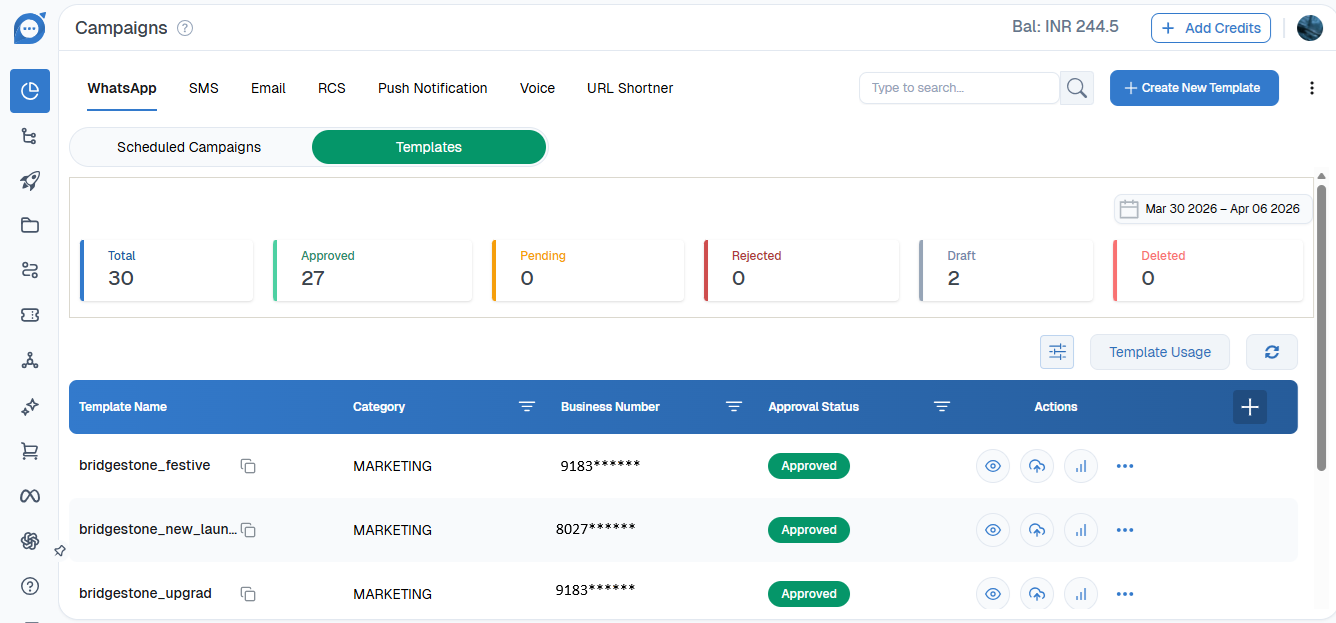
Step 1: Navigate to Templates
Log in to your Chat360 Dashboard.
Navigate to:
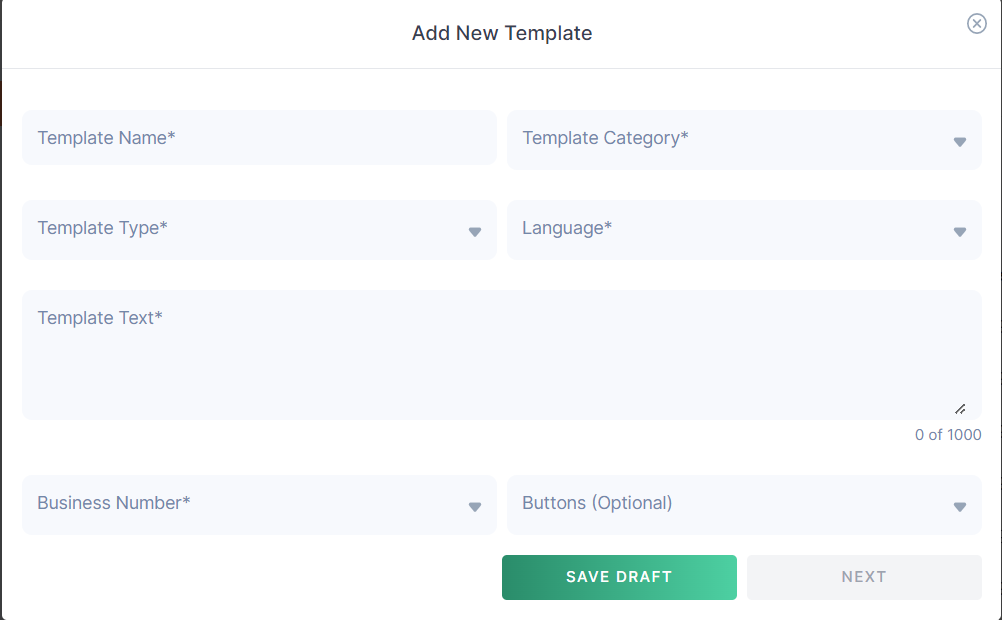
This page displays all existing templates along with their statuses:
Approved – Ready for use
Draft – Saved but not submitted
Not Approved – Rejected during WhatsApp review
Step 2: Add a New Template
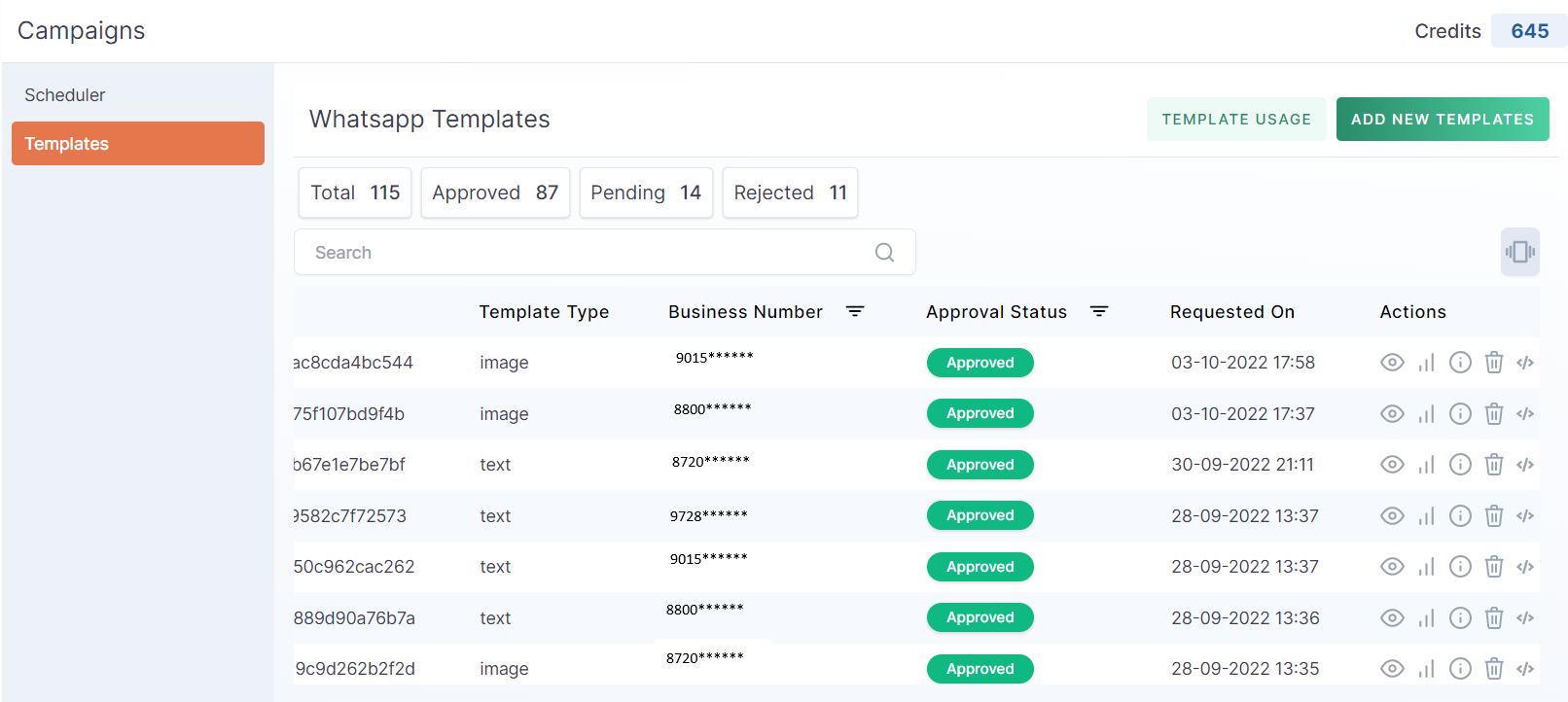
Click Add New Template.
A template creation form will appear where you can configure template details.
Step 3: Configure Template Details
Fill in the following information:
Template Name: A custom identifier for internal reference.
Category: Choose from Transactional, Marketing, or OTP.
Type: Select the message format—Text, Image, PDF, or Video.
Language: Pick one of 20+ supported languages.
Business Number: Assign the WhatsApp Business number that will send this template.
Step 4: Compose the Message
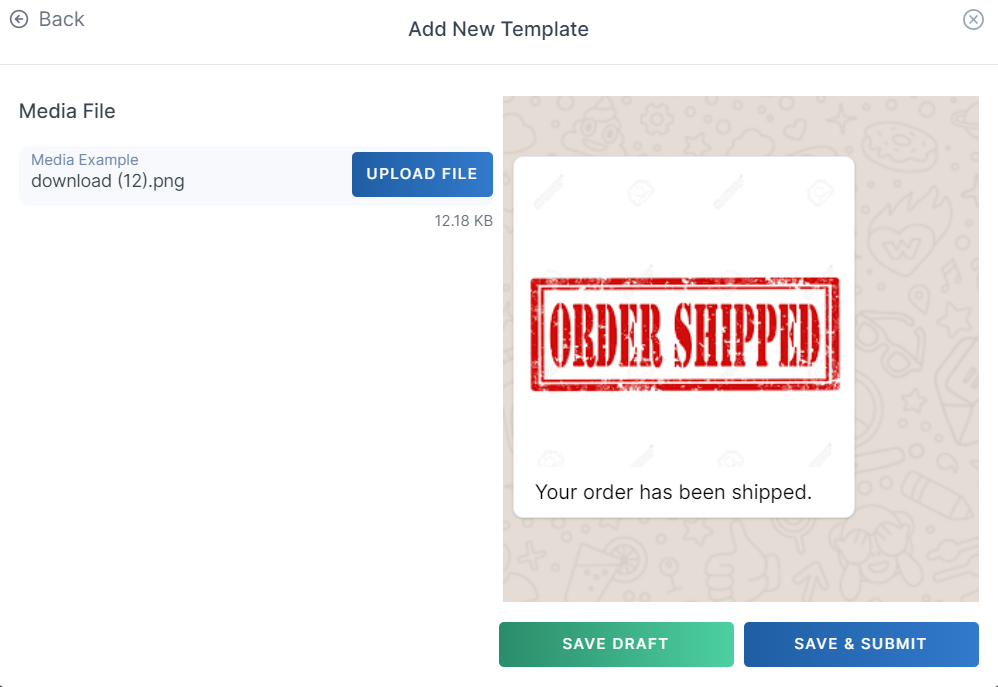
Write the template message in the Message Body section. You can include dynamic placeholders to personalize messages.
Example placeholders:
{{1}}– Customer Name{{2}}– Order Number{{3}}– Tracking Link
Optional configurations:
Attach media files (image, PDF, or video)
Add interactive buttons:
Quick Reply Buttons
Call-to-Action Buttons
Step 5: Save and Submit for Approval
Click Save Draft to save the template.
Click Submit to send the template for WhatsApp approval.
WhatsApp reviews templates to prevent spam or policy violations.
Approval timelines:
Most templates are approved within a few minutes
In some cases, approval may take up to 48 hours
Step 6: Preview and Use the Template
Once the template is approved:
Click the View (eye) icon to preview the message.
Approved templates can be used in:
Campaigns
Customer journeys
Live chat conversations
Automated workflows
Order Updates:Hi
{{1}}, your order ##{{2}}has been shipped!Track your order here:
{{3}}Appointment Reminders:Hello
{{1}}, this is a reminder for your appointment on{{2}}at{{3}}.Reply “1” to confirm your appointment.
One-Time Password (OTP): Your verification code is
{{1}}.Do not share this code with anyone.
Promotional Campaigns: Hi
{{1}}, enjoy 20% off our summer collection!Shop now:
{{2}}
Using WhatsApp Templates, businesses can automate important communications, deliver notifications efficiently, and maintain consistent engagement with customers while complying with WhatsApp messaging policies.