Journey
Build automated customer journeys across WhatsApp, SMS, RCS, Email and Push with personalized flows, behavioral triggers, delays and real-time analytics.
The Journey feature enables businesses to design and automate end-to-end messaging workflows across multiple communication channels. Using logic-driven components—such as WhatsApp, SMS, Email, Push Notifications, RCS, and Webhooks—you can deliver personalized and timely customer experiences.
Journeys allow you to guide users through different lifecycle stages such as onboarding, promotions, reminders, and re-engagement campaigns. By automating these workflows, businesses can reduce manual effort while ensuring that users receive the right message at the right time.
Key Use Cases
1. Onboarding
Automatically welcome and educate new users through WhatsApp and Email, helping them understand your product and engage early in their journey.
2. Special Promotions
Launch multi-channel promotional campaigns by sending discount offers through SMS, Push Notifications, or other channels at scheduled intervals.
3. Timely Reminders
Identify drop-offs in a customer journey—such as abandoned carts—and send follow-up reminders using RCS or Email.
4. Re-engagement
Create long-running journeys that span several days or weeks to reconnect with inactive users through coordinated messages across multiple channels.
Creating a New Journey
1. Access the Journey Designer
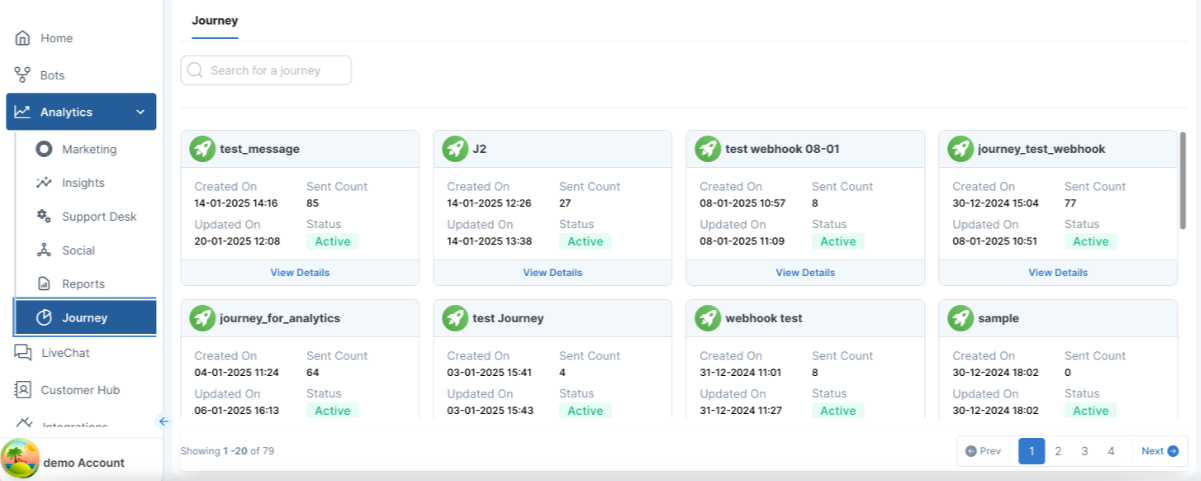
From the side panel, click Journey Select Add New.
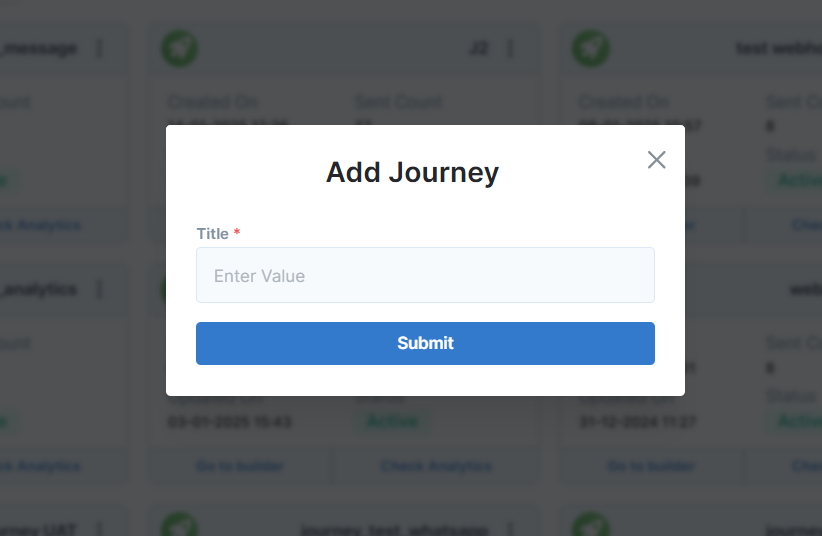
Enter a Journey Name and an optional Description.
2. Build Your flow
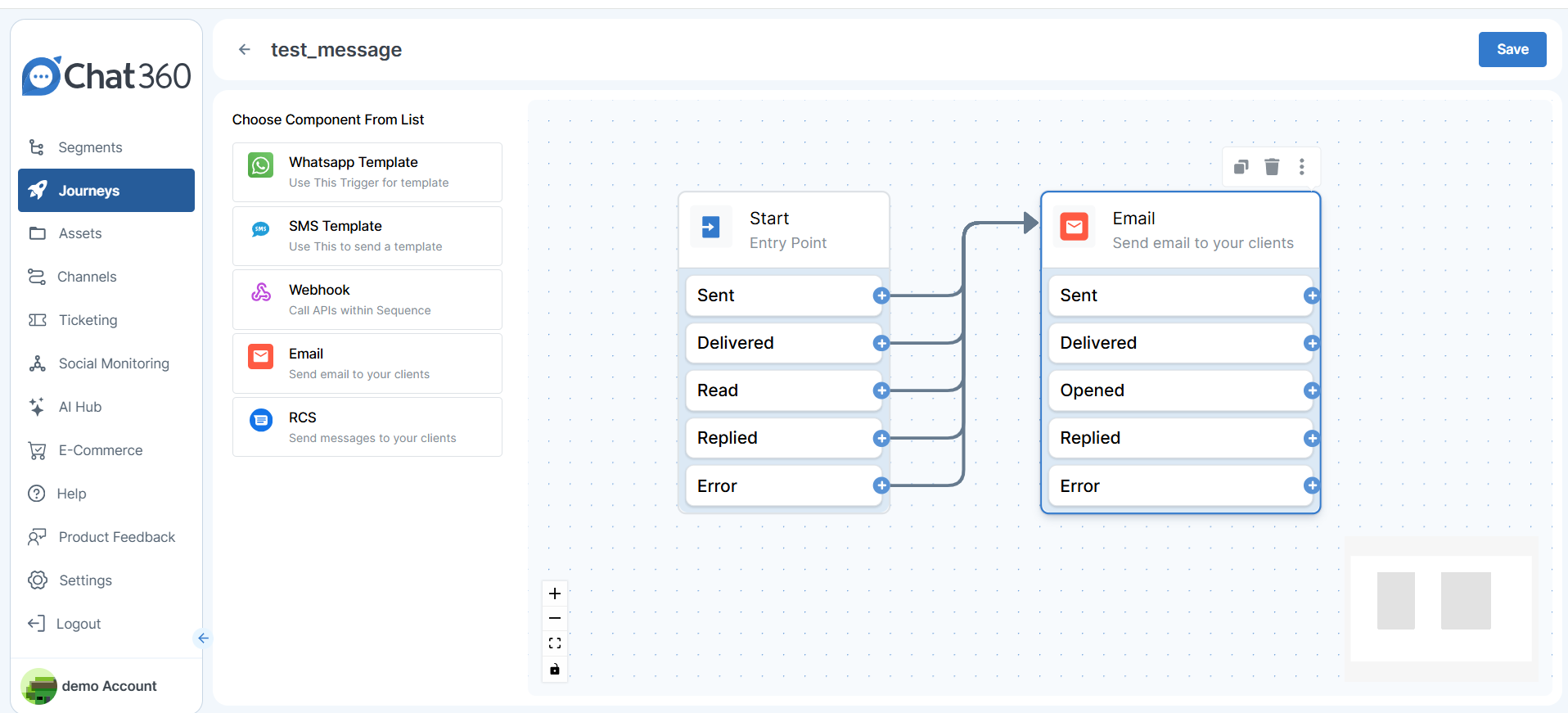
Drag the Start Component onto the canvas.
Add channel components (WhatsApp, SMS, RCS, Email, Push, Webhook) in sequence.
Connect components by linking output dots to input dots to define the customer path
3. Configure Components
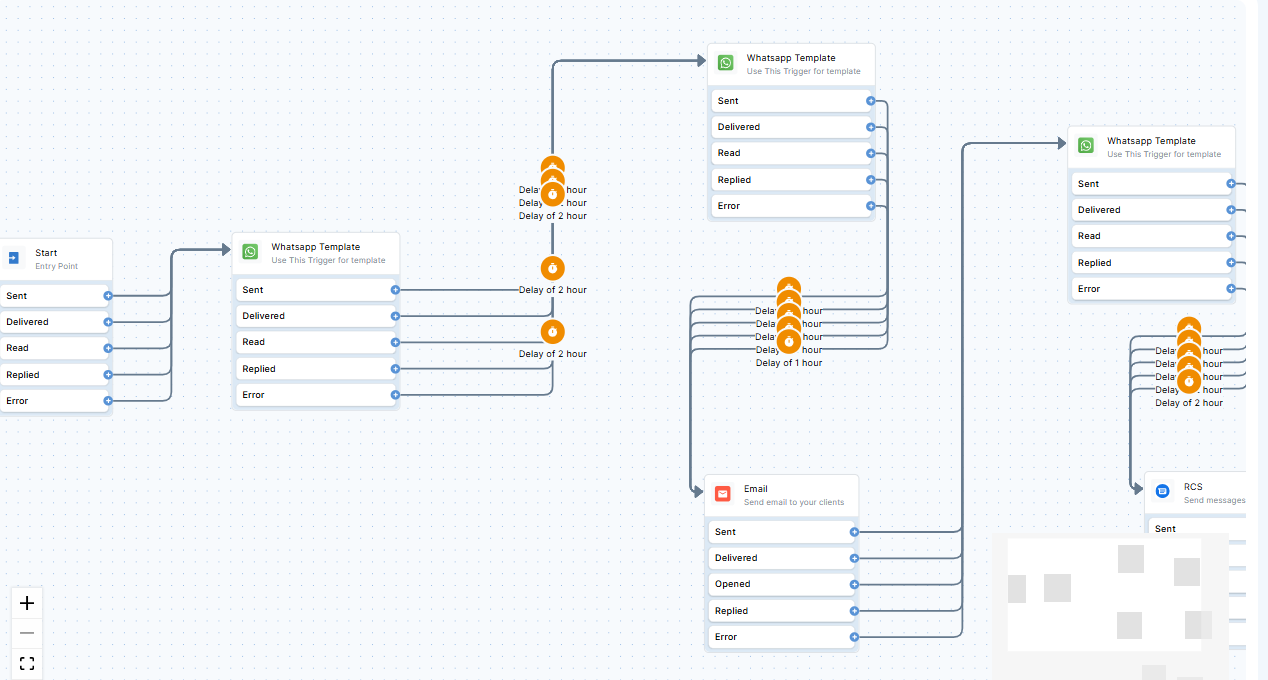
Click a component to open its settings panel.
Define Messages, Delays (minutes/hours/days), and Conditional Actions for statuses (sent, delivered, read, error).
Save your settings and repeat for each node in the journey.
4. Activate and Monitor the Journey
Once all nodes are configured, click Publish.
All journeys automatically trigger when the Start conditions are met (e.g., user signup, campaign send).
Journey Components
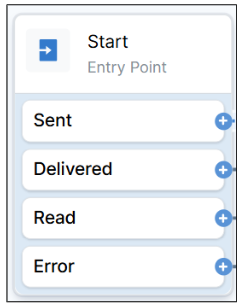
Start Component
Triggers the journey based on defined events campaign status, webhook call, API trigger.
Configure follow up logic for each incoming status
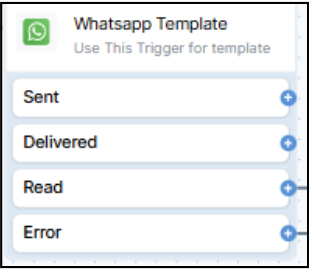
WhatsApp Component
Sends templated messages with dynamic variables.
Branches based on Sent, Delivered, Read, or Error statuses.
Schedule follow-ups at custom intervals per status.
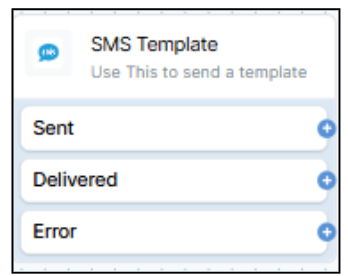
SMS Component
Delivers plain or rich SMS with retry logic on failures.
Supports status-based branching and timed follow-ups.
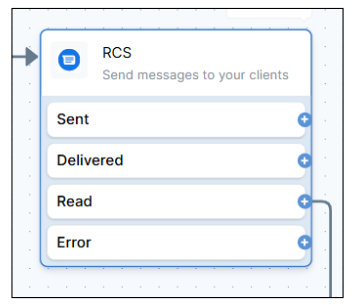
RCS Component
Leverages rich media (images, carousels, quick replies).
Handles status transitions (sent, delivered, error) with configurable delays.
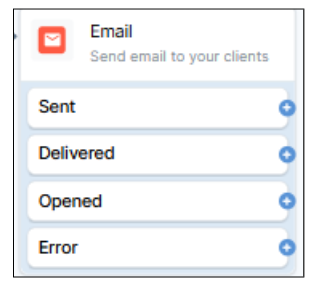
Email Component
Sends HTML or text emails; tracks Sent, Delivered, Opened, Error statuses.
Allows attachments and CTA buttons with scheduled re-tries.
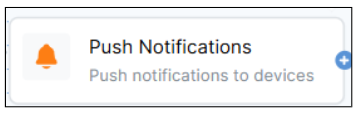
Push Notification Component
Issues real-time notifications for Web, Android, or iOS.
Branches on Sent, Delivered, Error, with per-platform timing controls.
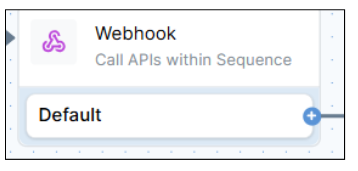
Webhook Component
Invokes external APIs (GET, POST, PUT, DELETE) at any point in the journey.
Configure request body, headers, timeout, and error handling to integrate third-party systems.
Creating a New Journey
Navigate to Analytics → Journey from the side panel.
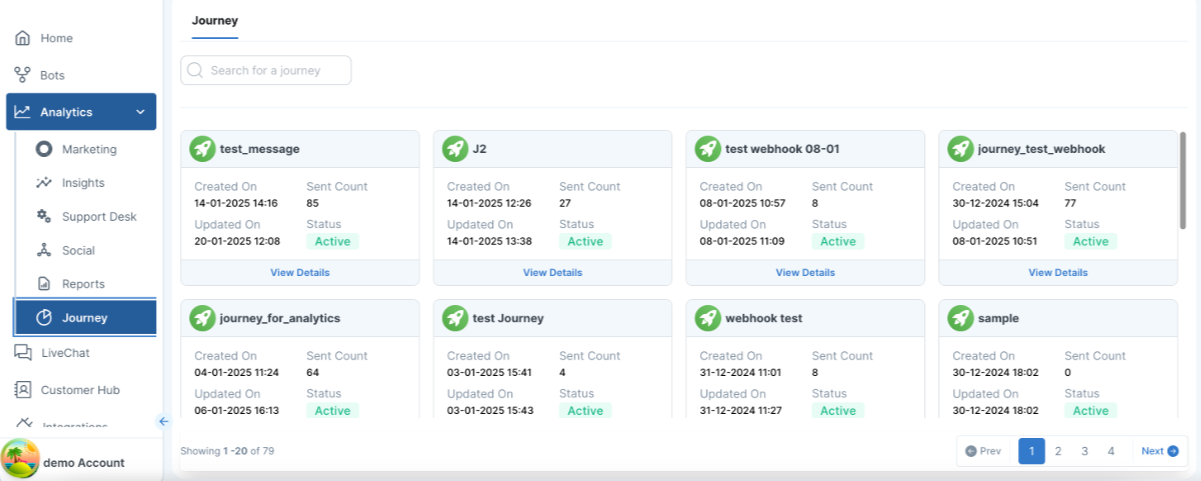
ii. View a list of all active and completed journeys with summary metrics:
Total Started, Completed, Drop-Offs, Average Duration.
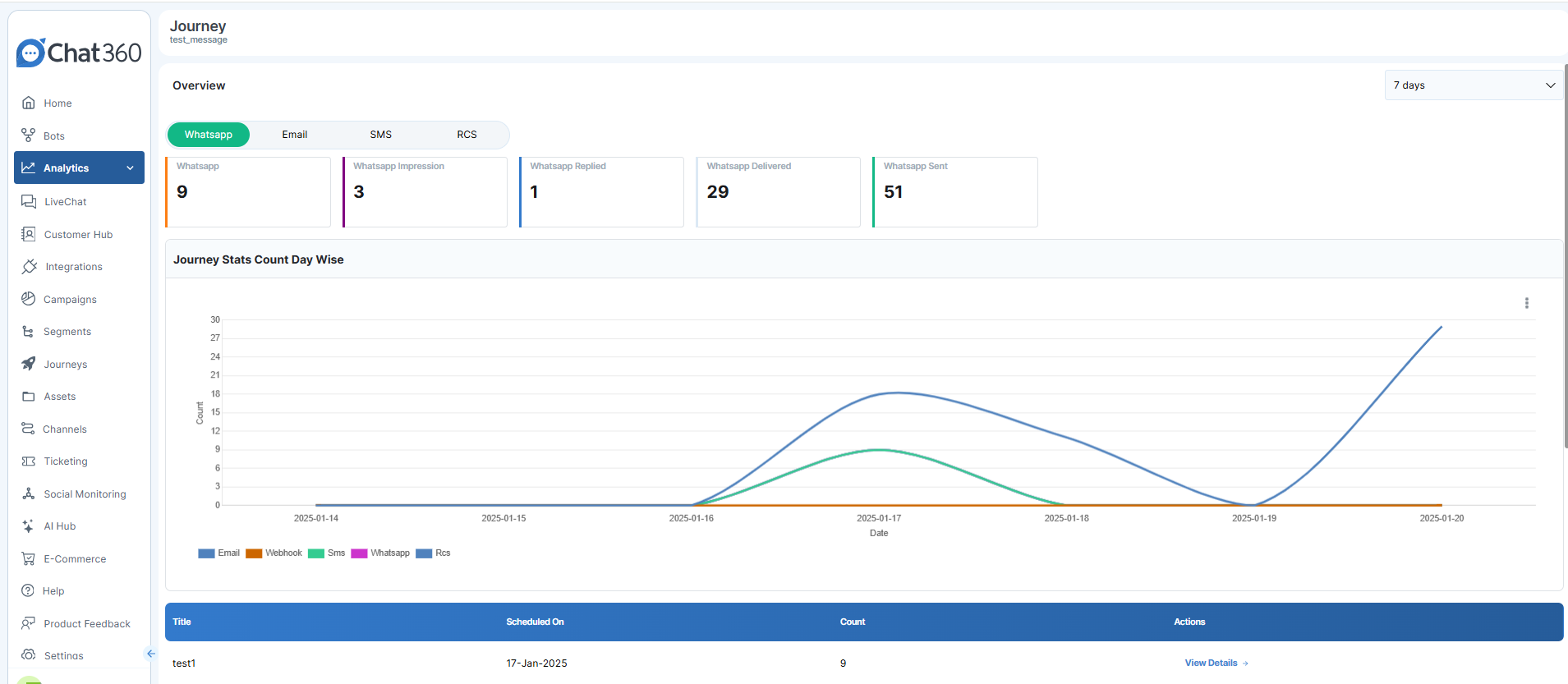
Drill down into per-component metrics for each channel:
WhatsApp: Sent, Delivered, Read, Replied
SMS/RCS: Sent, Delivered, Errors
Email: Opens, Clicks, Bounces
Push: Sends, Click-Throughs, Failures
By leveraging the Journey feature, teams can design sophisticated, multi-touchpoint campaigns that adapt in real time to user behaviors, ensuring maximum engagement and conversion while minimizing manual intervention.
Use Case Examples for the Journey Feature
Multi-Channel Onboarding Journey
Objective:
Flow Design:
Start Component: Triggered when a new user signs up.
WhatsApp Component: Sends a welcome message with app usage tips.
Delay: Wait 1 day.
Email Component: Sends a "Getting Started" guide PDF.
Push Notification: Remind user to complete profile setup.
Webhook: Trigger a CRM update marking the user as "onboarded".
Key Benefits:
Reduces manual onboarding efforts.
Ensures users are engaged across their preferred channel.
Boosts app adoption and feature discovery within the first 72 hours.
Export journey performance as CSV or save visual charts for stakeholder reporting.
Channel-Level Metrics
Detailed performance metrics are available for each communication channel.
Sent
Delivered
Read
Replied
SMS / RCS
Sent
Delivered
Errors
Opens
Clicks
Bounces
Push Notifications
Sends
Click-throughs
Failures
Export Reports
Journey performance data can be:
Exported as CSV files
Saved as visual charts for stakeholder reporting
By using the Journey feature, teams can design advanced multi-channel campaigns that automatically adapt to user behavior. This helps maximize engagement, improve conversions, and minimize manual intervention.
Journey Use Case Examples
1. Multi-Channel Onboarding Journey
Objective Welcome and onboard new users automatically.
Flow Design
Start Component: Triggered when a new user signs up.
WhatsApp Component: Send welcome messages with app usage tips.
Delay: Wait 1 day
Email Component: Send "Getting Started" guide.
Push Notification: Remind the user to complete profile setup.
Webhook: Update CRM status to "Onboarded".
Key Benefits
Reduces manual onboarding work.
Engages users across multiple channels.
Improves early product adoption.
2. Abandoned Cart Recovery
Objective
Re-engage users who added items to their cart but did not complete the purchase.
Flow Design
Start Component: Triggered when a cart is abandoned.
WhatsApp Component: Send reminder with cart details.
Delay: Wait 30 minutes
WhatsApp: Send personalized follow-up messages.
Email Component: Send coupon after 6 hours if there is no response.
SMS Component: Final reminder after 24 hours.
Webhook: Send user data to analytics if no conversion occurs.
Key Benefits
Improves cart recovery rates.
Uses multi-channel reminders for better visibility.
Captures behavioral data for future targeting.
3. Long-Term Promotional Campaign
Objective
Promote a limited-time offer through coordinated messaging across channels.
Flow Design
Start Component: Triggered when the campaign launches.
Email: Send product catalog and offer details.
Delay: Wait 1 day
WhatsApp: Send coupon code.
Push Notification: Send daily countdown reminders.
SMS: Final day promotion reminder.
Webhook: Send conversion data to the sales dashboard.
Key Benefits
Maintains consistent user engagement.
Multi-touch outreach.
Reduces campaign drop-offs using personalized reminders.
Tracks conversions in real time ensuring compliance.
4. Post-Purchase Follow-Up Journey
Objective
Improve customer retention after a purchase by sending them post purchase messages.
Flow Design
Start Component: Triggered when order status becomes Delivered.
WhatsApp: Send thank-you message and invoice.
Delay: Wait 3 days.
Email: Request product review.
Push Notification: Share referral program.
Webhook: Update lead score in CRM.
Key Benefits
Encourages positive feedback and social proof.
Promotes referrals and next-purchase discounts.
Automates lead nurturing with minimal human efforts.
5. Lead Re-Engagement Campaign
Objective
Reconnect with leads who have been inactive for over a 2-week period.
Flow Design
Start Component: Triggered for users inactive for 30+ days.
Email Component: Send re-engagement content with product updates.
Delay: Wait 2 days
WhatsApp Component: Send personalized messages with use-case or testimonial.
Push Notification: Announce upcoming product release.
Webhook Component: Sync inactive users with remarketing ad platforms.
Key Benefits
Increases engagement of dormant users via omnichannel approach.
Converting cold leads to warm opportunities without manual chase.
Aligns user intent with timely follow-ups.