WhatsApp Interactive Messages
Explore WhatsApp reply buttons, single-product and multi-product messages to create smoother customer journeys and improve engagement and conversions.
Interactive messages on WhatsApp allow businesses to present menus, buttons, and product catalogs directly within a chat conversation. Instead of typing responses, users can simply tap options, making interactions faster and more intuitive.
Chat360 supports several types of interactive messages that can be seamlessly integrated into your bot workflows, including:
List Messages
Reply Buttons
Single Product Messages
Multi-Product Messages
These interactive formats help guide users through conversations, improve response rates, and simplify the customer journey.
Key Features
Flow Integration
Interactive messages can be combined with other bot components such as text, media, and actions within the same conversation flow.
Single Selection per Message
Users can select one option from an interactive message. If needed, they can navigate back and choose a different option.
24-Hour Messaging Window
Interactive messages must be sent within 24 hours of the user’s last message. Messages sent outside this window may fail to deliver.
Cross-Platform Support
Interactive messages are supported across WhatsApp mobile apps (iOS and Android) and web clients without additional messaging costs.
Interactive Message Types
1. List Message
Description
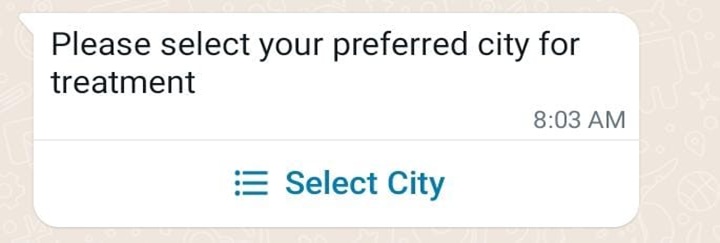
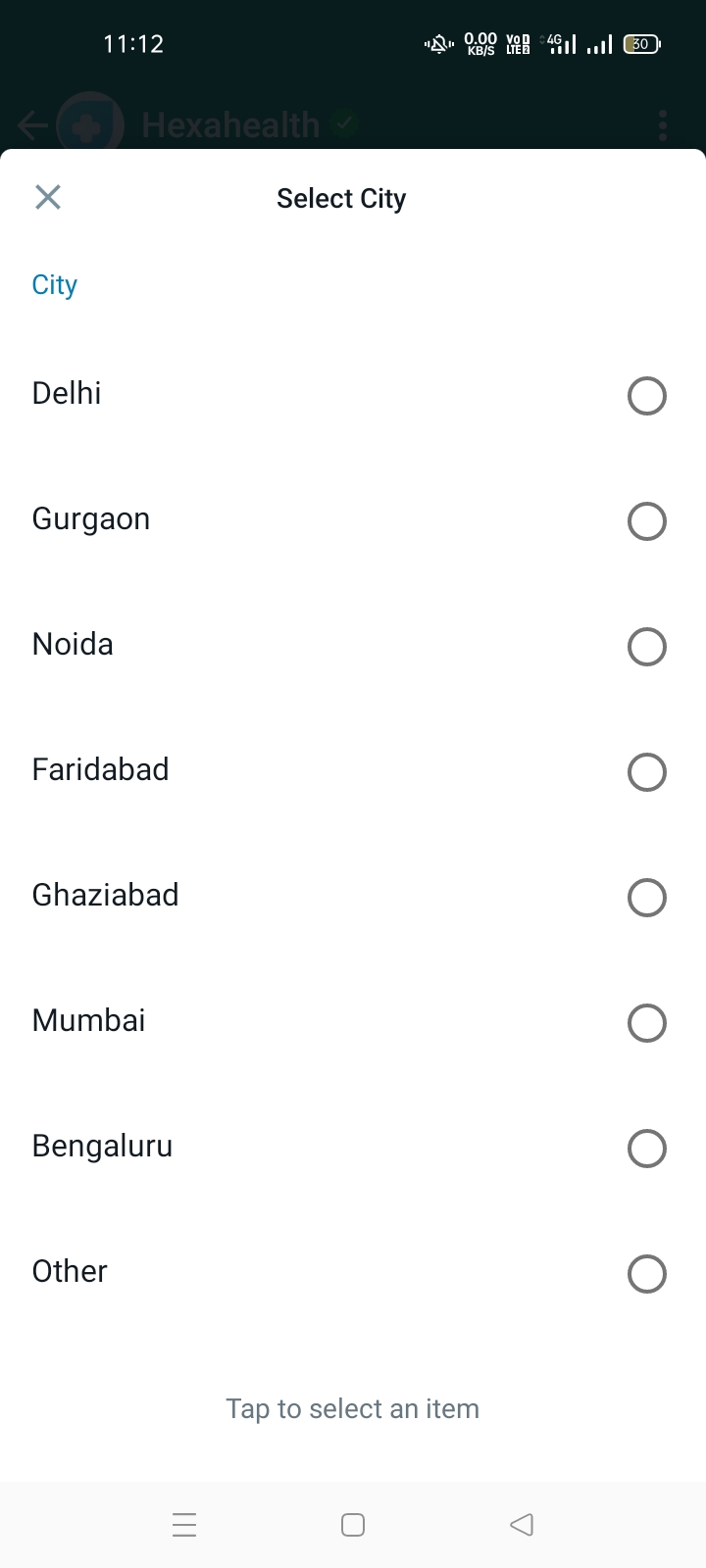
A List Message presents users with a scrollable list of options under a title and optional description. Users can select one item from the list.
Limit: Up to 10 selectable options.
Example Use Cases
Selecting a support department
Choosing a service or product category
Downloading reports or resources
2. Reply Buttons
Description
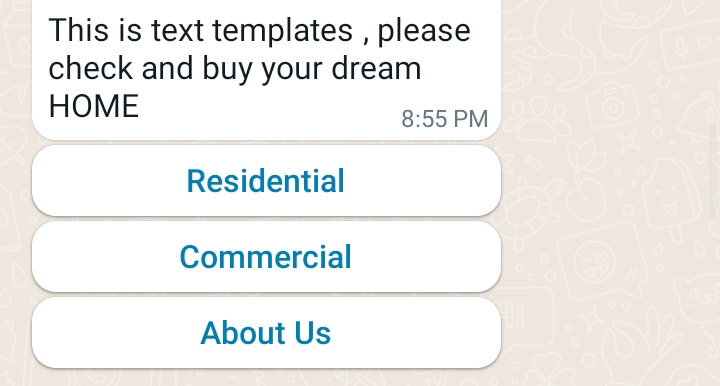
Reply Buttons display up to three clickable buttons for quick user responses. These are ideal for simple decision-making prompts.
Limit: Maximum 3 buttons per message.
Example Use Cases
Customer feedback
Language selection
Confirmation actions
3. Single Product Message
Description
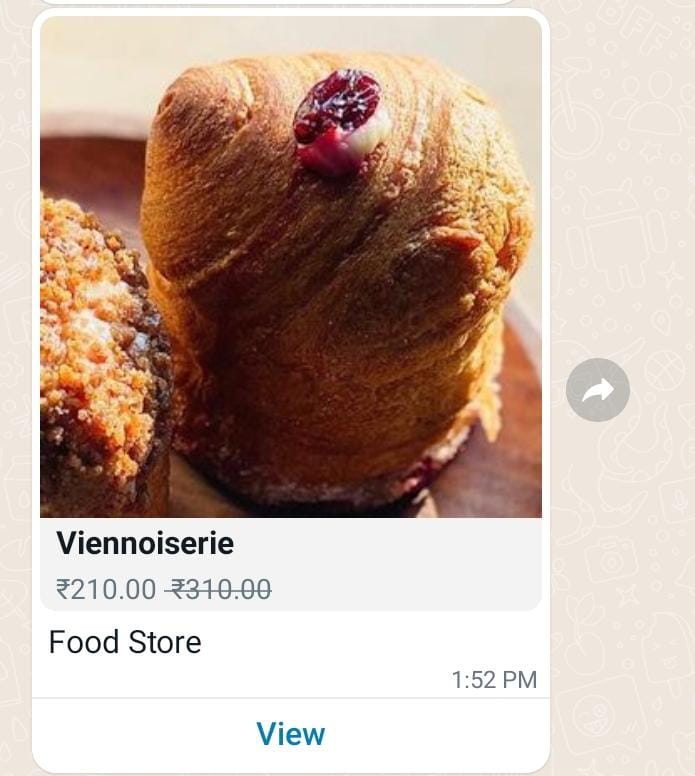
Highlights one product from your catalog with image, title, price, and description.
Use Cases
View product details
Add item to cart
4. Multi-Product Message
Description
A Multi-Product Message displays a collection of products from your catalog in a scrollable interface.
Limit: Up to 30 products per message.
User Actions
Browse products
Open product details
Add one or more products to the cart
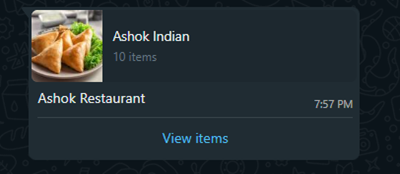
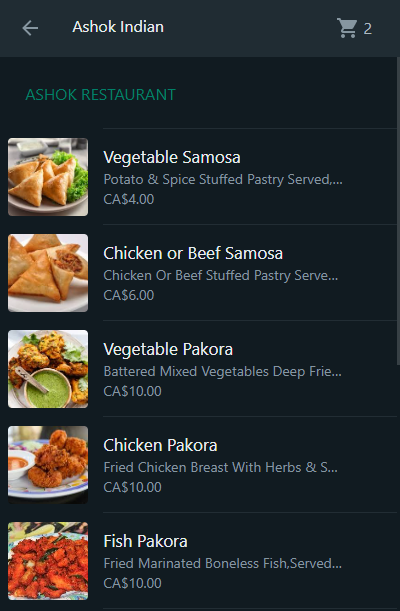
User Interaction and Cart Workflow
Interactive product messages allow users to browse and purchase products directly within WhatsApp.
View Products
Tapping an item opens its PDP with image, title, description, and price.
Adding or Updating Cart
Users can add items to their cart and adjust quantities. Chat360 automatically retrieves the latest stock and pricing information and alerts users if any details have changed.
Send Cart
Once finalized, users send their cart to your business. You can then follow up with address collection or payment options.
Configuring Interactive Messages in Chat360
Follow these steps to add interactive messages to your bot flow.
1. Drag & Drop Component
In Bot Builder, choose List, Button, Single-Product, or Multi-Product from the component palette.
2. Define Content
List Provide header text, description, and up to 10 list items:
Title
Subtitle
Payload
Buttons Enter button text and payload for each of the 3 options.
ProductsSelect items from your integrated product catalog.
3. Connect Flow
Link user replies (payloads) to follow-up nodes in your conversation.
4. Test & Deploy
Save and preview your bot; ensure interactive messages render correctly on mobile and web.
Example Use Cases
Customer Support Routing
Use a List Message to route users to the correct support category.
Example
How can we help you today?
Billing Support
Technical Support
General Questions
Language Selection
Use Reply Buttons at the beginning of the conversation to allow users to choose their preferred language.
Example
Select your language: [English] [हिंदी] [Español]
E-Commerce Product Showcase
Use a Multi-Product Message to display products from a promotional collection and allow customers to browse and add items to their cart.
Quick Reorder
Send a Single Product Message featuring a previously purchased product, allowing customers to reorder with one tap.
By using WhatsApp interactive messages, businesses can create more engaging and user-friendly conversations. These interactive elements help guide customers through actions, reduce friction in communication, and improve overall engagement and conversion rates.