Template Analytics
Measure message template performance with delivered, read, replied and failed metrics. Identify errors and optimize templates for better engagement.
The Template Analytics feature in Chat360 provides detailed insights into the performance of your messaging templates. It helps you track delivery success, user engagement, and failure reasons for messages sent through templates. By analyzing these metrics, teams can optimize template content, improve delivery rates, and increase recipient interaction.
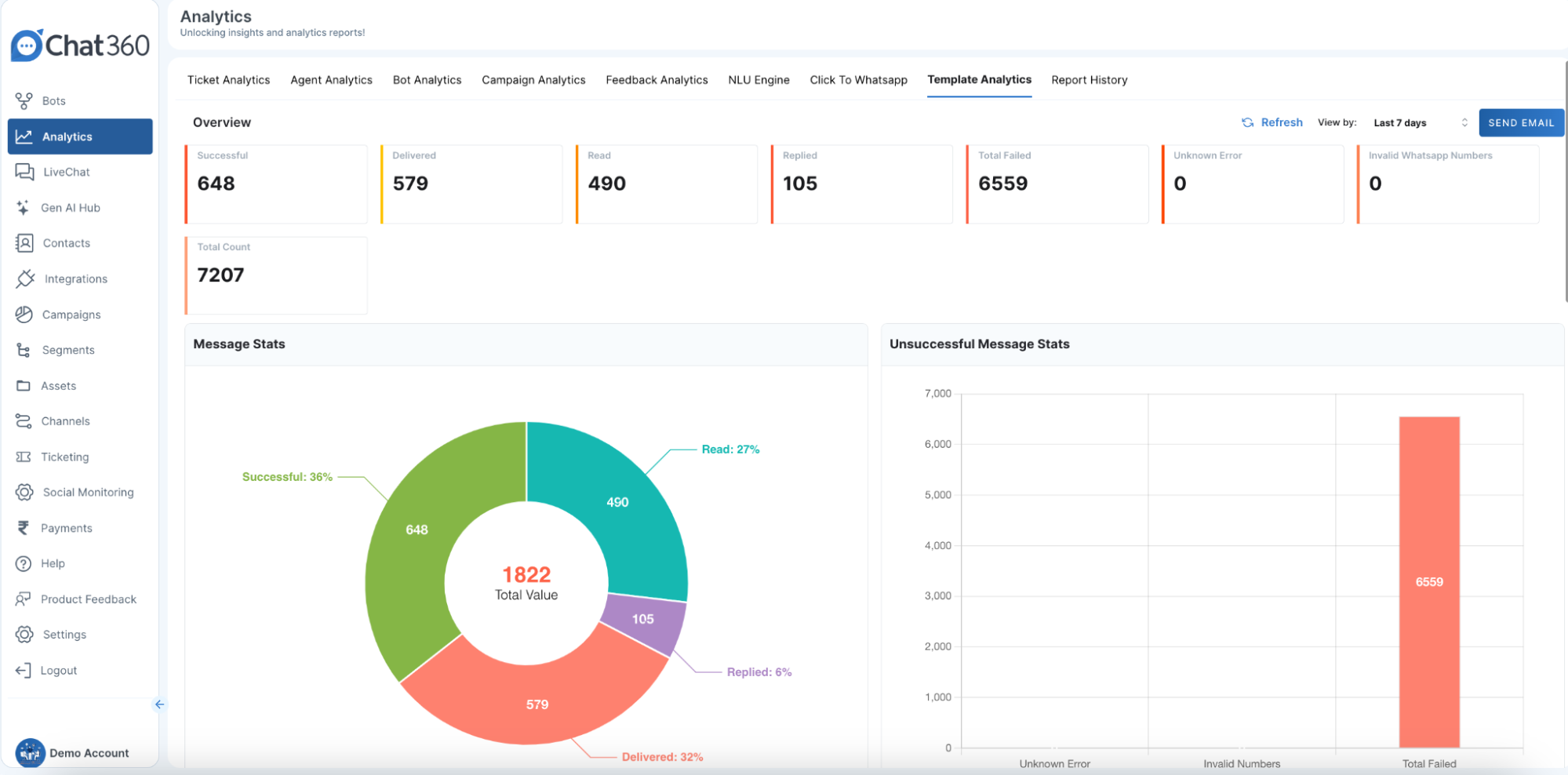
Key Metrics
The Template Analytics dashboard includes the following performance indicators:
Delivered: Number of messages that were successfully delivered to recipients’ devices.
Successful: Total number of messages successfully sent through the template.
Read: Total number of messages that were opened by users.
Replied: Number of messages that received a response from recipients.
Total Count: The total number of messages processed, including both successful and failed attempts.
Total Failed: Total number of messages that were not delivered successfully, highlighting potential delivery issues.
Error Breakdown
The analytics dashboard also provides insights into message failures to help diagnose delivery problems.
Unknown Error: Displays the number of messages that failed due to unidentified or system-related errors.
Invalid WhatsApp Numbers: Shows failures caused by incorrect, inactive, or invalid WhatsApp numbers, helping teams clean and maintain accurate contact lists.
Visual Analytics
The dashboard includes graphical visualizations to help interpret message performance quickly.
Performance Pie Chart: Displays the distribution of message outcomes, including Successful, Delivered, Read, and Replied messages.
Failure Bar Chart: Shows the number of failed messages categorized by error type, such as Unknown Errors and Invalid Numbers, making it easier to identify root causes.
Navigation and Export Options
View By Period: Filter metrics by today, last 7 days, month-to-date, or a custom date range to observe trends over time.
Filters: Drill down by message status (e.g., “Replied” only) or by template category (e.g., “Promotional” vs. “Transactional”).
Send Email: Instantly email the current report view to stakeholders.
Export Data: Download full analytics as a CSV file for offline analysis or integration with BI tools.
Export Data Button to export the message performance data for further analysis. Enables offline analysis and reporting.
How to Access Template Analytics
Go to Analytics in the Chat360 dashboard.
Select Template Analytics.
Use the View By and Filters options to customize the data view.
Use Send Email or Export Data to share or download the analytics report.
Example Use Cases
Promotional Campaign Optimization: After sending a promotional campaign (such as a weekend sale announcement), analyze read and reply rates to identify which messaging or call-to-action generated the highest engagement.
Transactional Message Monitoring: Track Delivered versus Failed messages for templates like order confirmations to ensure customers reliably receive important notifications.
Customer Feedback Collection: Monitor Replied rates for feedback or survey templates to evaluate post-support satisfaction and determine whether additional follow-up messages are required.