Click to Facebook
Click to Facebook allows users to navigate directly from digital touchpoints—such as advertisements, emails, or website pages—to your Facebook presence with a single click. This feature can redirect users to a Facebook P
Click to Facebook allows users to navigate directly from digital touchpoints—such as advertisements, emails, or website pages—to your Facebook presence with a single click. This feature can redirect users to a Facebook Page, Post, or Messenger chat, enabling businesses to drive traffic, encourage real-time engagement, and strengthen customer relationships on a familiar social platform.
By providing an easy path to interact with your brand on Facebook, this feature helps increase visibility, engagement, and lead generation.
Accessing Click to Facebook Analytics
Path: Analytics → Marketing → Click to Direct → Click to Facebook
To access Click to Facebook analytics:
In the Chat360 dashboard, open the left sidebar.
Navigate to Analytics.
Select Marketing.
Click the Click to Direct tab.
Select Click to Facebook.
Key Metrics
The dashboard provides key performance indicators to measure user engagement with Facebook redirection links.
Metric | Description |
|---|---|
Total Clicks | Displays the total number of times users clicked the Facebook link. |
Date Range | Use the calendar selector to view click data over a specific timeframe, such as daily, weekly, or monthly. |
Ad Account Selector | Allows users to choose a specific Facebook Ad Account or Facebook Page to monitor click activity and engagement. |
Visual Analytics
The dashboard includes visual charts to help track engagement patterns.
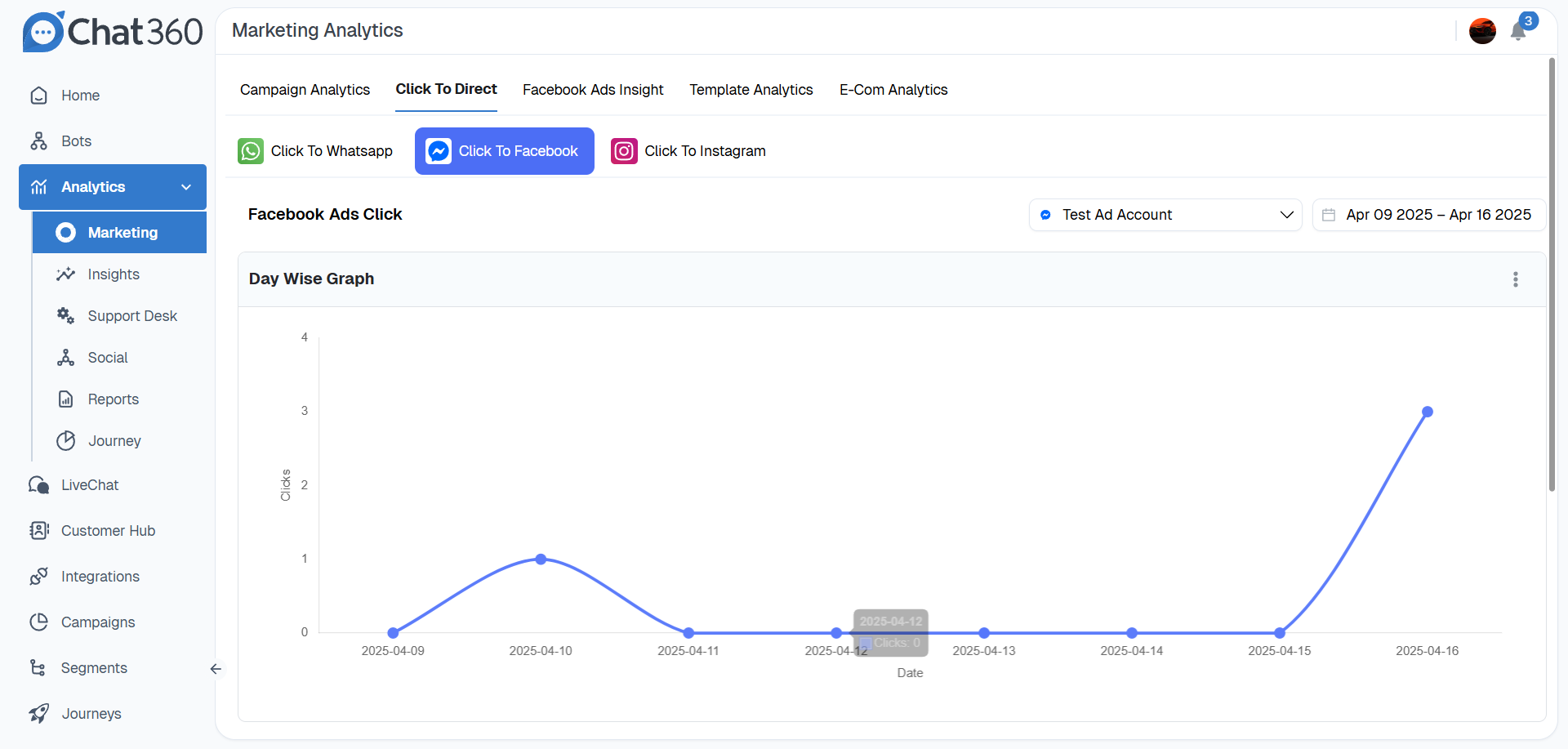
Overview Tile — Shows the total number of Facebook redirections within the selected time period.
Day-wise Graph — A line chart displaying daily click activity. Hovering over a data point reveals the exact number of clicks recorded on that date.
Detailed Reporting
The platform also allows users to download detailed click data for deeper analysis.
Downloadable CSV Report
You can export a CSV file containing detailed information about each click event, including:
Click date and time
Contact information (if available)
Source type (Ad, Post, or Organic)
Source content and URL
Ad or Post ID
Source Breakdown: This information helps identify which campaigns, posts, or traffic sources generated the most engagement.
Usage and Benefits
Traffic Amplification — Redirect website or email audiences to your Facebook presence, encouraging them to explore your brand's content and updates.
Messenger Lead Capture — Direct users into Facebook Messenger conversations to collect inquiries and qualify leads in real time.
Engagement Measurement — Track how effectively your Facebook assets convert visitors into active participants.
Campaign Optimization — Analyze click trends to identify high-performing campaigns and allocate marketing resources more effectively.
Best Practices
Use Dedicated Landing Destinations
Direct users to specific Facebook destinations, such as a page tab, post discussion thread, or Messenger welcome message, to guide their next action.
Add Tracking Parameters
Include UTM parameters in your URLs to track inbound traffic by campaign, creative, or audience within analytics tools.
Run A/B Tests
Test different call-to-action texts such as "Chat on Facebook" or "Explore Our Facebook Shop" to improve click-through rates.
Enable Follow-up Flows
When redirecting users to Messenger, combine it with automated welcome messages or follow-up flows to engage leads immediately.