Campaign Analytics
The Campaign Analytics dashboard provides comprehensive insights into the performance and lifecycle of your messaging campaigns. It presents both high-level summaries and detailed campaign data, enabling marketing, suppo
The Campaign Analytics dashboard provides comprehensive insights into the performance and lifecycle of your messaging campaigns. It presents both high-level summaries and detailed campaign data, enabling marketing, support, and product teams to monitor outreach effectiveness, identify delivery issues, and optimize campaigns using real-time data.
With these insights, teams can refine campaign strategies, improve deliverability, and make informed decisions based on measurable performance metrics.The Campaign Analytics dashboard provides comprehensive insights into the performance and lifecycle of your messaging campaigns. It presents both high-level summaries and detailed campaign data, enabling marketing, support, and product teams to monitor outreach effectiveness, identify delivery issues, and optimize campaigns using real-time data.
With these insights, teams can refine campaign strategies, improve deliverability, and make informed decisions based on measurable performance metrics.
Accessing Campaign Analytics
To open the Campaign Analytics dashboard:
Click Analytics from the left sidebar.
Select the Campaign Analytics tab at the top of the analytics page.
The dashboard will load with campaign-related metrics, charts, and campaign lists.
Key Sections
1. Key Metrics
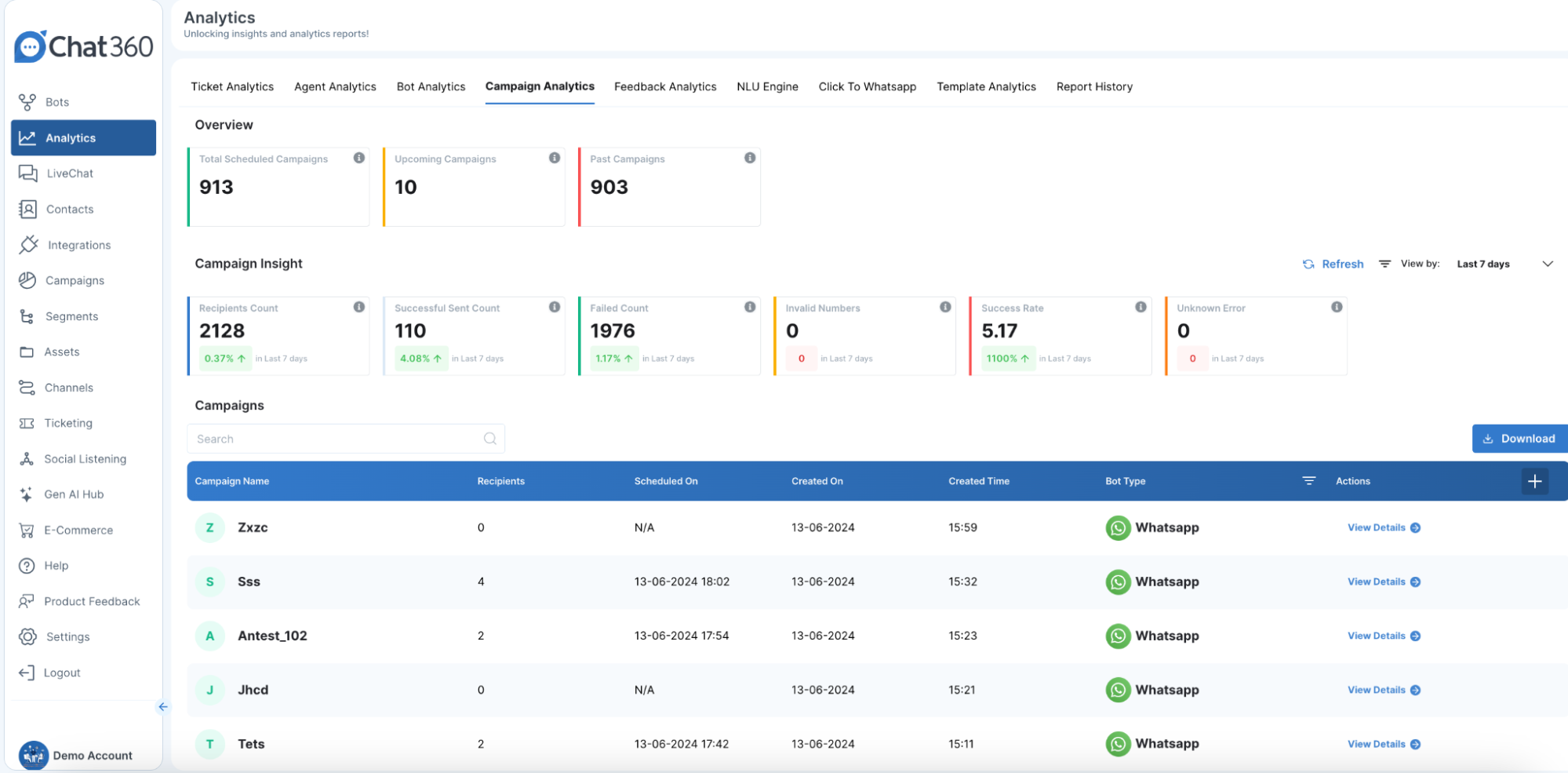
The top section of the dashboard displays summary cards highlighting important campaign performance indicators.
Total Scheduled Campaigns: Displays the total number of campaigns that have been scheduled and queued for delivery.
Upcoming Campaigns: Shows the number of campaigns that are planned but have not yet been executed.
Past Campaigns: Indicates the total number of campaigns that have already been completed.
Recipients Count: Represents the total number of unique contacts targeted across campaigns within the selected time range.
Successful Sent Count: The number of messages successfully sent through the selected communication channels.
Failed Count: The number of messages that could not be delivered due to system errors, configuration issues, or channel failures.
Invalid Numbers: Displays the number of recipients excluded due to incorrect or inactive phone numbers, helping identify data-quality issues.
Success Rate: The percentage of successfully sent messages compared to the total number of attempted sends.
Unknown Errors: Shows the number of failed messages where the cause could not be identified, indicating areas that may require further investigation.
2. Campaign List
The Campaign List provides a detailed breakdown of individual campaigns. This section allows users to review campaign activity and manage campaigns directly. Each campaign entry includes the following information:
Campaign Name: A descriptive title used to identify the campaign (for example, Spring Sale Blast).
Recipients: The total number of contacts targeted by the campaign.
Scheduled On: The date and time when the campaign was scheduled to run or was executed.
Created On / Created Time: The timestamp indicating when the campaign was created in the system.
Bot Type: The channel used to deliver the campaign, such as WhatsApp, SMS, or other supported channels.
Actions: Quick options to view detailed analytics, edit campaign settings, or delete the campaign if required.
3. Visual Analytics
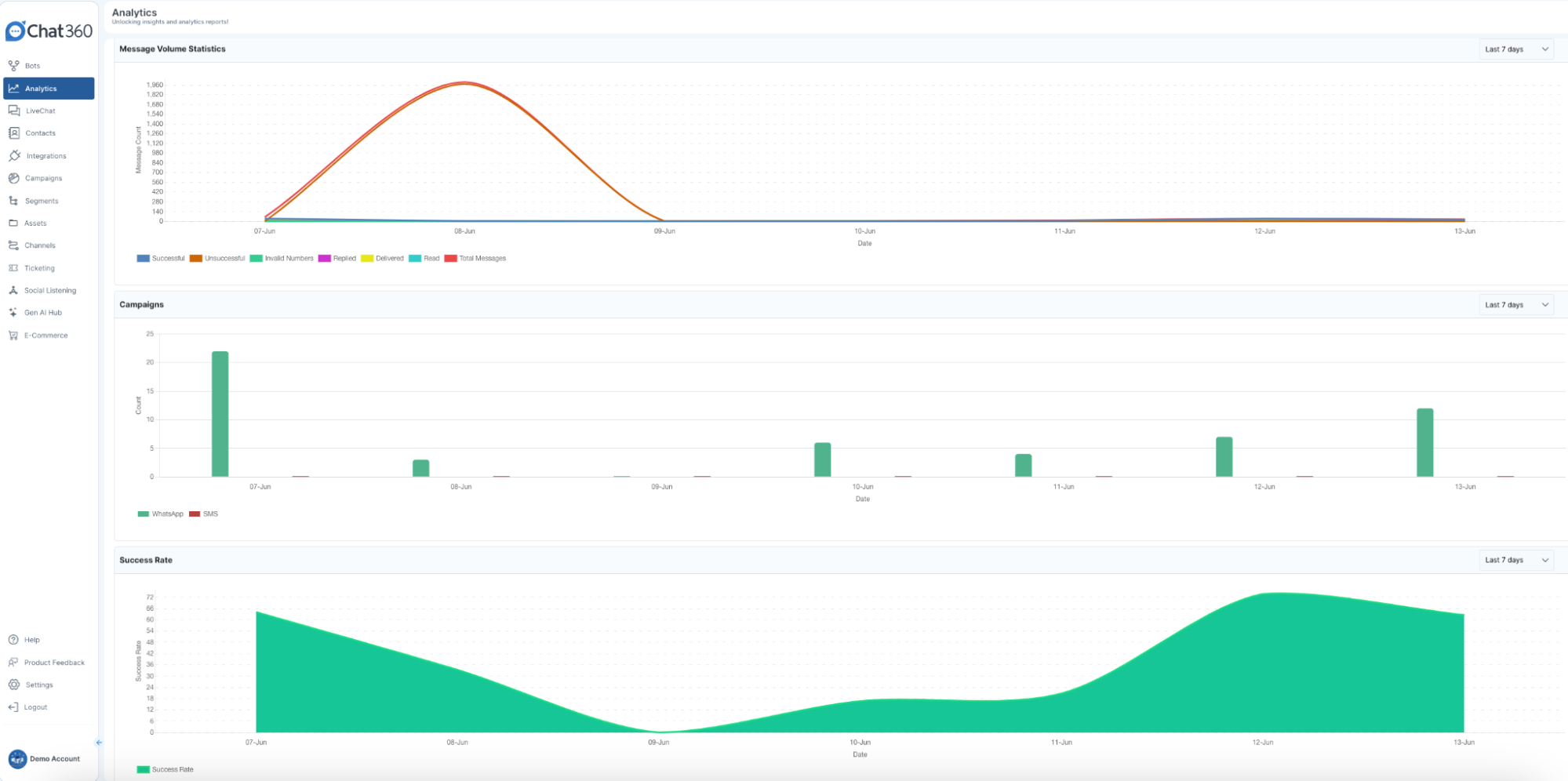
The dashboard also includes visual charts to help identify trends and performance patterns.
Message Volume Statistics: A line or stacked-bar chart showing message volume over time, categorized by status such as successful, failed, or pending messages.
Campaign Count by Channel: A bar chart displaying the number of campaigns executed across different channels, helping teams compare channel usage and load distribution.
Success Rate Trend: A line chart tracking delivery success rates over time, allowing teams to monitor improvements or identify performance drops.
Controls and Filters
The Campaign Analytics dashboard includes several filters and controls for deeper analysis.
Date Range Selector: Choose preset windows (“Last 7 Days,” “Past Month,” etc.) or set custom start and end dates for focused analysis.
Channel Filter: Filter campaign data by specific communication channels such as WhatsApp, SMS, or Email.
Status Filter: View campaigns based on their outcome status, such as all campaigns, failed campaigns, or successful campaigns.
Refresh Button: Reload the dashboard to display the most recent campaign analytics data.
Export Options: Download campaign data as CSV files or export visual charts as images for reporting or presentations.
Usage Tips
Optimize Send Timing: Analyze Upcoming Campaigns and Message Volume charts to avoid sending campaigns during peak congestion periods.
Maintain Data Quality: Regularly review Invalid Numbers to clean contact lists and reduce message failures.
Improve Channel Strategy: Use the Campaign Count by Channel chart to determine which communication channels deliver the best results.
Perform A/B Testing: Monitor Success Rate Trends when testing different messaging formats, targeting strategies, or campaign timing.
Investigate Delivery Issues: Use filters for Failed Count and Unknown Errors to identify recurring delivery problems such as API timeouts or template rejections.