Sending Templates Message
Turn every chat into an opportunity. Send approved WhatsApp and RCS templates from new, active or archived conversations in just a few clicks.
The Live Chat template feature lets agents quickly send pre-approved message templates over WhatsApp or RCS channels—either when initiating new conversations, during an active chat, or even from archived sessions. This ensures consistent, compliant messaging and speeds up common responses.
1. Starting a New Template Conversation
Navigate to Live Chat: Open Live Chat from the main dashboard.
Add Conversation: Click the + New Conversation icon in the top-right corner.
Enter Details: Provide the recipient’s name and choose the channel (WhatsApp or RCS).
Select Business Number: Pick which business line will send the template.
Choose & Customize Template: Select your approved template, fill in any dynamic fields, then click Send.
Chatroom Creation: Once the template delivers and the user replies, a new chatroom opens automatically.
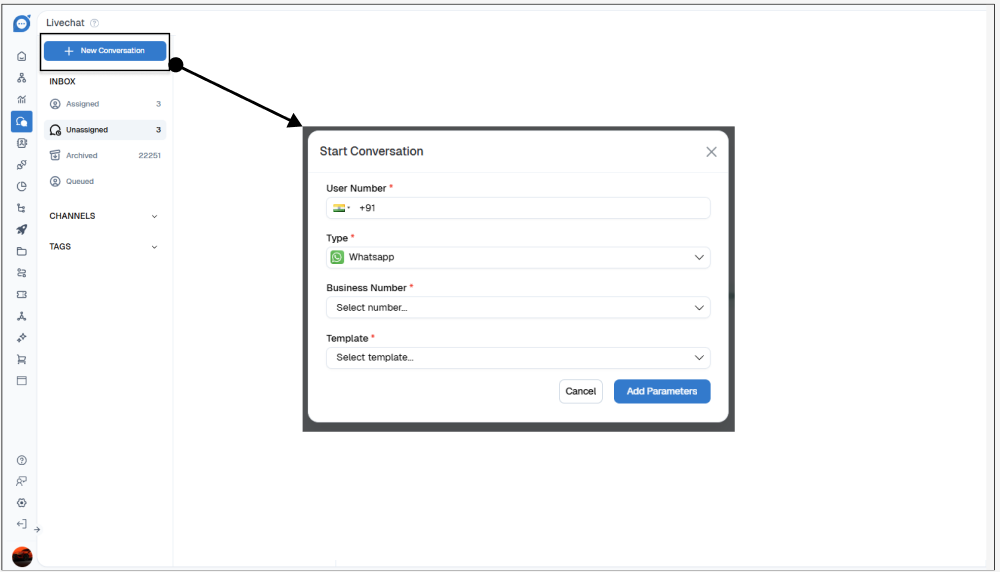
2. Sending a Template in an Active Chat
Open Chat: In Live Chat, click Enter Chat to claim or view the conversation.
Invoke Template Menu: Click the Template icon beside the message input.
Select & Send: Choose the appropriate template and hit Send to deliver it within the ongoing dialogue.
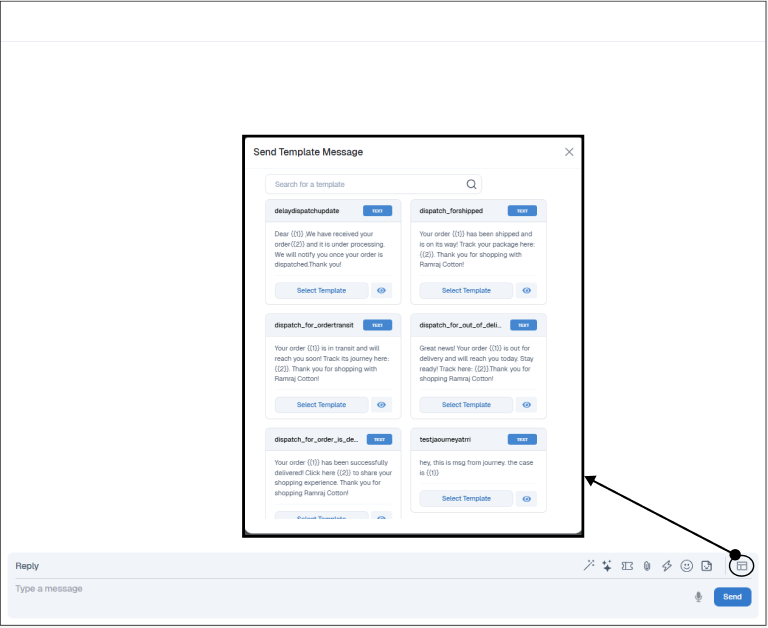
3. Dispatching Templates from Archived Chats
Locate Archived Chat: Navigate to your Archived section and select the desired session.
Use Send Template Option: Click Send Template, choose the message, and click Send — even past conversations can be reactivated with fresh template outreach.
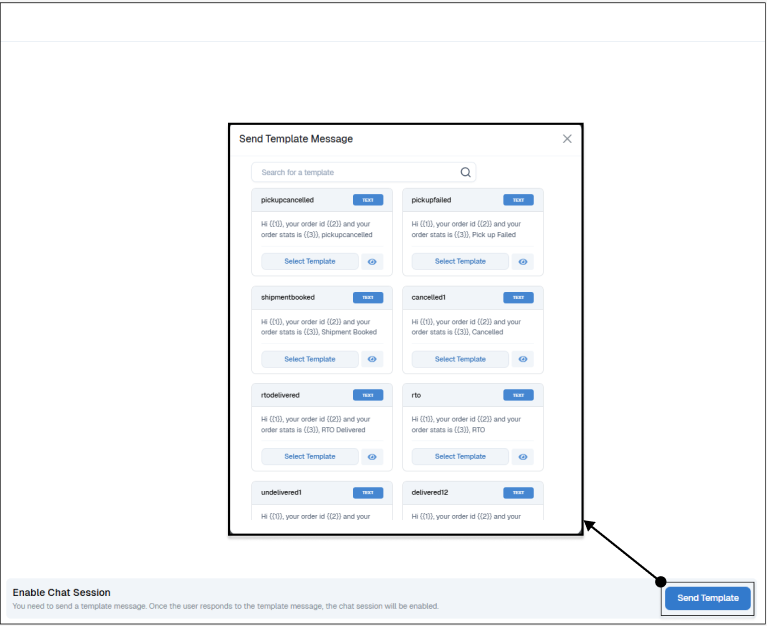
Use Case Examples
Onboarding Reminder: Instantly send a “Welcome & Setup” template to new users when you initiate a support session.
FAQ Automation: During a support chat, drop a “Password Reset Guide” template to resolve authentication queries swiftly.
Re-engagement: From an archived chat, send a “We Miss You” promotional template to lapsed customers, reigniting engagement