Overview
Chat360 Live Chat unifies omnichannel customer conversations with agent management, AI assistance, translation, ticketing, transcripts and analytics.
Chat360's Live Chat unifies conversations from WhatsApp, Web, Facebook, Instagram, Telegram, Twitter, SMS, and Google Business Messages into one real-time dashboard. Support teams can monitor and respond to all incoming traffic without switching platforms.
Chat Room Sections
Incoming chats are organized by status:
Status | Description |
|---|---|
Unassigned | Active bot-driven or user-initiated conversations awaiting agent assignment. |
Assigned | Chats taken over by a specific agent for one-on-one handling. |
Archived | Completed or inactive threads retained for audit and reference. |
Unassigned Section Features
Even while the bot is interacting, an Admin can step in at any moment:
Enter Chat — Jump into a live conversation to take control.
AI Tone & Translation — Automatically adjust message tone (e.g., friendly, formal) and translate into the user's chosen language.
Create Ticket — Spin up a support ticket with prefilled issue details.
Attachments & Quick Replies — Share images, documents, emojis, or send templated responses in one click.
Sticker Support — Liven up the exchange with chat stickers.
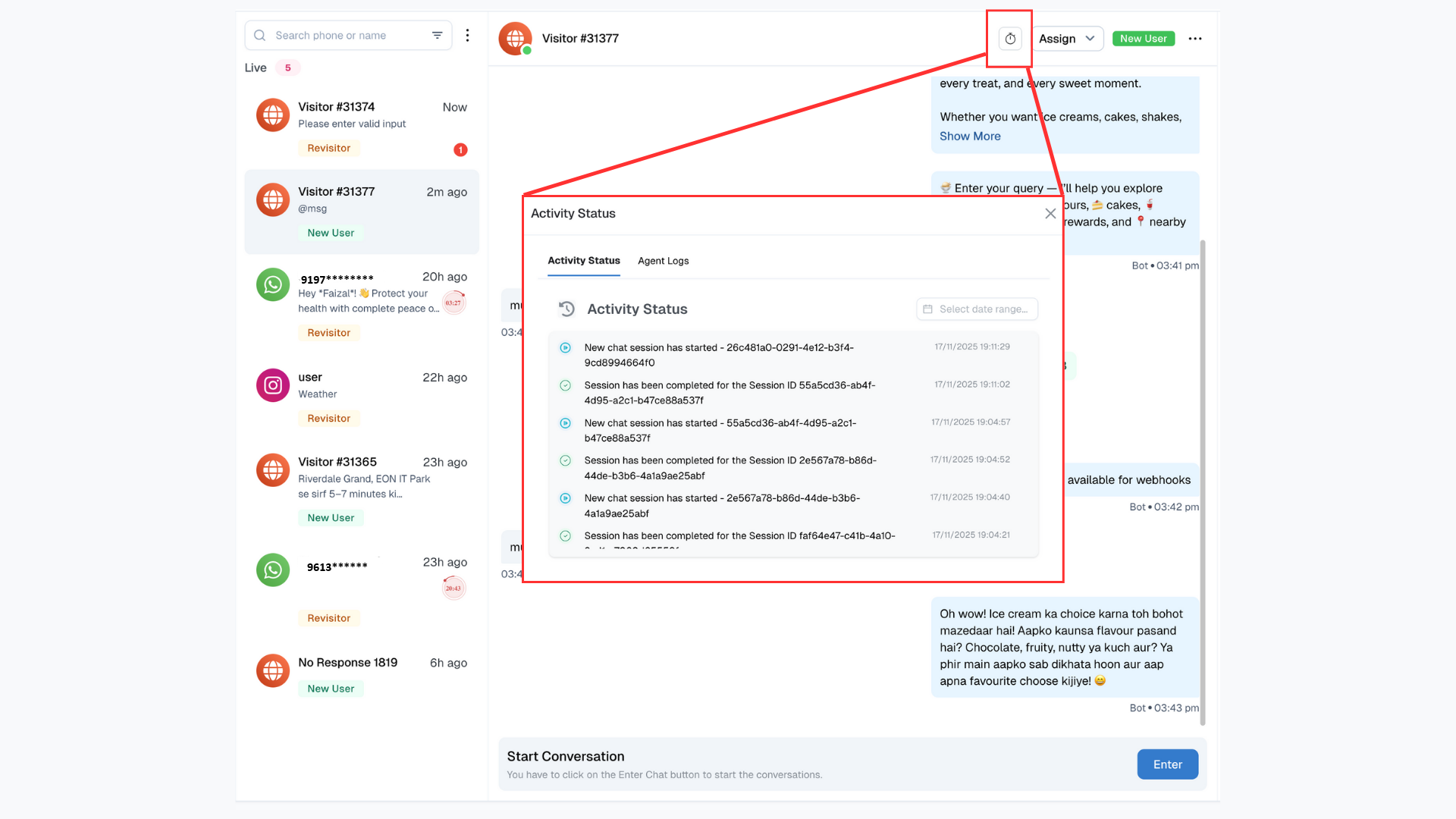
Activity Status
The Activity Status section offers robust monitoring by separating two key areas: visitor/bot/live chat activity and agent session time logs. This enhances tracking and operational transparency in Live Chat platforms.
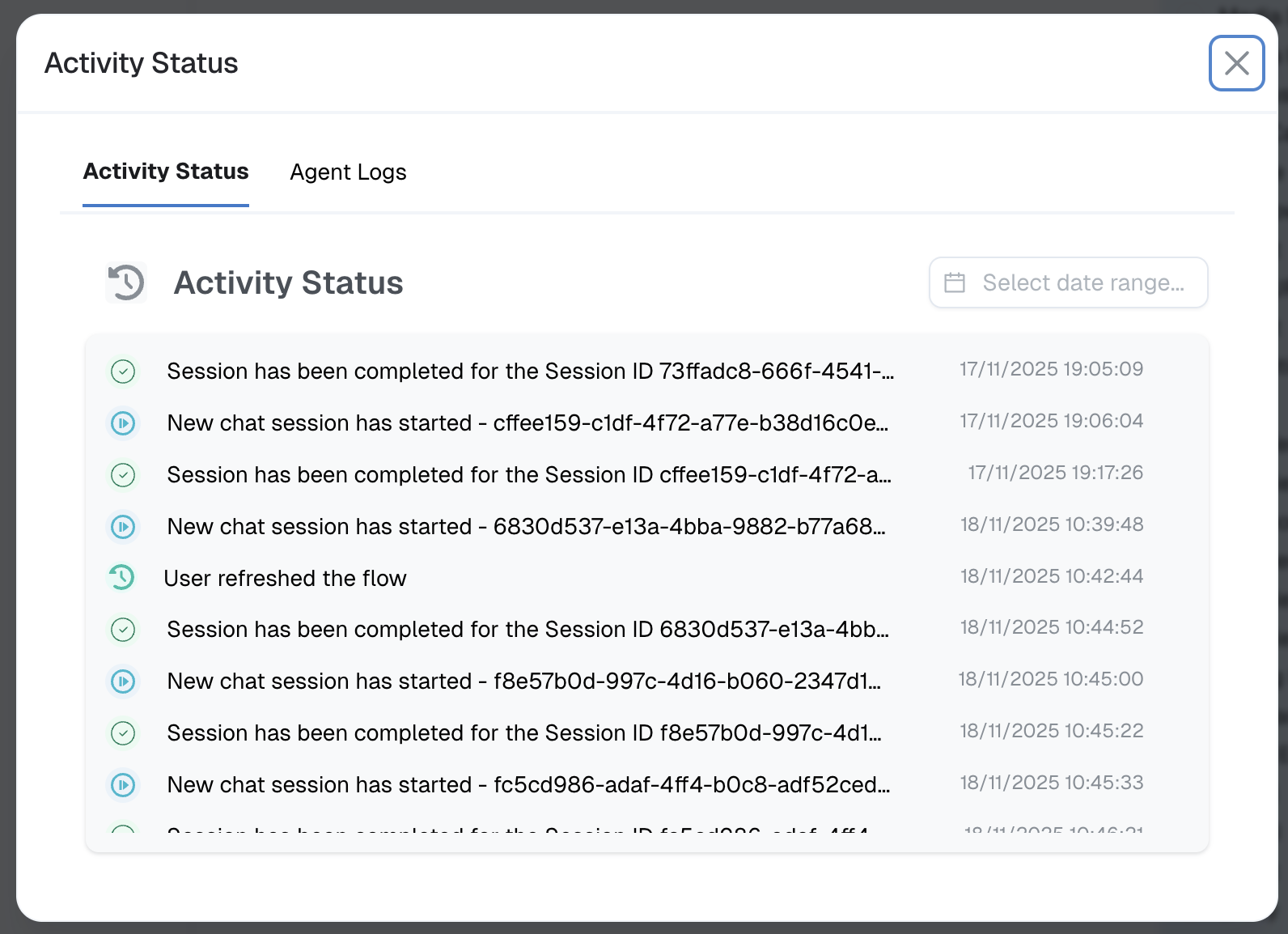
Visitor, Bot & Live Chat Activity
This part of the Activity Status feature meticulously records all interactions:
Keeps a real-time log of actions taken by visitors, bots, and live chat sessions, including session start and completion statuses.
Enables easy date-wise filtering, so you can review chat activity for any desired period.
Supports clear chronological tracking of chat flow and user engagement across all sessions.
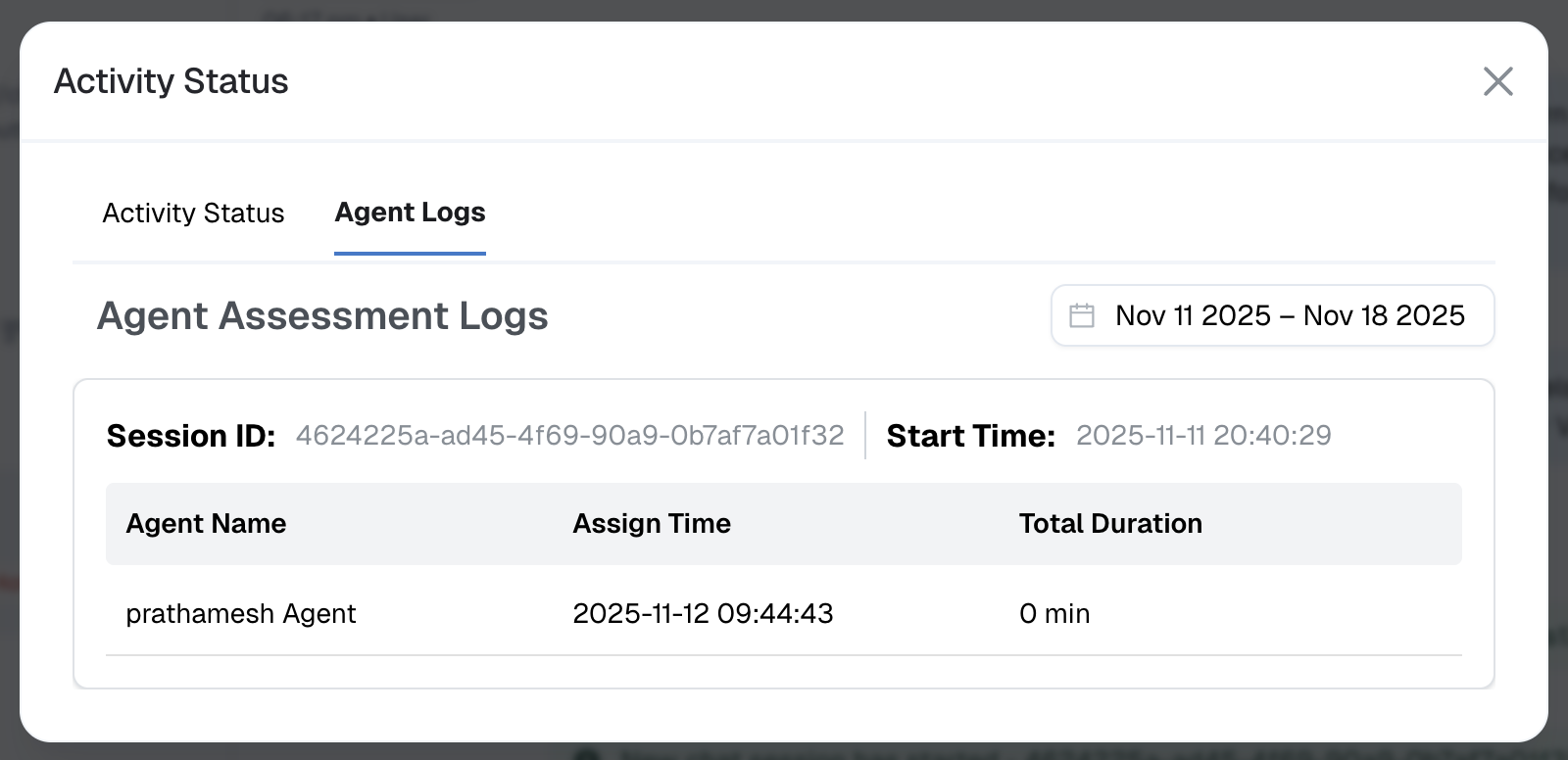
Agent Session Time & Agent Logs
Agent logs provide administrators with detailed visibility into how agents interact with visitors during chats:
View both total session time and current active session time for each agent, on a per-visitor basis.
Track every agent who has interacted with a particular visitor, capturing the complete engagement timeline.
Monitor cumulative session duration from all participating agents, ensuring a full account of conversation handling.
This breakdown not only clarifies agent accountability but also significantly streamlines oversight, making it easier to identify bottlenecks and improve support processes.
Managing Chat Status
Once a query is handled, agents or managers can update the chat lifecycle:
Action | Description |
|---|---|
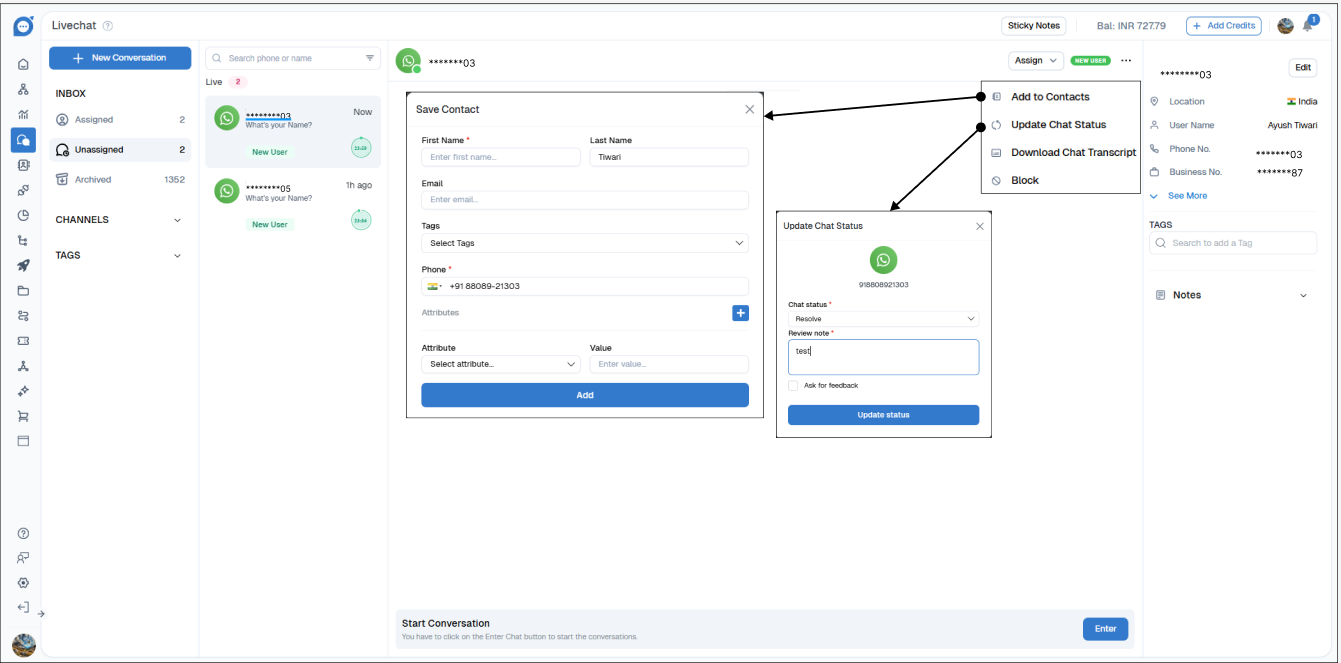
Resolve Chat | Mark the conversation as complete. |
Mark as Abandoned | Close out chats where the user has dropped off. |
Label as Critical | Flag high-priority issues for escalation. |
Add a Comment | Annotate the chat with context or next steps. |
Send Feedback Prompt | Optionally request user feedback before closing. |
Saving Contacts for Follow-Up
Capture hot leads or important users directly from chat:
In the Live Chat header, click the ⋯ menu → Save Contact.
Enter Name, Phone Number, Tags, and any custom fields.
Retrieve saved contacts later under Contacts for marketing or support follow-ups.
Transcripts & Compliance
Maintain a record of every interaction:
Download Chat Transcript — Click the download icon to export a full conversation log — for audits, training, or compliance.
Blocking & Unblocking
Protect your team from abuse or spam:
To block: In a chatroom's ⋯ menu, choose Block → select duration → Continue.
To unblock: Repeat the same steps and select Unblock.
Use Case Examples
E-Commerce Support — A customer hits "Enter Chat" during the returns flow to clarify policy.
Multilingual Assistance — A Spanish-speaking user is auto-translated, and tone is set to "formal" when an enterprise client connects.
Lead Generation — High-value prospects are saved as contacts for personalized follow-up campaigns.