WebEngage Integration
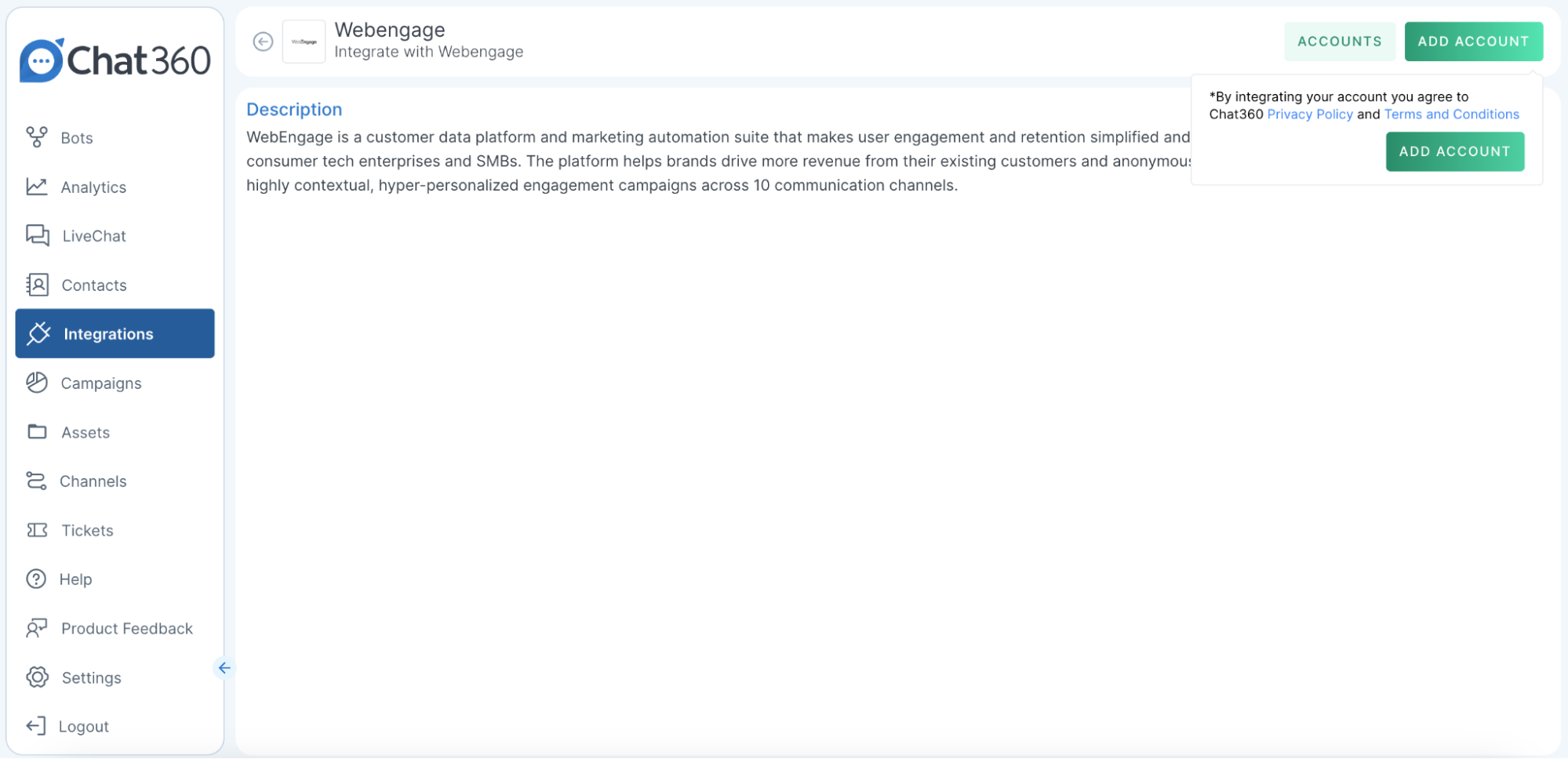
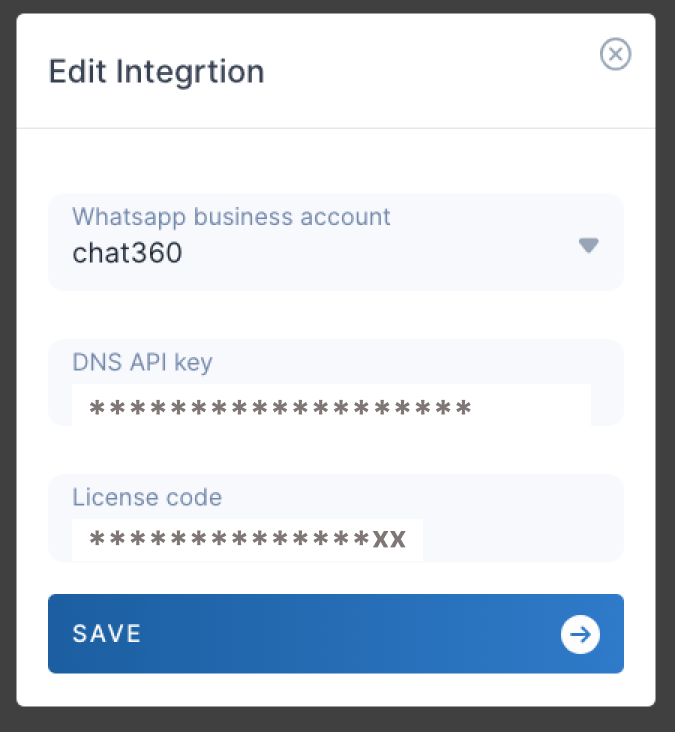
Connect WebEngage with Chat360 to sync customer segments, trigger campaigns from behavioral events, automate engagement and track performance across platforms.
After syncing your approved WhatsApp templates, you can create and launch targeted campaigns directly from WebEngage. This process allows you to select the appropriate audience, apply Chat360-synced templates, and execute campaigns while tracking performance in Chat360 Analytics.
Configuration Steps
1. Access Campaign Manager
Log in to WebEngage.
Navigate to Campaign Manager.
Select WhatsApp and click the + icon to create a new campaign.
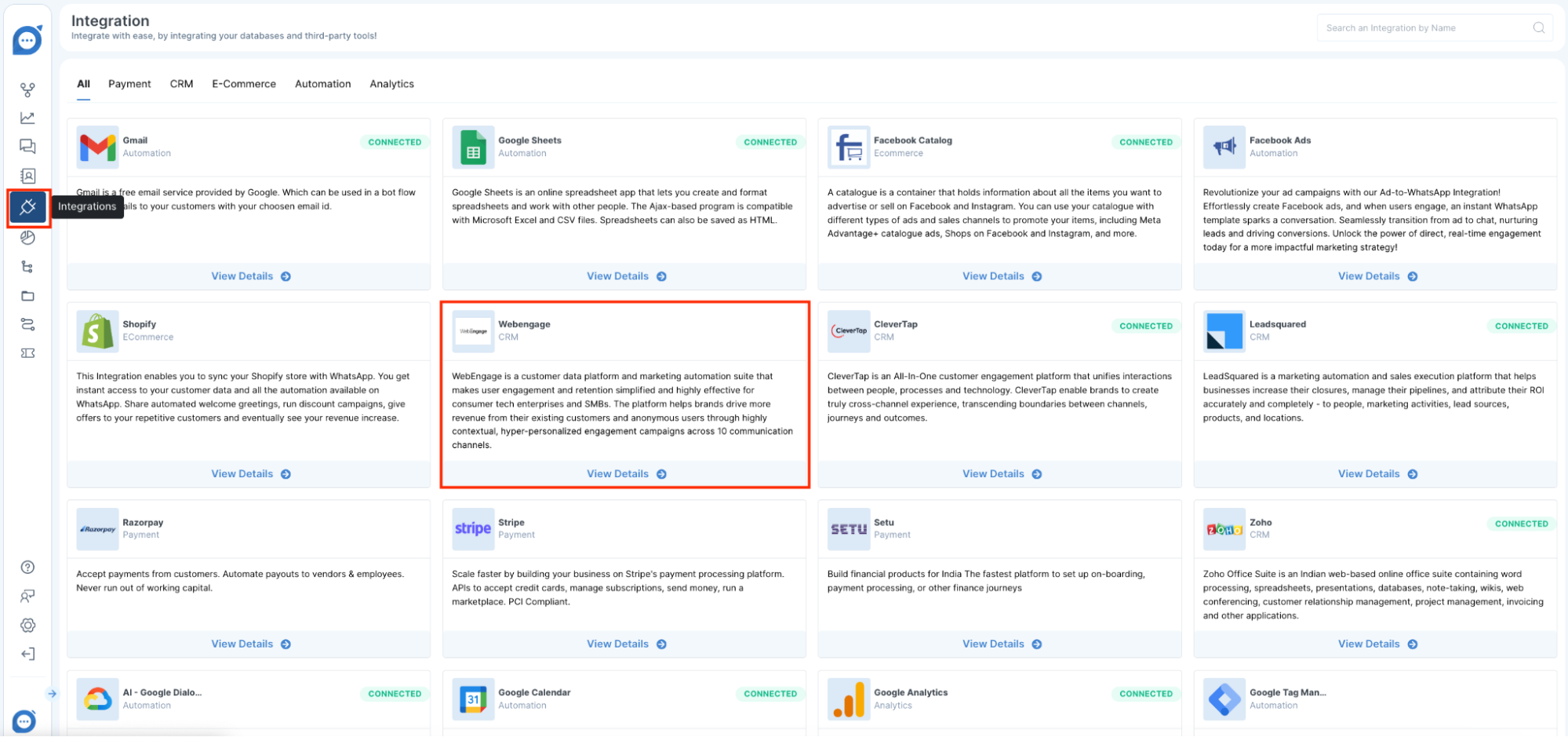
2. Define Campaign Details
Campaign Name: Enter a clear and distinctive name for tracking.
Audience Selection: Choose the relevant segment from your existing user lists or predefined segments.
3. Upload or Select User Data
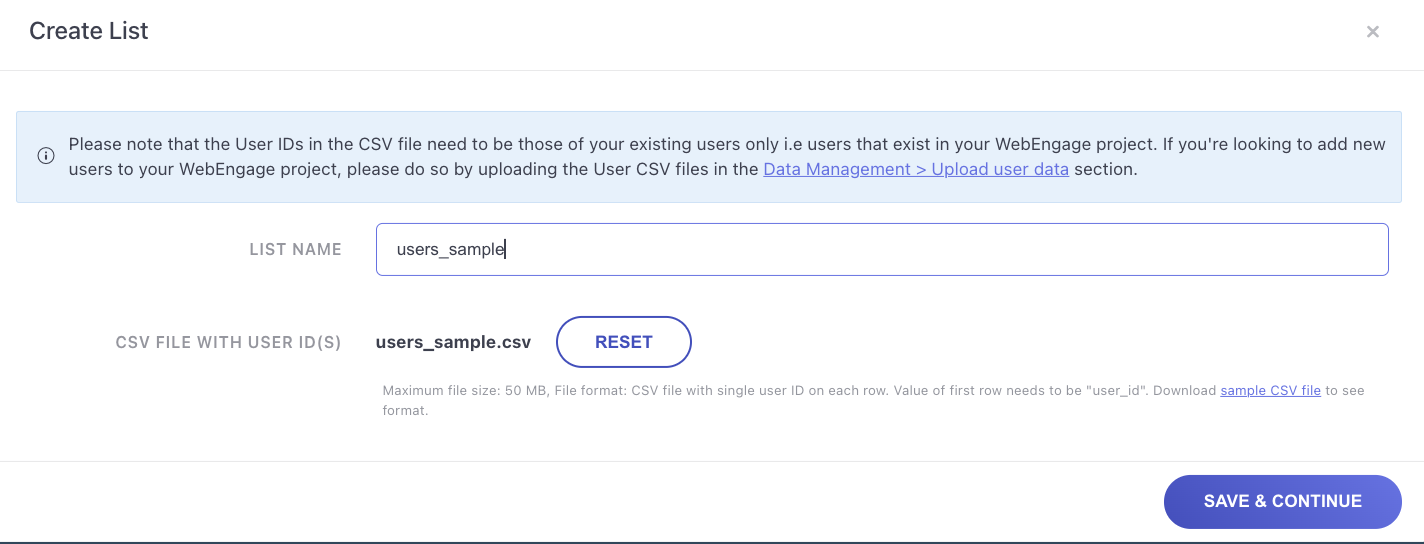
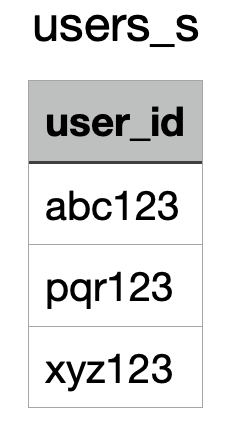
To import new users, go to Data Manager → Upload Data and upload a CSV file using the sample format.
Navigate back to Segments and select the imported user dataset (e.g., phone numbers or user IDs).
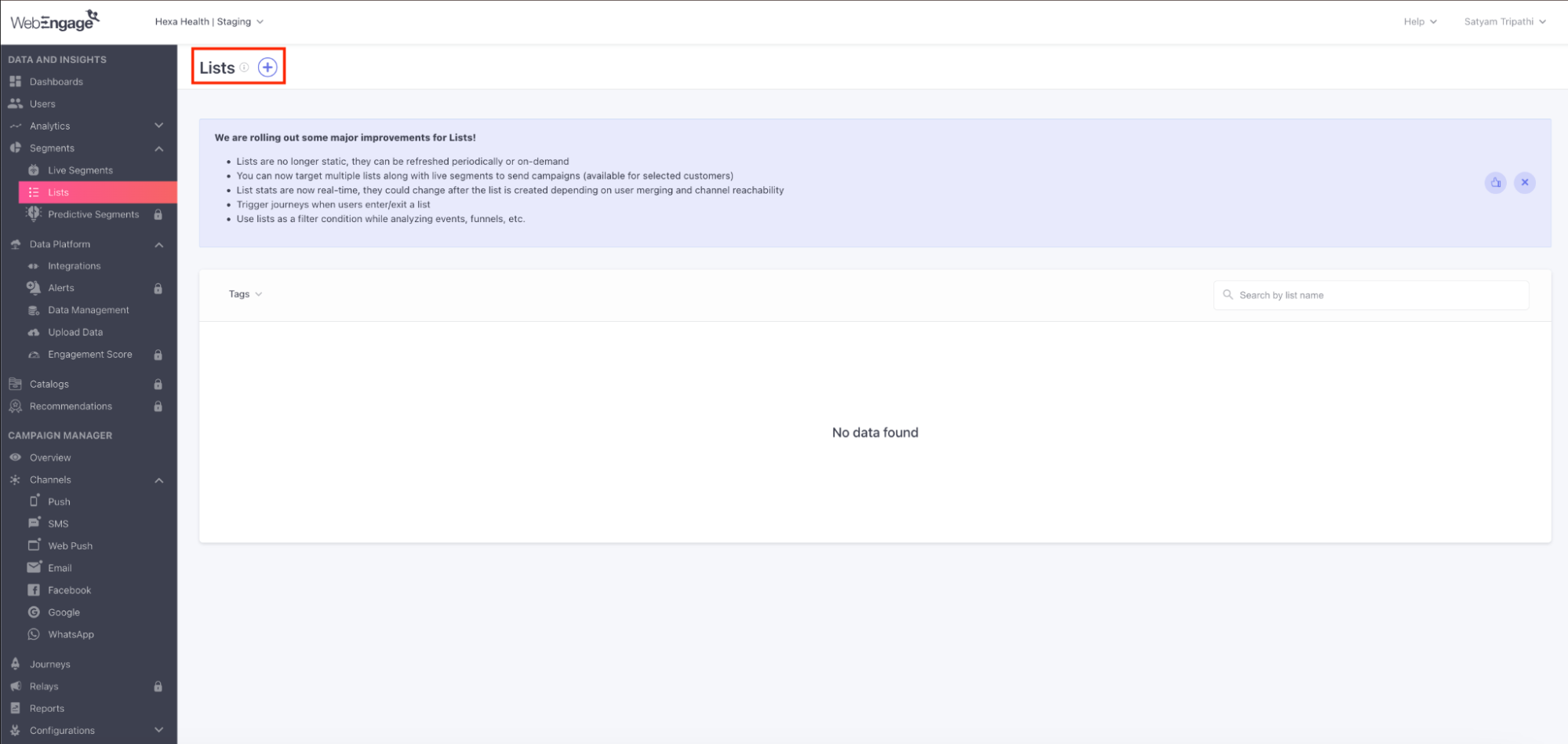
4. Select Chat360 Template
In Message Settings, choose the WhatsApp template synced from Chat360 (configured in Step 2).
Verify that dynamic placeholders (e.g., {{user_name}}) and media elements are correctly configured.


5. Test the Campaign
Send a test message to a designated number.
Confirm formatting, personalization, and review content on both mobile and desktop WhatsApp clients.

6. Launch the Campaign
After successful testing, click Launch to either schedule or immediately start the campaign.
WebEngage will process and send messages using Chat360’s template engine.

7. Monitor Performance in Chat360
Go to Chat360 Dashboard → Analytics → Campaign Analytics.
Track real-time metrics such as sent, delivered, read, and failed messages.
Use insights to optimize future campaigns and reporting.

Key Benefits
Seamless Execution: Combine WebEngage segmentation with Chat360 template management for streamlined campaign launches.
Consistent Branding & Compliance: Ensure every message uses an approved template to maintain brand consistency and regulatory standards.
Data-Driven Optimization: Leverage real-time analytics in Chat360 to refine targeting and messaging strategies.
Personalization at Scale: Use dynamic placeholders to deliver tailored messages to large audiences effortlessly.
Reduced Campaign Errors: Pre-launch testing helps identify formatting or integration issues before going live.
WebEngage Integration — Use Case Examples
1. Abandoned Cart Recovery (E-Commerce)
Objective
Re-engage users who added products to their cart but did not complete the purchase.
How It Works
Use WebEngage behavioral tracking to segment users with cart abandonment (e.g., inactivity for 30+ minutes).
Trigger a Chat360-approved marketing WhatsApp template with personalized content such as:
Include CTA buttons for related product recommendations or customer support.
Benefits
Strengthens post-purchase communication and customer trust.
Encourages cross-sell and repeat purchases.
Centralized template management and scheduling through WebEngage with Chat360 backend support.
2. User Reactivation Campaign
Objective
Re-engage users who have been inactive for an extended period.
How It Works
Create a segment in WebEngage for users inactive for 60+ days.
Sync with a Chat360 marketing template offering an incentive:
“We miss you,
{{user_name}}!Enjoy 15% off your next purchase.”Launch the campaign at scale with optional media such as banners or promo codes.
Benefits
Revives dormant users through real-time outreach.
Supports personalization using Chat360 dynamic variables.
Tracks engagement metrics (opens, replies, opt-outs) within Chat360.
3. Automated Onboarding Journey
Objective
Deliver a structured onboarding experience for new users via WhatsApp.
How It Works
WebEngage captures new sign-ups from your website or app.
Automatically triggers a multi-step onboarding journey through Chat360, including:
Welcome message
Account verification instructions
Feature highlights with media (GIFs, carousels, or images)
Benefits
Eliminates manual onboarding processes.
Provides timely, relevant communication to new users.
Reduces early-stage churn through guided engagement.