LeadSquared Integration
Turn LeadSquared into a smarter engagement hub. Connect Chat360 to automate workflows, sync customer activity and keep conversations connected to CRM data.
Seamlessly integrate Chat360 WhatsApp Business with LeadSquared CRM to manage conversations, templates, and messaging directly within your CRM workspace.
This integration ensures that all incoming and outgoing WhatsApp interactions are automatically logged as LeadSquared activities, giving your team a unified view of customer communication without switching platforms.
Integrating Chat360 with LeadSquared enables your team to:
Manage WhatsApp conversations directly from CRM
Automatically log communication history
Send rich media messages and templates
Maintain compliance and consent management
Step-by-Step Procedure to Setup
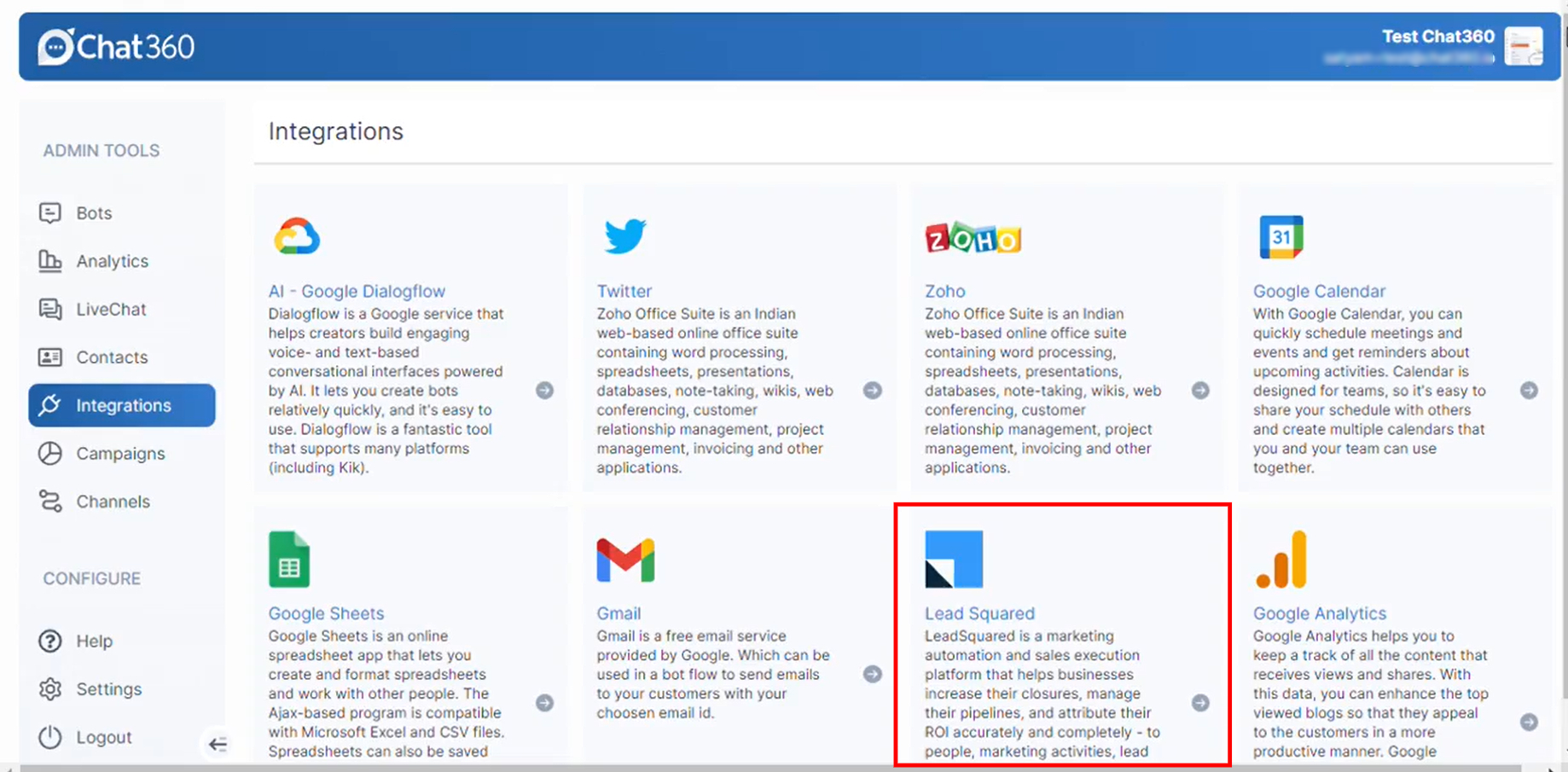
Step 1: Enable Integration in Chat360
Log in to app.chat360.io
Navigate to Admin Tools → Integrations
Select LeadSquared
Click Connect Number
Choose the WhatsApp number you want to integrate
Step 2: Install WhatsApp Extension in LeadSquared
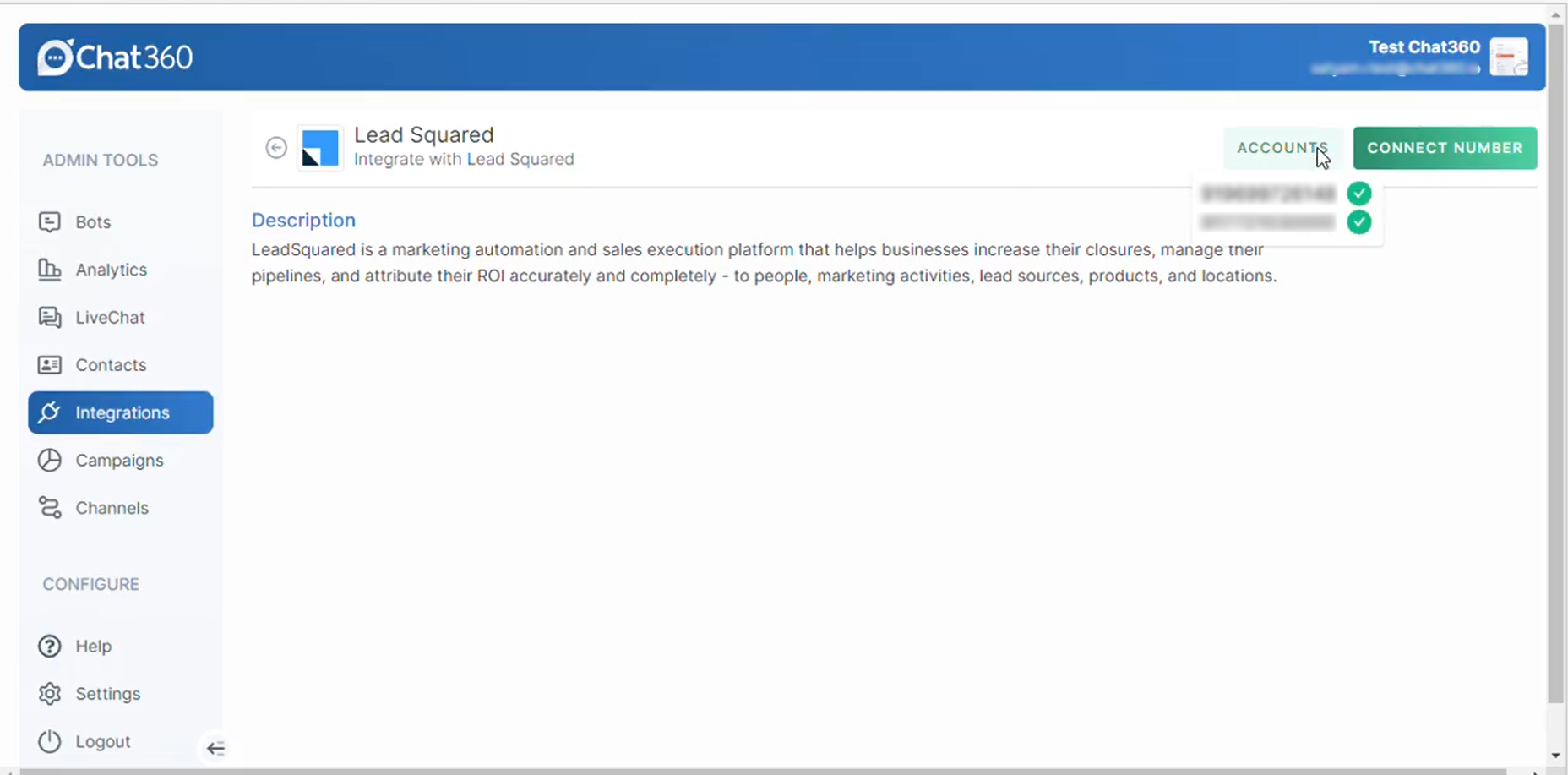
Log in to your LeadSquared CRM account
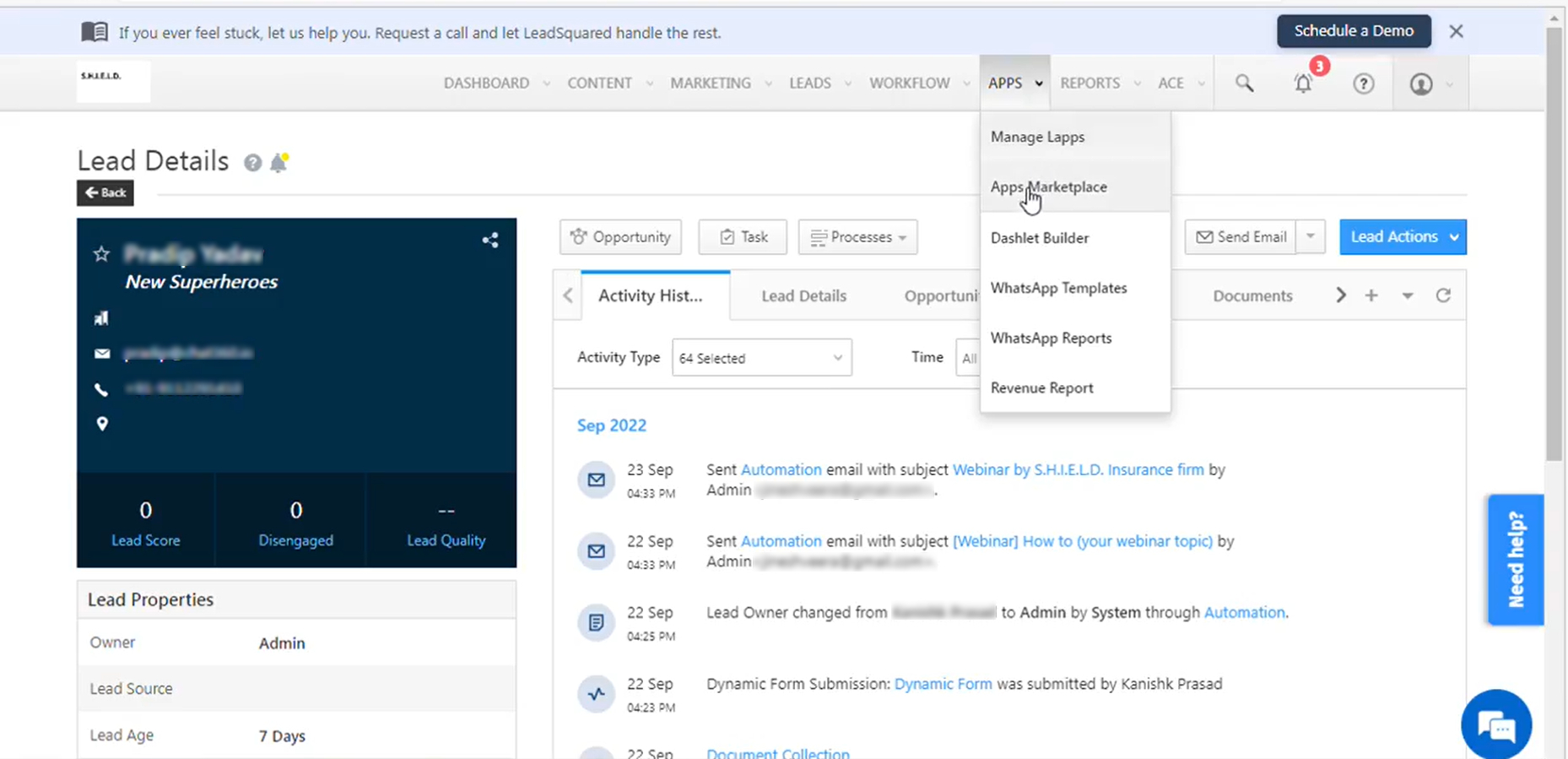
Go to Apps → Apps Marketplace
Search for WhatsApp Business
Install the extension
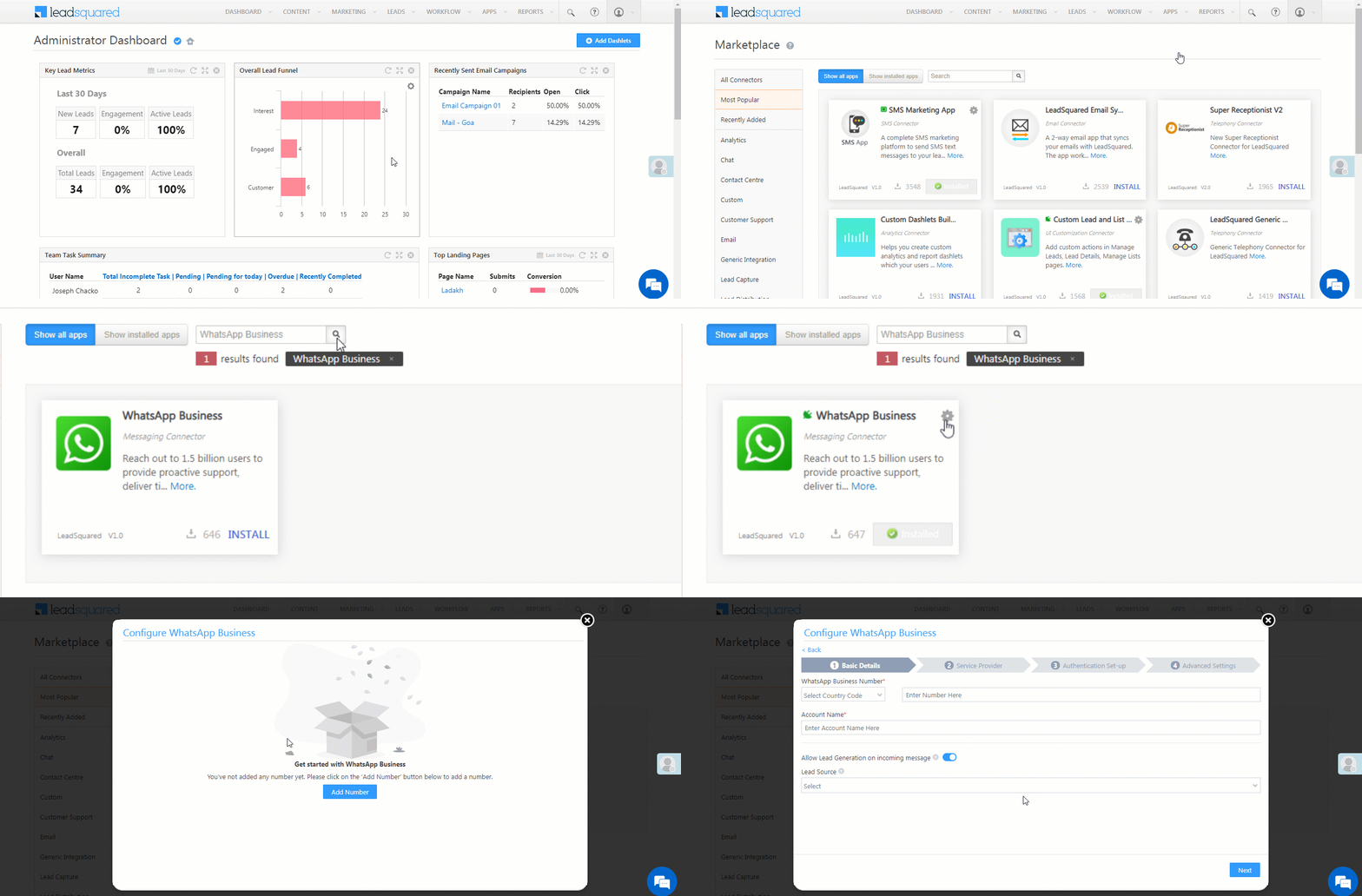
Click the Settings icon
Select Configure
Step 3: Configure Basic & Service Provider Details
Basic Details
Enter a friendly Integration Name
Add a Description (optional)
Click Next
Service Provider
Select Chat360 from the dropdown
Click Next
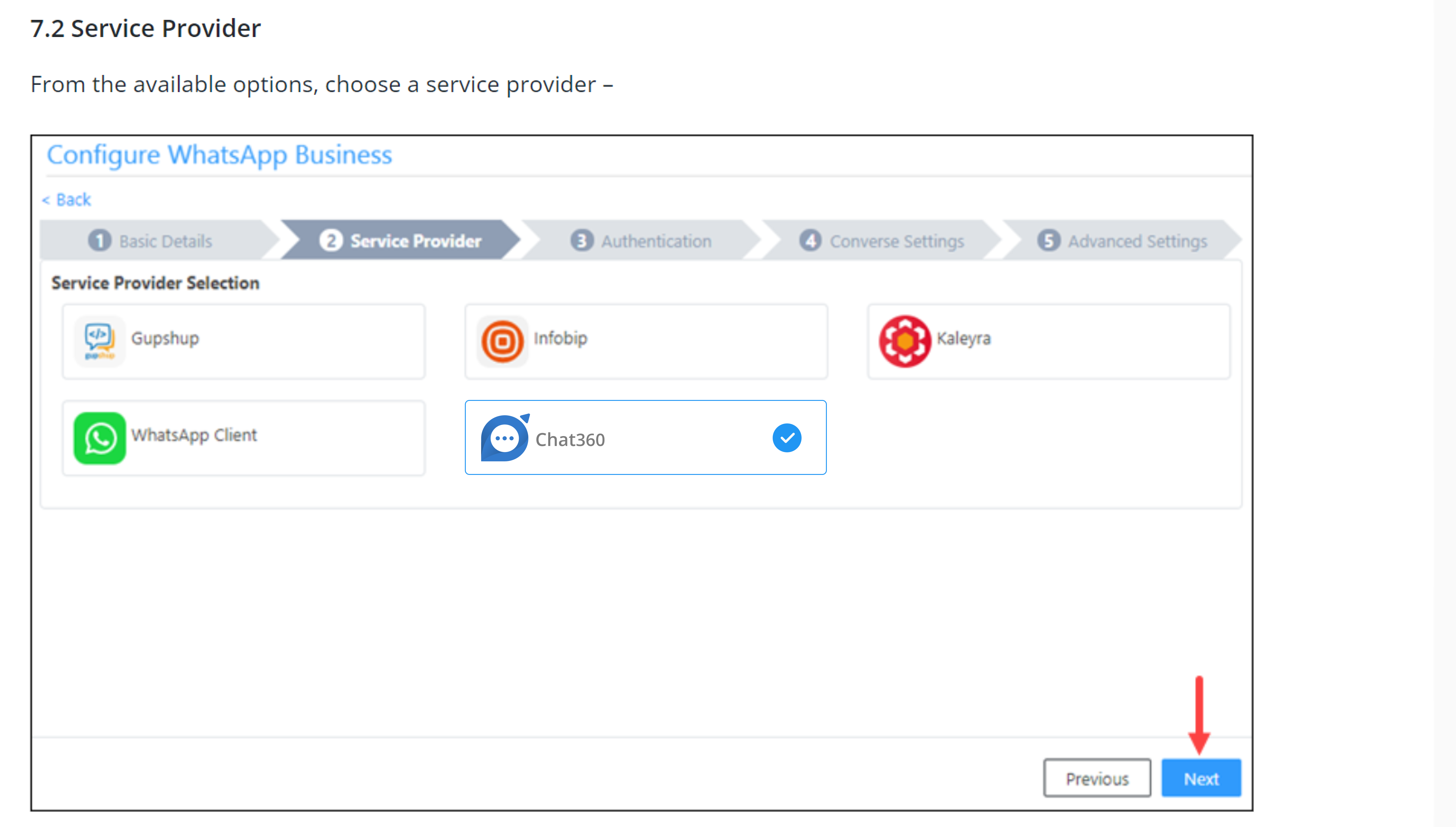
Step 4: Authenticate Chat360 Account
In the Authentication section:
Enter your Chat360 API Key
Enter your Secret
Click Next
Tip You can find your API Key in Chat360 under Settings → Keys
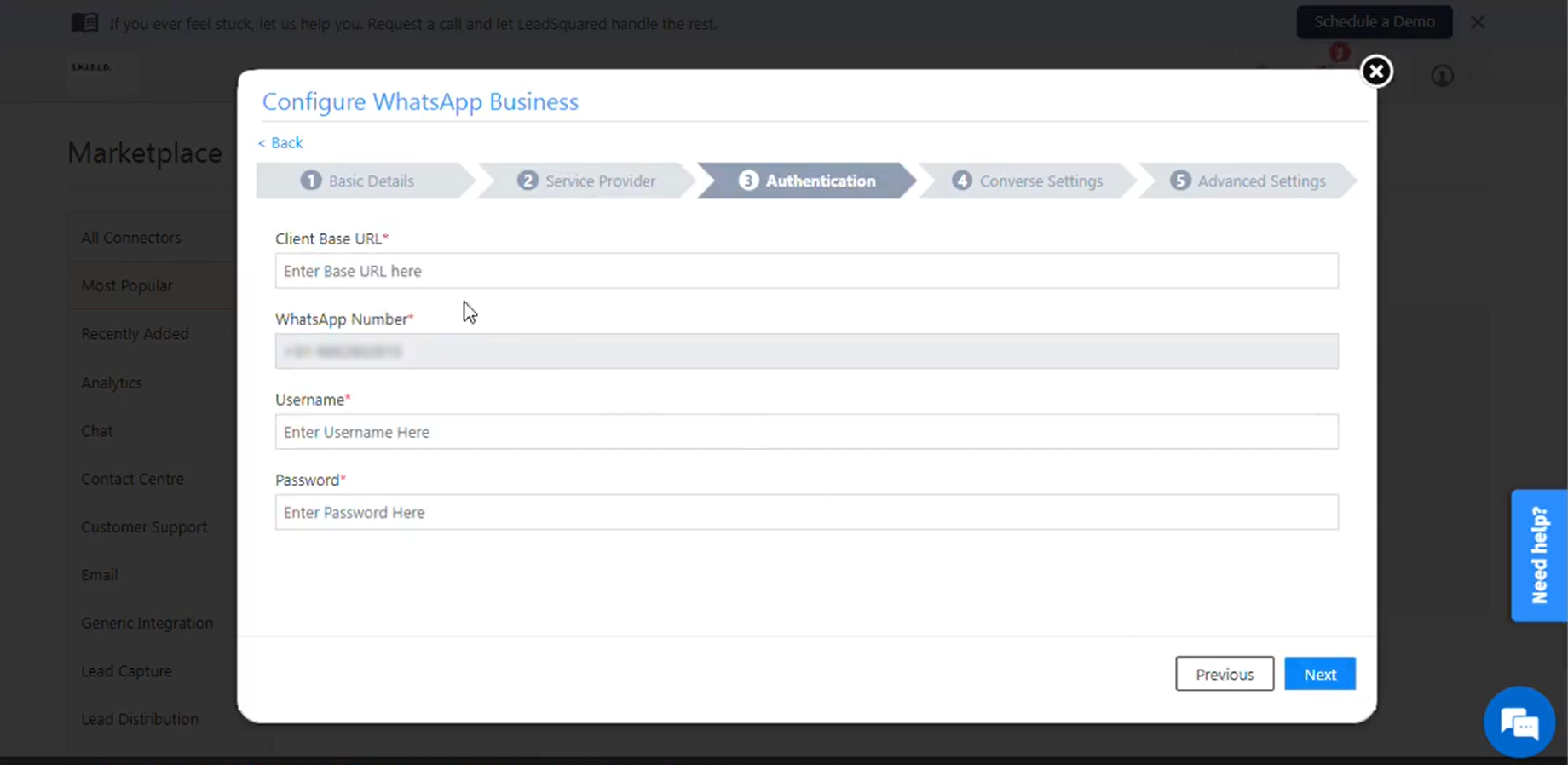
Step 5: Configure Converse Settings
Define how WhatsApp messages should behave within LeadSquared.
Configuration options include:
Mapping Incoming Messages to CRM activities
Mapping Outgoing Messages to CRM activities
Configuring default reply behavior
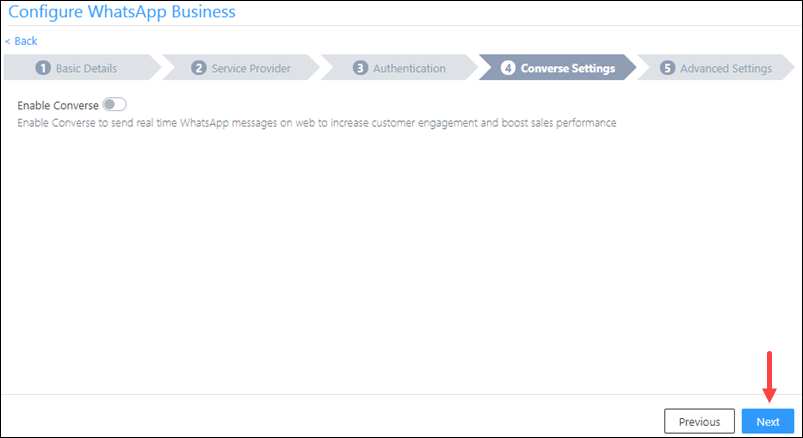
Step 5: Configure Converse Settings
Define how WhatsApp messages should behave within LeadSquared.
Configuration options include:
Mapping Incoming Messages to CRM activities
Mapping Outgoing Messages to CRM activities
Configuring default reply behavior
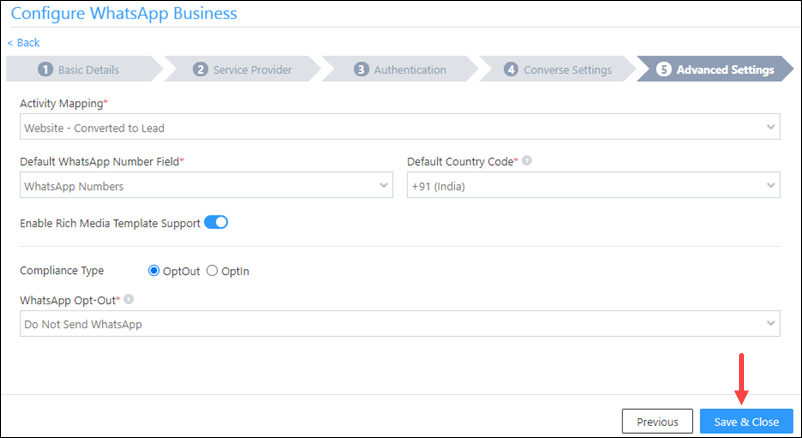
Step 7: Finalize Integration
Review all configuration settings
Click Save & Close
The integration is now active.
Key Benefits
Unified Communication Logs : All WhatsApp conversations are automatically recorded inside LeadSquared.
In-CRM Messaging : Send and receive WhatsApp messages directly from LeadSquared without switching platforms.
Automated Activity Mapping: Ensure accurate reporting by mapping messages to specific CRM fields.
Rich Media Support : Send images, documents, and interactive templates.
Compliance Management : Enforce and track opt-in/opt-out preferences at scale within LeadSquared.
Use Cases
1. B2B SaaS – Lead Nurturing via WhatsApp Follow-Ups
Scenario :A SaaS company wants to automate demo follow-ups.
How It Works
Demo request is captured in LeadSquared
Chat360 automatically sends:
Demo confirmation template
Follow-up message after 24 hours with product brochure or FAQs
Interaction is logged in the CRM timeline
Outcome : Improved engagement and consistent follow-ups without manual effort.
2. EdTech – Instant Welcome Messages for New Enquiries
Scenario : An online learning platform wants immediate engagement for new enquiries with course details.
How It Works
New leads sync into LeadSquared
Based on lead stage or source, a WhatsApp message is triggered via Chat360
Chat360 sends course details or PDF
Entire conversation is logged under the lead activity feed
Outcome : Faster response time and increased course sign-ups.
3. Healthcare – Appointment Confirmation & Rescheduling
Scenario : A clinic using LeadSquared wants to automate appointment confirmations and allow rescheduling via WhatsApp.
How It Works
Appointment bookings are created in LeadSquared
Chat360 sends:
Appointment confirmation message
Interactive template: Confirm / Reschedule / Cancel
User actions are recorded as CRM activities
Outcome : Reduced no-shows and improved patient experience.
4. BFSI – EMI Reminder Campaigns
Scenario : A loan servicing company wants to send EMI reminders with compliance tracking.
How It Works
EMI schedules are uploaded into LeadSquared
Chat360 sends personalized WhatsApp EMI reminders
Opt-in/Opt-out compliance is tracked
Delivery and response activity is logged in CRM
Outcome : Better compliance tracking and improved payment collection efficiency.