CleverTap Integration
Connect Clever Tap with Chat360 to sync customer segments, trigger campaigns from behavioral events, automate engagement and track performance across platforms.
The CleverTap integration allows Chat360 to combine CleverTap’s advanced segmentation, event triggers, and analytics with Chat360’s omnichannel messaging capabilities.
Once configured, you can sync customer segments from CleverTap, trigger WhatsApp campaigns in Chat360 based on CleverTap events, and monitor unified performance metrics across both platforms — all from a single workflow.
This integration helps marketing and growth teams deliver personalized, event-based communication at scale while maintaining centralized reporting and engagement tracking.
Step 1: Integration with CleverTap on the Chat360 Platform
1. Connect Your CleverTap Account
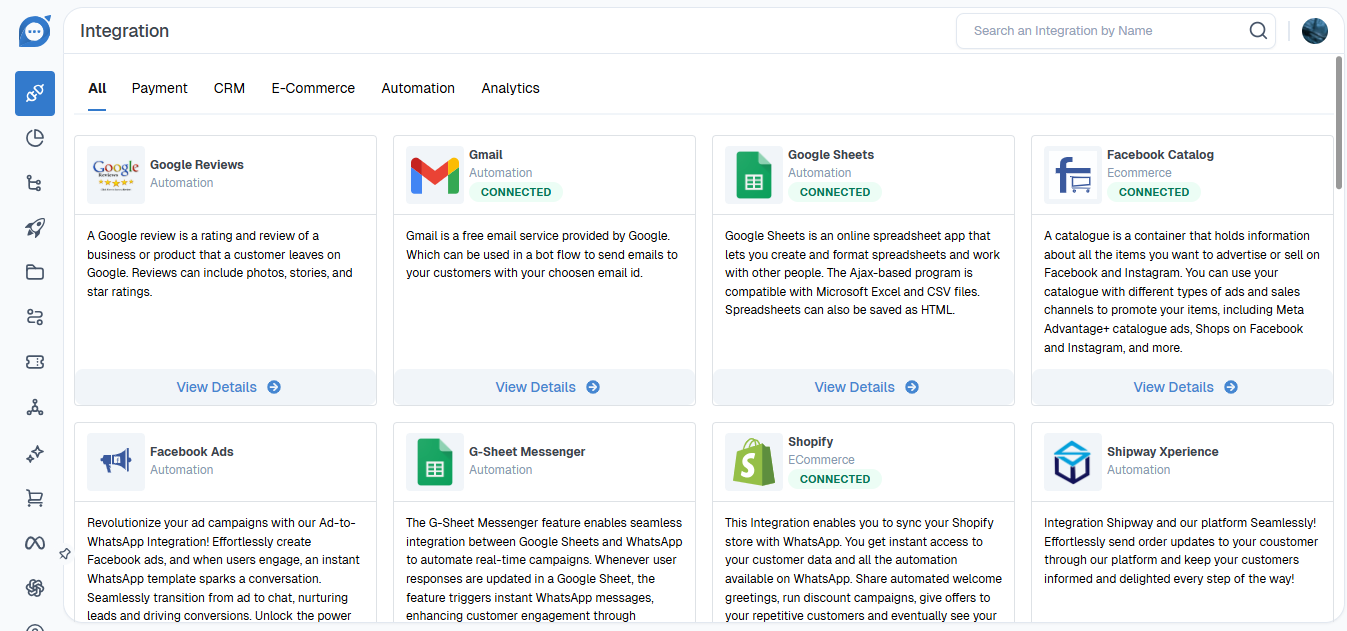
Log in to Chat360 and navigate to Integrations.
Select CleverTap from the list of available integrations.
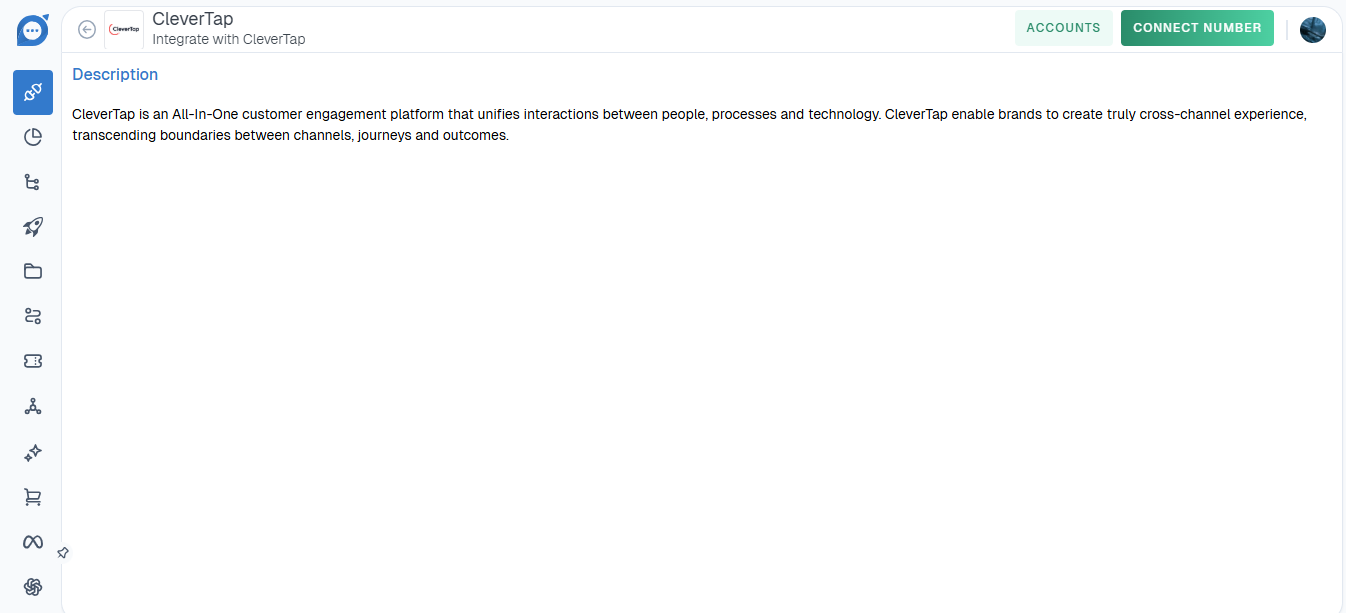
Click View Details, then select Add Account.
Enter your CleverTap credentials to complete the account connection
2. Retrieve CleverTap Configuration URL
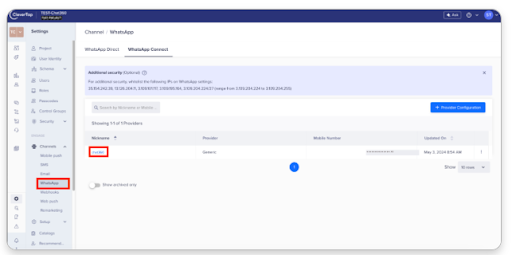
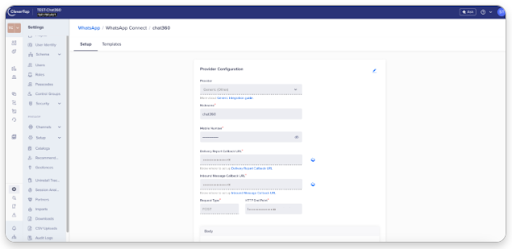
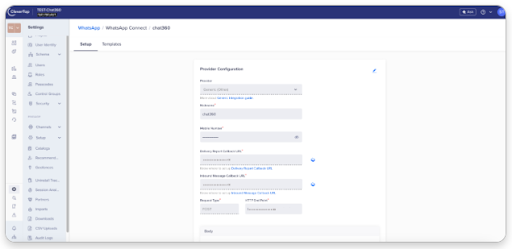
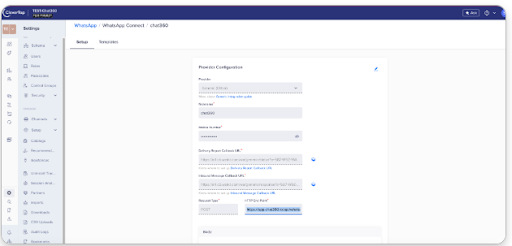
CleverTap Dashboard: log into CleverTap and go to Settings →Channel →WhatsApp.
Click the three-dot Edit icon next to WhatsApp Connect to open the Setup page.
Copy the Configuration URL and any required API endpoints listed.
3. Apply Configuration in Chat360
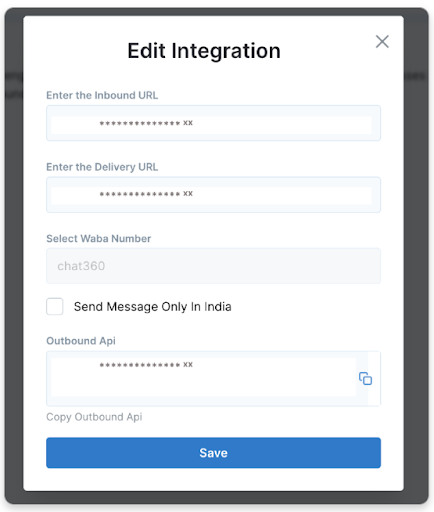
Return to Chat360’s CleverTap integration screen.
Paste the CleverTap Configuration URL and API keys into the corresponding fields.
Click Save, then Test Connection to verify integration success.
3. Apply Configuration in Chat360
Return to Chat360’s CleverTap integration screen.
Paste the CleverTap Configuration URL and API keys into the corresponding fields.
Click Save, then Test Connection to verify integration success.
4.Validate & Finalize
Ensure the test succeeds and that Chat360 displays a “Connected” status for CleverTap.
You’re now ready to sync segments and trigger campaigns.
Key Benefits
Unified Segments
Automatically import CleverTap customer segments into Chat360 for targeted messaging.Event Driven Campaigns
Trigger WhatsApp campaigns in Chat360 when users meet CleverTap behavioral criteria.Real Time Sync
New and updated segments sync automatically.Integrated Analytics
Combine CleverTap engagement insights with Chat360 delivery and conversion metrics.
Step 2: Uploading CSV Data into CleverTap
Uploading customer lists via CSV enables you to quickly import and segment users in CleverTap for highly targeted campaigns. By ensuring the CSV file is properly formatted, you can achieve accurate audience segmentation and seamlessly activate these user segments within Chat360 workflows for personalized messaging and automation.
Access CSV Uploads
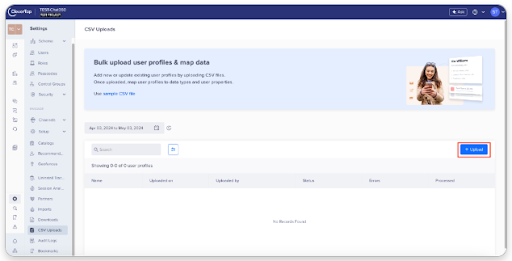
Engage→CSV Uploads:In your CleverTap dashboard, navigate to Engage,then select CSV Uploads.
Upload Your File
Click the Upload button.
In the file dialog, choose your CSV (formatted per your sample template).
Confirm the upload and wait for the processing indicator to complete.
Manage Uploaded Data
Engage → Segment: After upload, go to Segment under Engage.
Click Create Segment (or Update Segment) to begin mapping your new data.
Configure List Based Segment
Choose List Based under Custom List Segments.
Map your CSV columns to segment attributes (e.g., email, phone, user ID).
Review mapping errors highlighted by the system and correct any formatting issues.
Save Segment
Verify preview data and click Save.
Segments will now be available for targeting in Chat360 campaigns.
Key Benefits of CSV Upload
Rapid onboarding of large audiences
Precise audience targeting
Seamless sync with Chat360
Error validation before finalization
Step 3: Selecting and Configuring WhatsApp Templates
This step links CleverTap segments to approved WhatsApp templates.
Access Template Management
Engage → WhatsApp: In CleverTap, navigate to Engage, then select WhatsApp.
Select Number: Choose the WhatsApp number you configured in Chat360 to open its settings
Open Template Section
Click Template to view all available WhatsApp message templates.
Verify API Connection
Ensure the HTTP endpoint is connected with the Chat360 outbound API.
Choose Existing Template
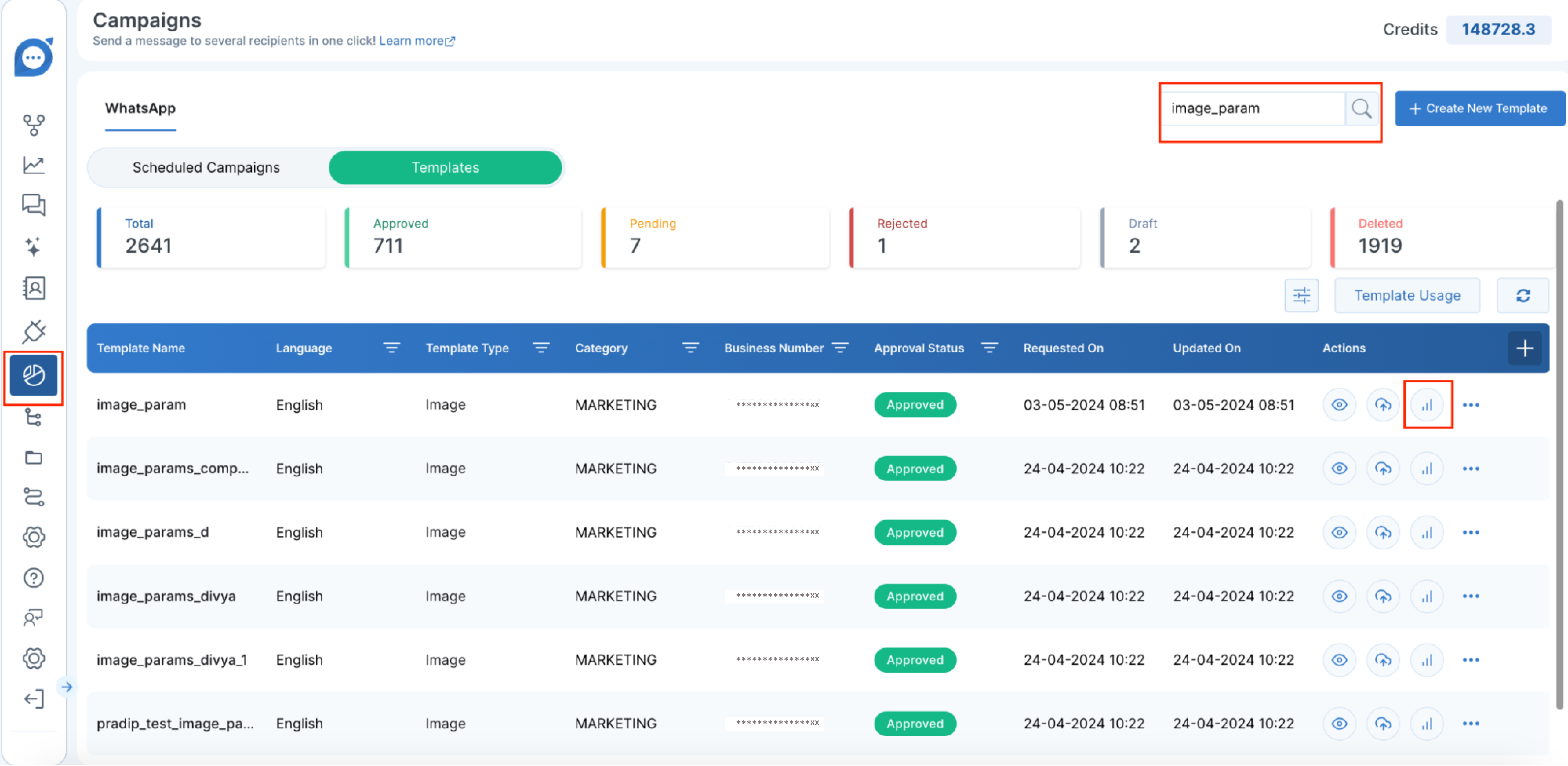
Add New Templates: Click Add Template if none of the existing templates meet your needs.
Design: Enter the template name, category (e.g., Utility, Marketing, Authentication), and body text. Attach media (images, documents) within the size limits and parameter rules.
Parameter Mapping: Define any dynamic placeholders (e.g.,
{{user_name}}) so customer-specific data fills correctly at send time.
Create Custom Template (Optional)
Add New Templates: Click Add Template if none of the existing templates meet your needs.
Design: Enter the template name, category (e.g., Utility, Marketing, Authentication), and body text. Attach media (images, documents) within the size limits and parameter rules.
Parameter Mapping: Define any dynamic placeholders so customer-specific data fills correctly at send time.
Define dynamic placeholders like:
{{user_name}}
{{order_id}}
Preview Template
Preview: Use the built-in preview to verify text, buttons, and media render properly on mobile and desktop.
Finalize: Click Done to save. The template is now ready for scheduling in both CleverTap campaigns and Chat360 workflows.
Key Benefits Unified Template Library: Maintain one set of templates across CleverTap and Chat360, reducing duplication. Error Prevention: Real-time compatibility checks prevent failed sends due to unsupported content. Custom Branding: Build unique templates with media and buttons to reinforce brand identity. Dynamic Personalization: Placeholders ensure each recipient receives tailored messages, boosting engagement.
Step 4: Configuring Data to Send Campaign
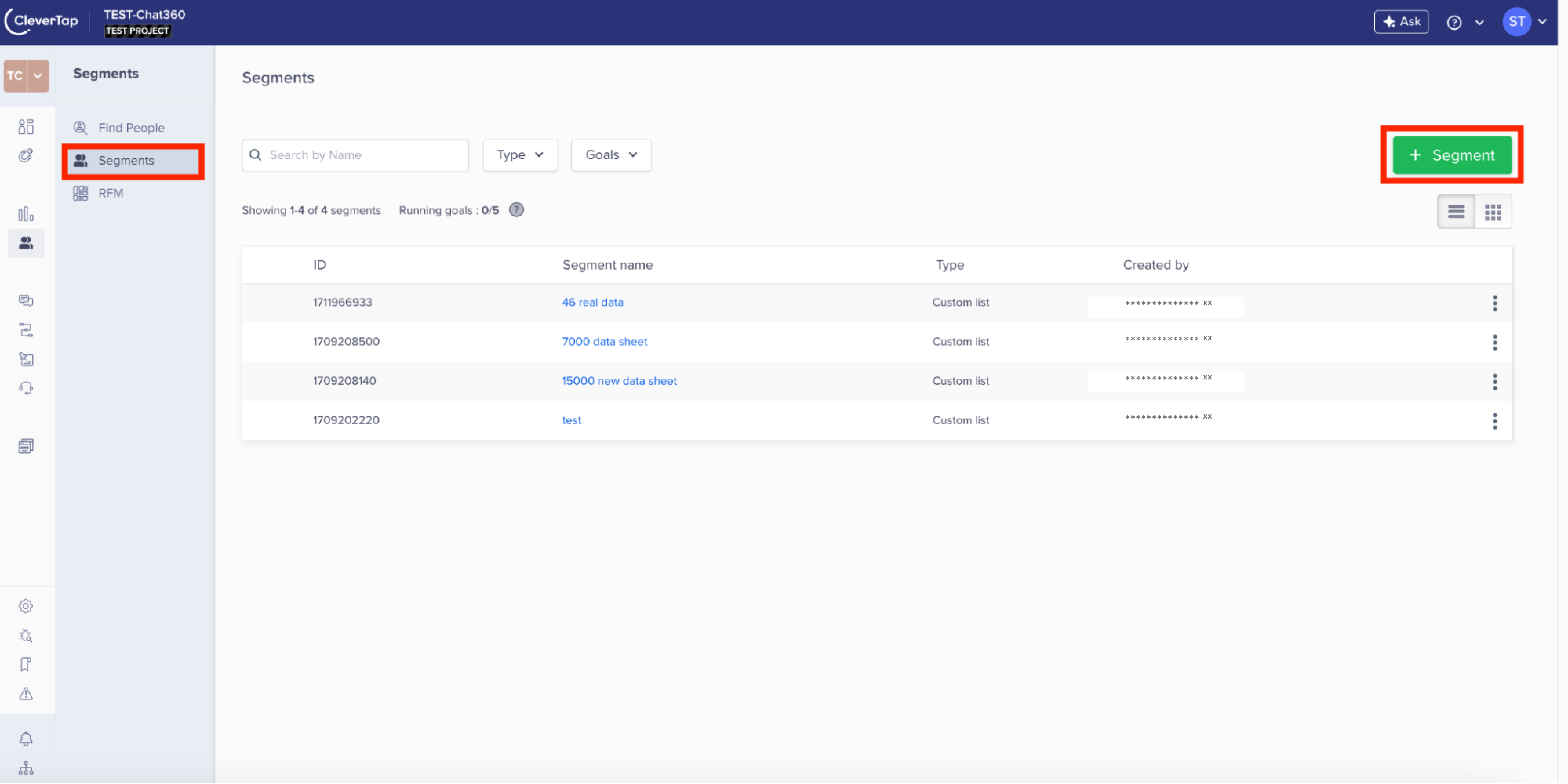
Navigate to Segment Section
Go to your CleverTap dashboard.
Click on Segment from the left panel. This is where all your user groupings and data-driven audiences are stored.
Locate Your Segment
Look for the segment you created using the uploaded CSV or from a live campaign filter.
Use search or filters to identify segments by name, tags, or creation logic.
Select Segment for Campaign
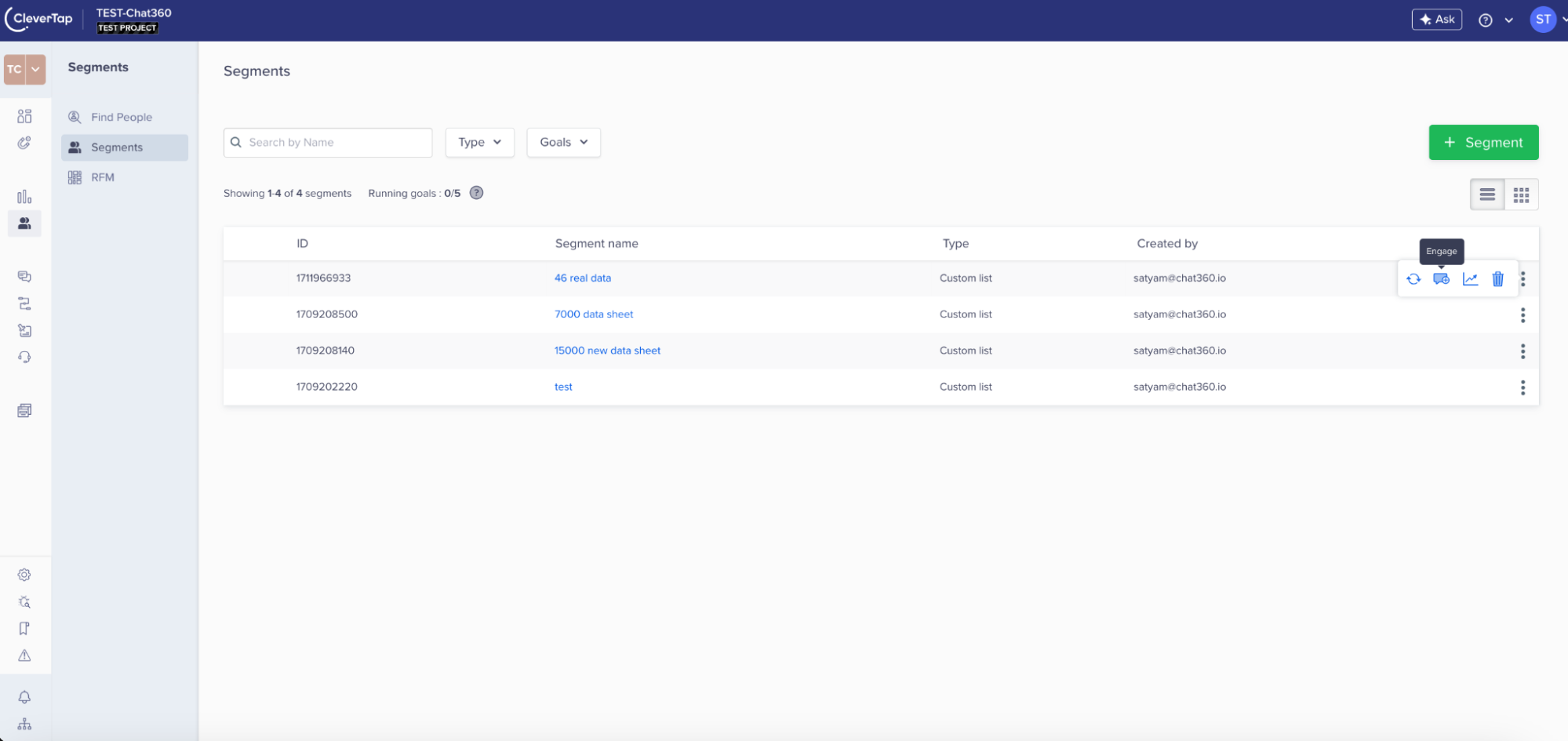
Click the three dots : or the Options menu next to your selected segment.
This menu provides interaction tools like starting campaigns, viewing users, or editing segmentation rules.
Initiate WhatsApp Campaign Connection
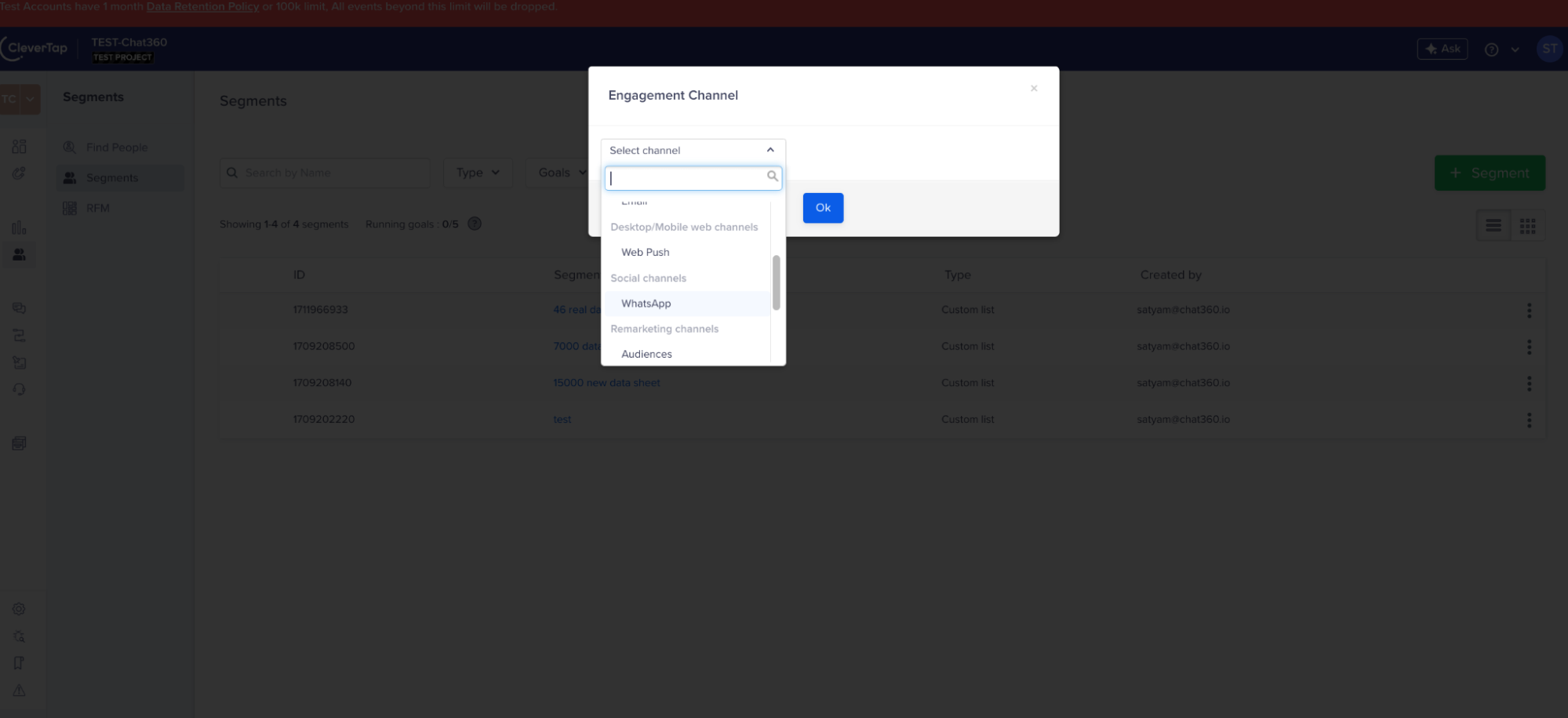
From the options menu, choose ‘WhatsApp’ as the channel to trigger the campaign creation flow.
This links your selected segment directly with the WhatsApp messaging module in CleverTap.
Campaign Template and Configuration
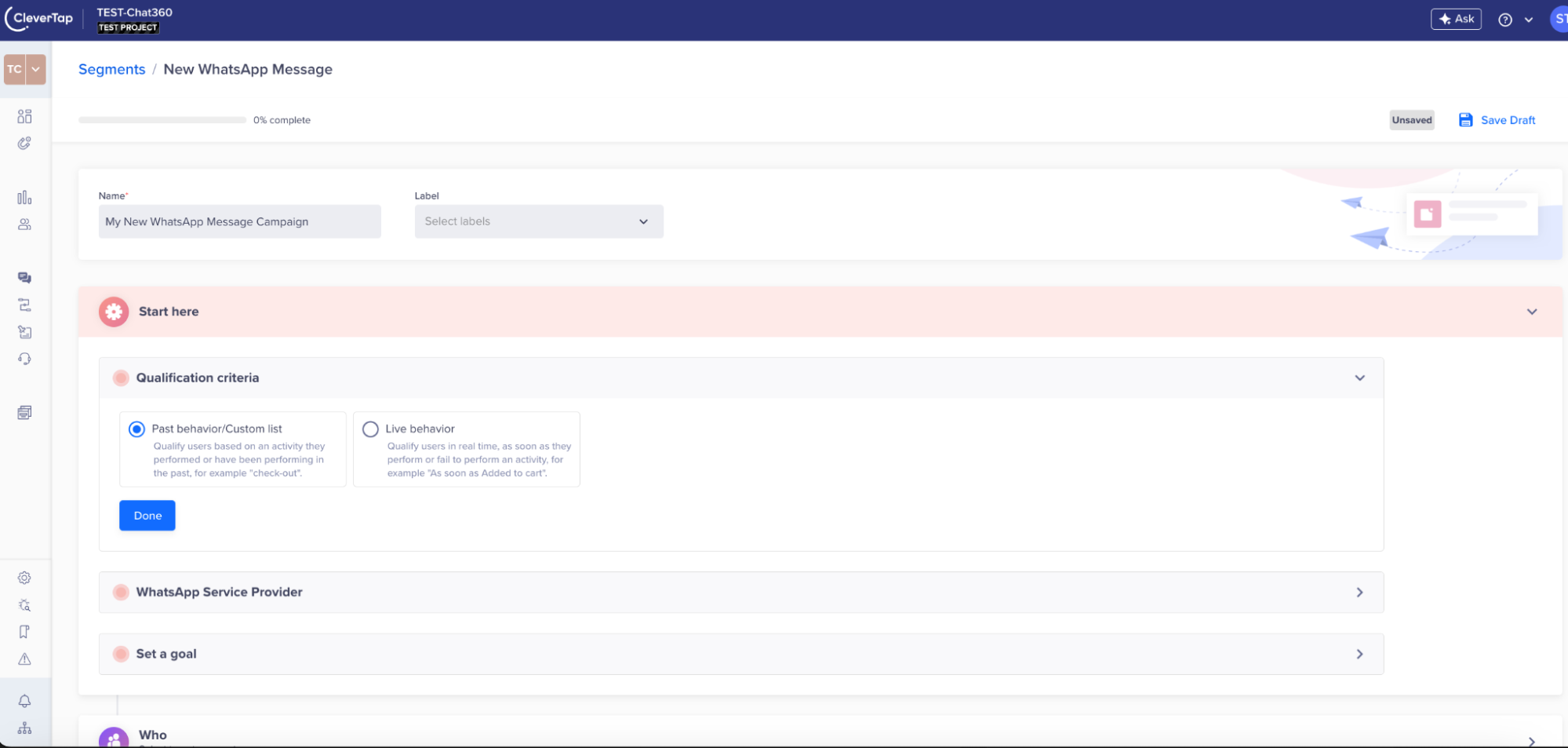
1. Select the Template
Once redirected to the campaign setup page, select the template you configured previously in Step 3. The list will show templates that are synced and active in both CleverTap and Chat360.
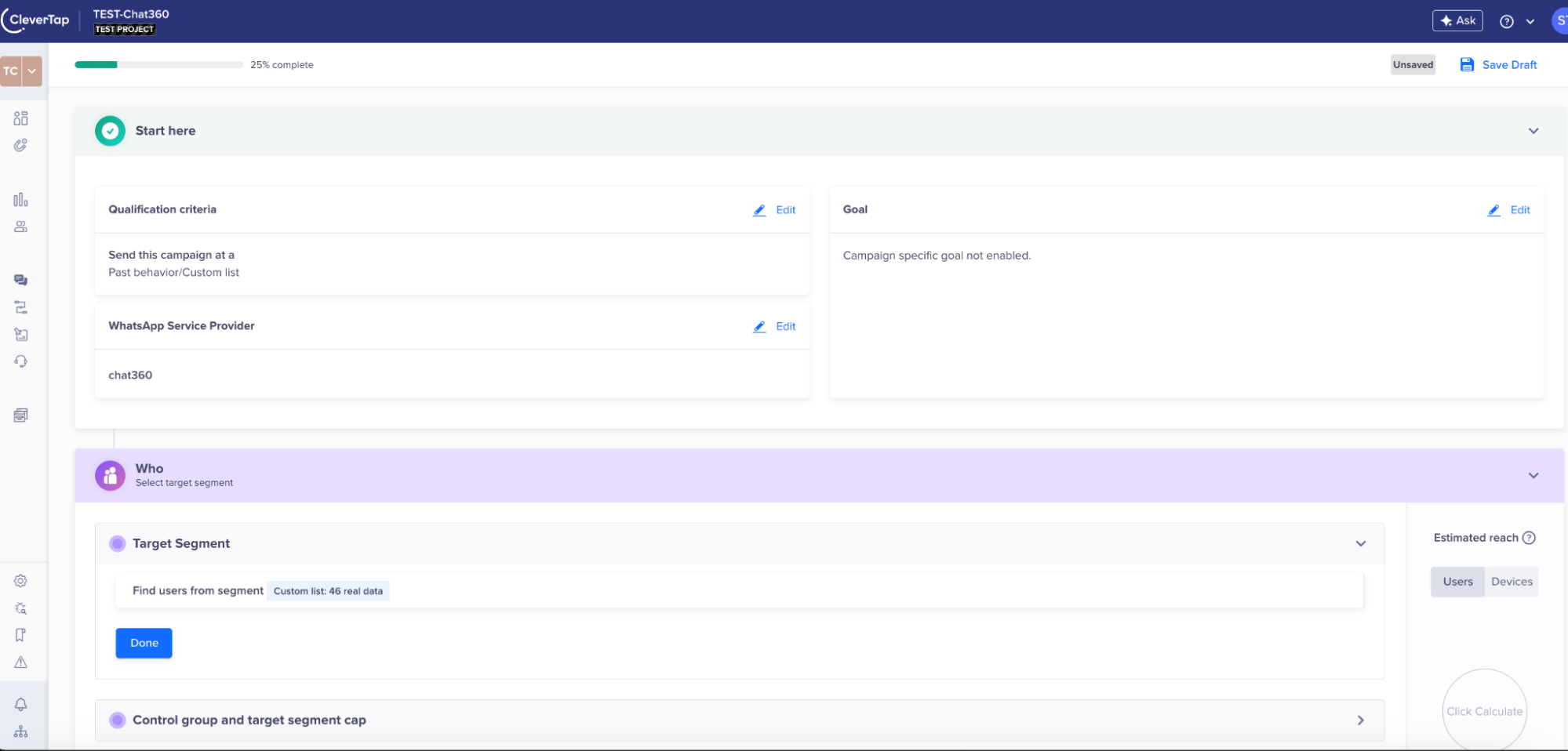
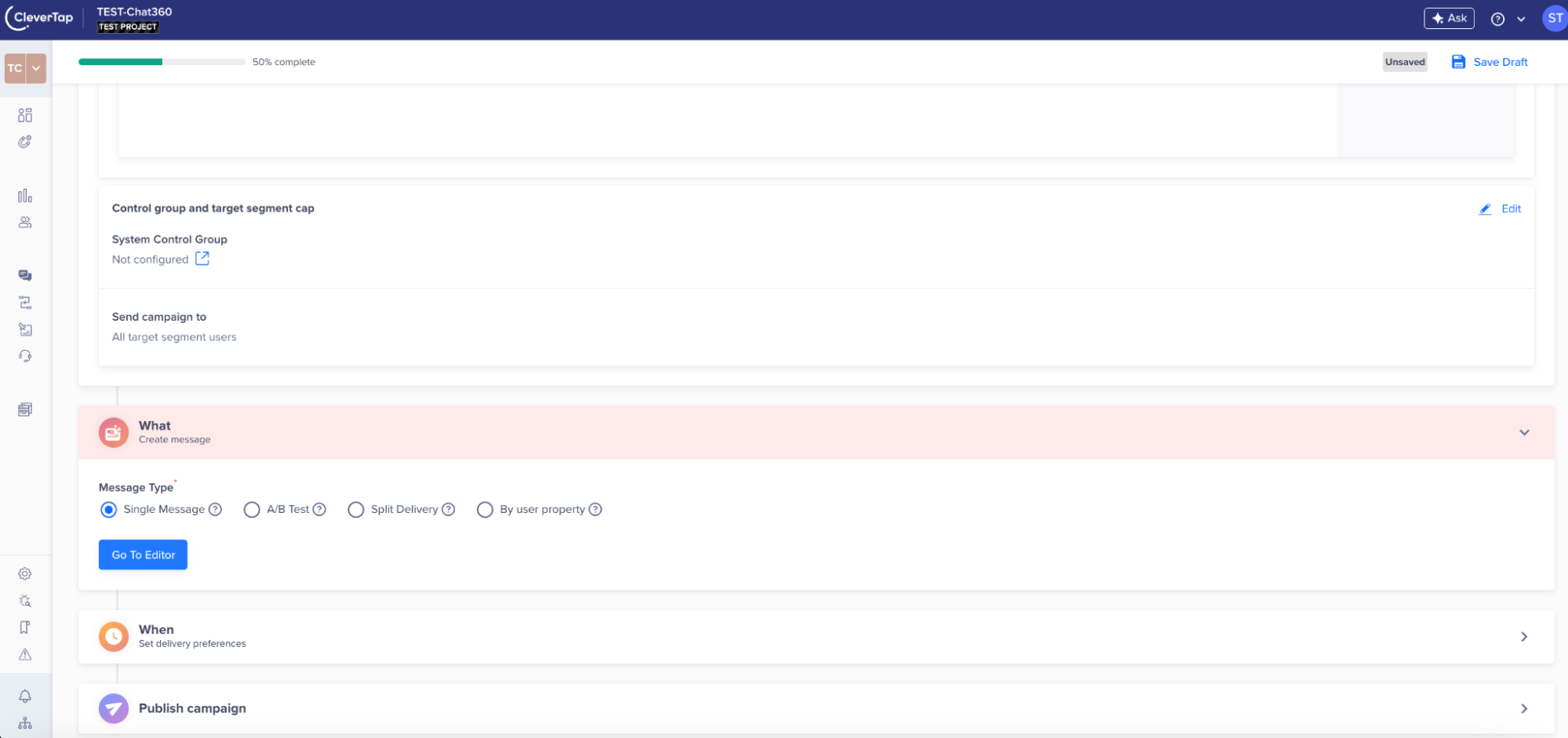
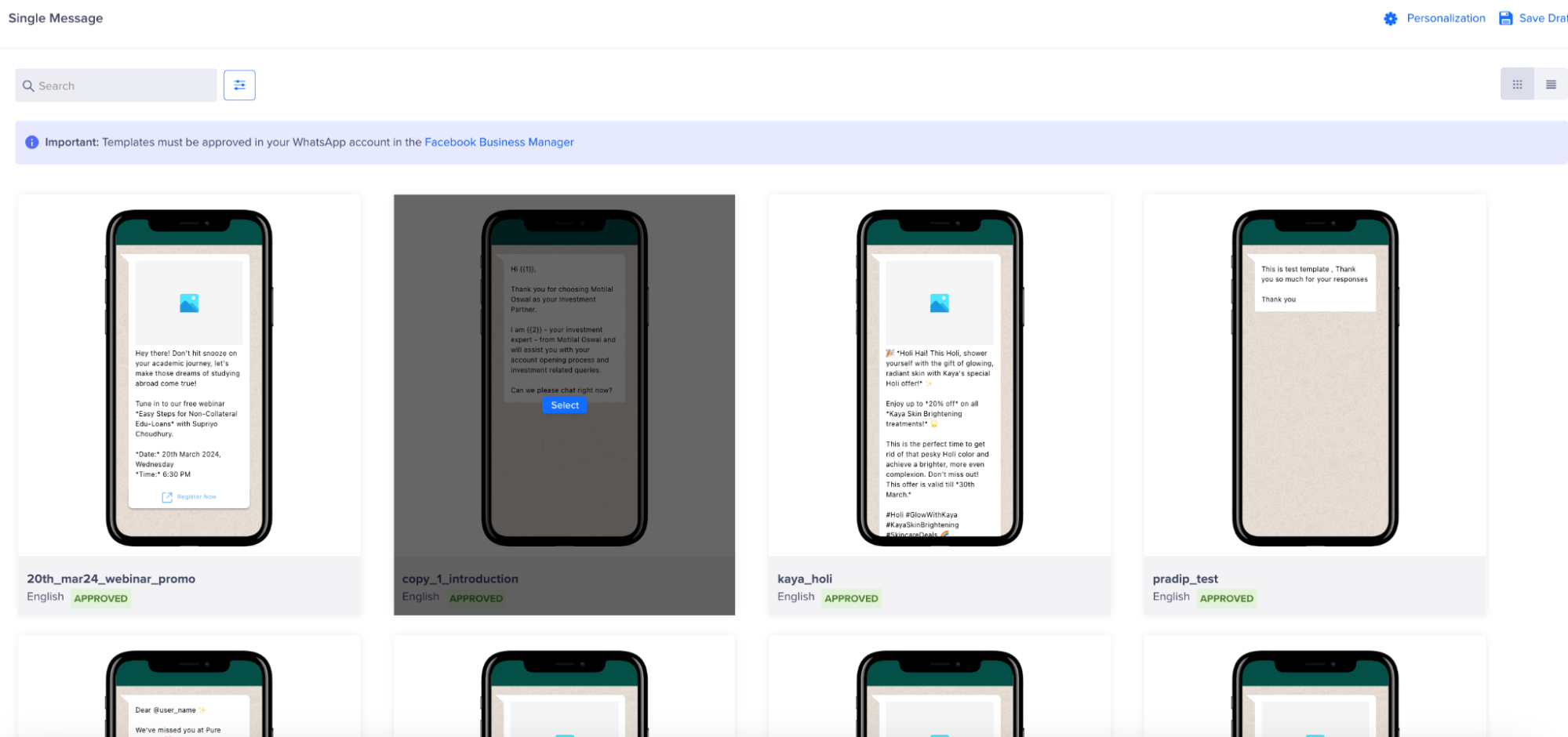
Customise Content
Modify message content within the selected template if allowed.
You can add images, links, and text to enhance the message based on campaign goals.
Ensure compliance with WhatsApp guidelines no promotional content in non-marketing templates, correct variable mapping, etc
Set Campaign Schedule
Choose one of the two delivery methods:
Immediate Send: Triggers the campaign as soon as it is published.
Scheduled Delivery: Pick a future date and time for the campaign. Make sure to align the time zone with the target audience.
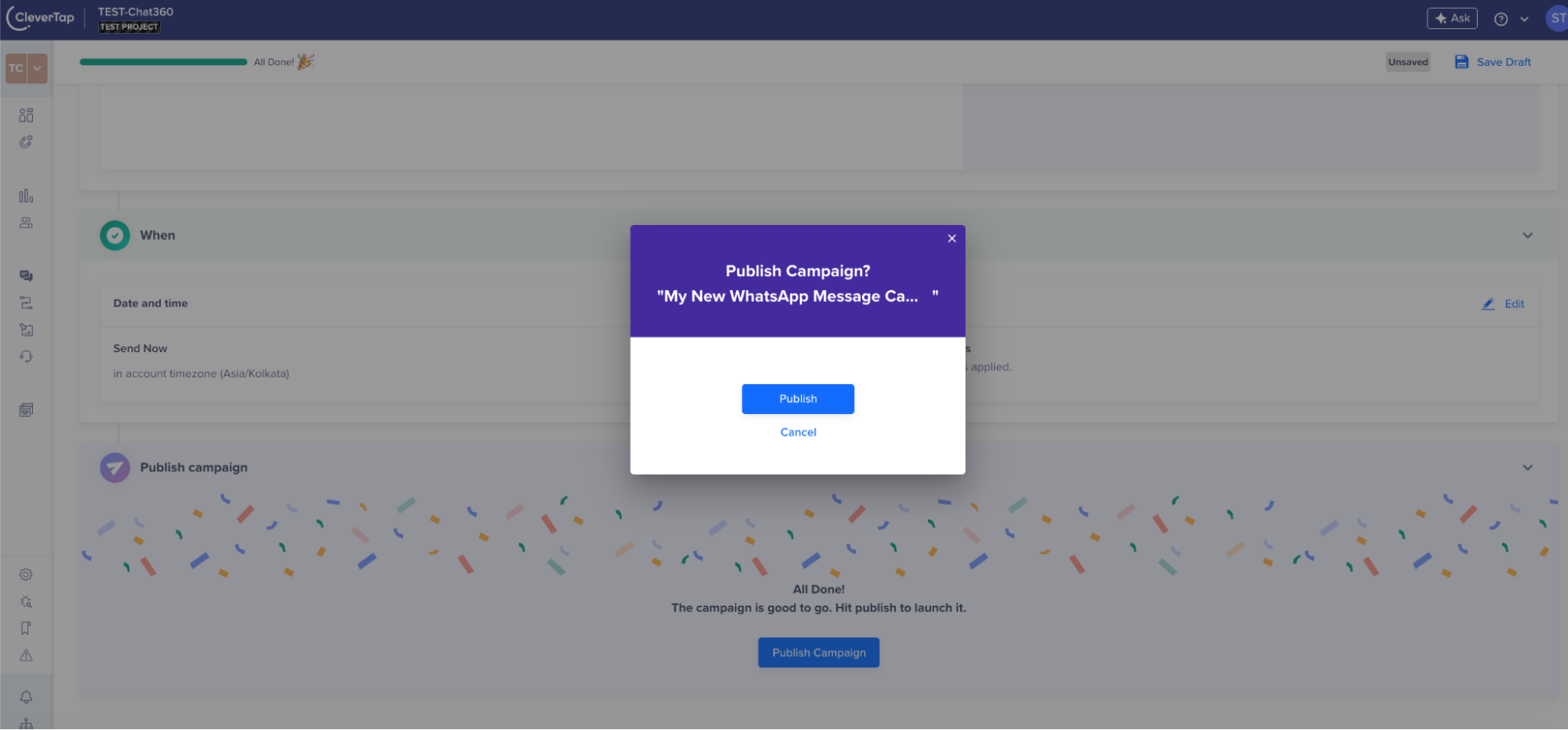
Launch Campaign
Click ‘Done’ to complete your configuration.
Then click ‘Publish’ to initiate the campaign execution. This queues messages for dispatch via WhatsApp.
Monitoring Campaign Performance:
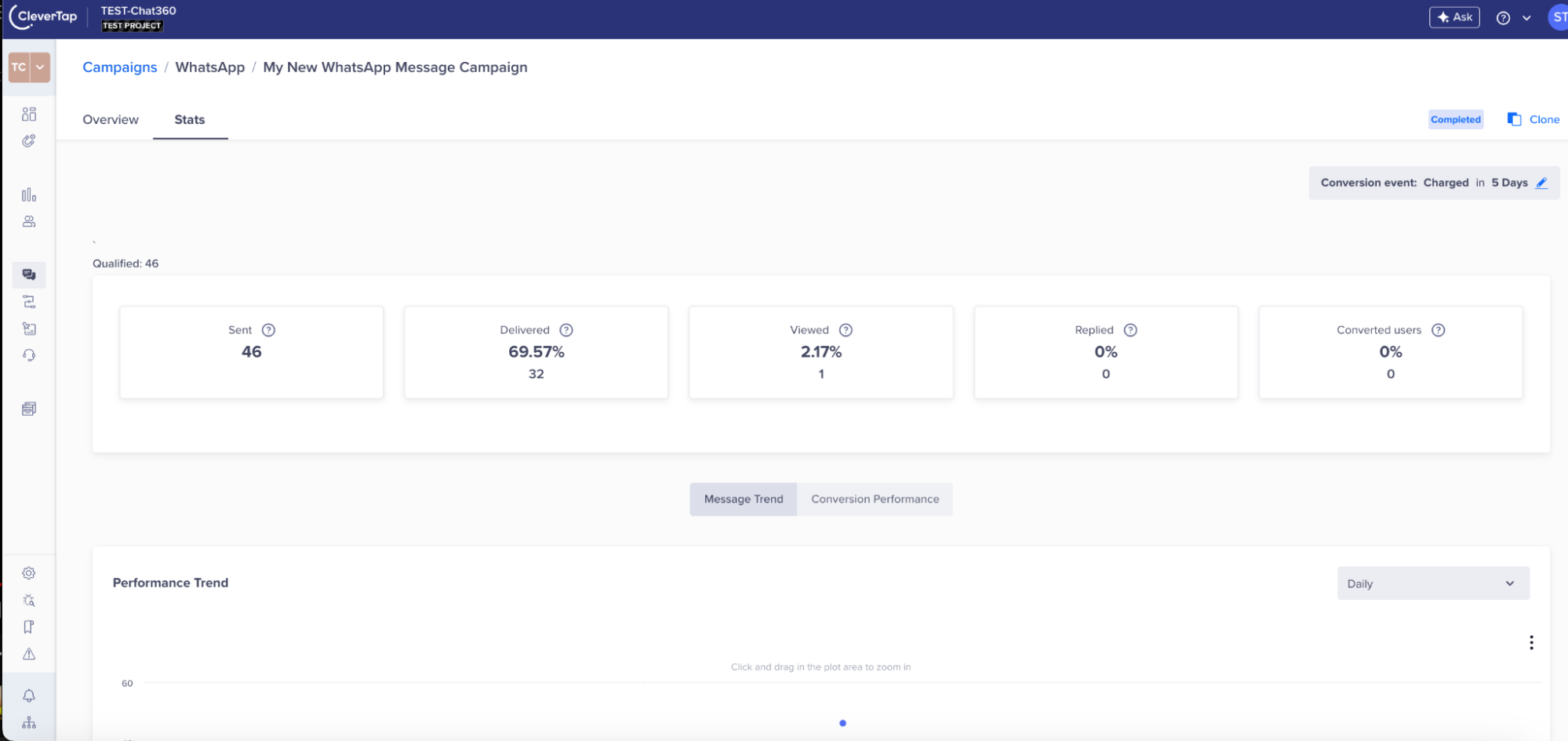
1. Campaign Analytics Section: After publishing, go to the ‘Campaign’ tab under ‘Engage’ in CleverTap. Here, you can view real-time performance stats: delivery rate, click-through rate, reads, replies, and failures.
2. Optimize Future Campaigns: Use analytics to identify which segments responded well. Apply these insights to refine templates, adjust scheduling strategies, or improve targeting in future campaigns.
Optimize Future Campaigns
Use analytics insights to improve targeting, message templates, and campaign timing.
Step 5: Accessing Analytics for Campaigns in CleverTap
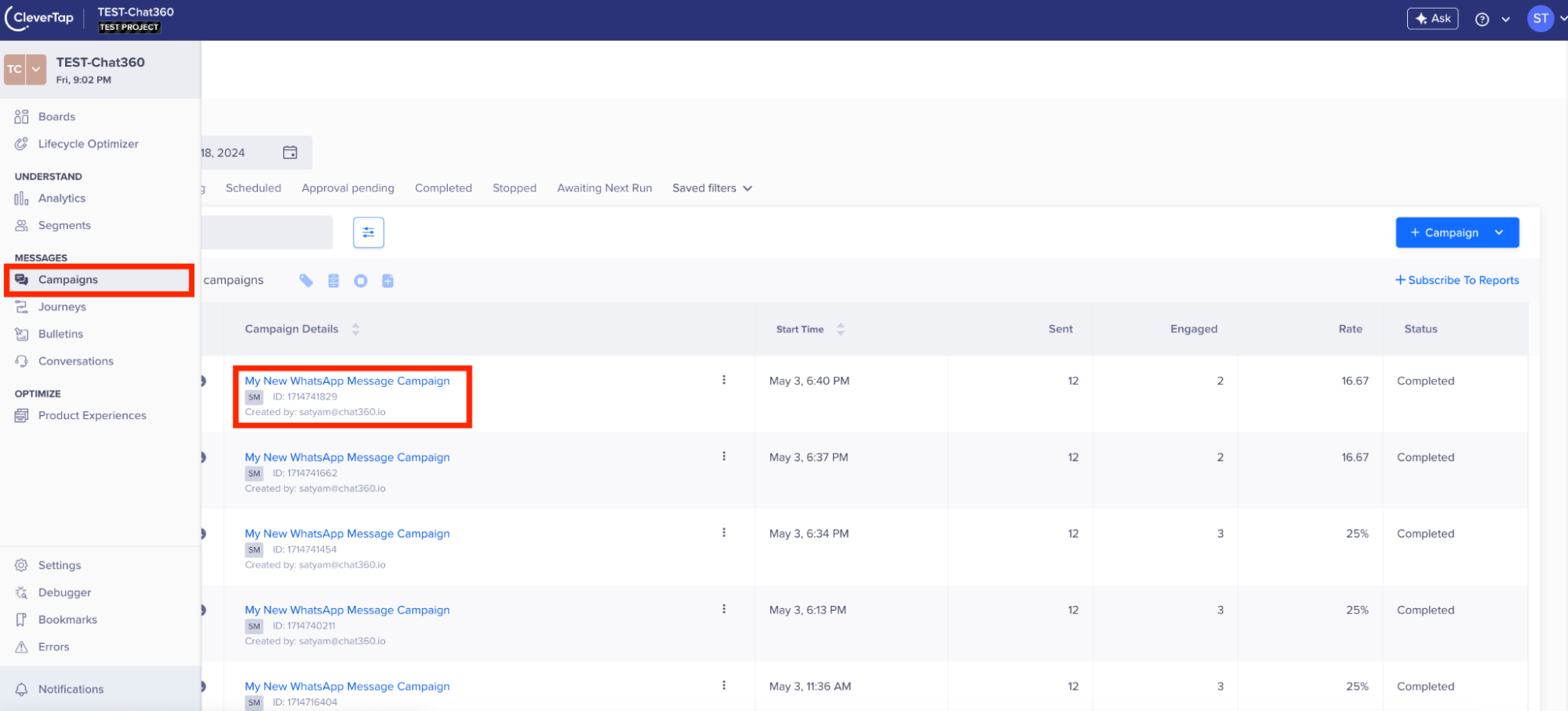
Go to Campaign Section
Log in to your CleverTap dashboard.
Navigate to the ‘Campaign’ section from the main dashboard or under the ‘Engage’ menu.
This section provides a consolidated view of all campaigns across channels, including WhatsApp.
Select Campaign
Scroll through the campaign list or use the search bar to locate the specific campaign you want to analyze.
Selecting the correct campaign ensures you are reviewing accurate KPIs and relevant engagement metrics.
Review Key Performance Metrics
The analytics dashboard provides the following KPIs:
Delivery Rate – Percentage of messages successfully delivered out of the total sent.
Click-Through Rate (CTR) – Percentage of users who clicked on links within the message.
Read/Open Rate – Number of users who opened or read the message.
Reply/Engagement Rate – Number of user responses or interactions generated by the campaign.
Using Analytics to Improve Future Campaigns
1. Gather Actionable Insights Analyze campaign performance metrics to identify which templates, message formats, and audience segments deliver the best results. Evaluate engagement trends such as optimal time slots, content styles, and device performance to understand user behavior.
2. Apply Insights to Future Campaigns
Refine your messaging strategy based on proven results—whether by optimizing message length, incorporating media, or improving call-to-action placement.
Enhance audience segmentation to improve targeting accuracy, reduce bounce rates, and align campaign frequency with successful engagement patterns.
Use Case Examples
E-Commerce – Cart Abandonment Recovery
A fashion e-commerce brand sends personalized WhatsApp reminders to recover abandoned carts.
How It Works:
Cart abandonment data is captured in CleverTap through website/app activity.
A segment is created for users who abandoned carts within the last 24 hours.
Chat360 triggers a WhatsApp campaign using a rich media template that includes:
Personalized message (e.g., “Hi Sarah, you left this item in your cart. Still interested?”) CTA button: Complete Purchase
Outcome: : Higher cart recovery rates and increased conversions.
Healthcare – Appointment Reminders
Diagnostic labs send appointment reminders and follow-up messages.
How It Work
Appointment data is uploaded into CleverTap via CSV or API.
Chat360 sends:
Reminder messages 24 hours before the appointment.
Follow-up messages with feedback forms or health tips.
Messages may include calendar links or a Reschedule Now button
Travel – Real Time Alerts
Travel agencies send flight updates and travel promotions.
Outcome: : Improved customer trust and increased bookings.
Real-time travel data syncs with CleverTap.
Segments are created for:
Travelers departing within 48 hours.
Users browsing weekend travel deals.
Chat360 sends WhatsApp alerts including:
Flight updates and boarding details.
Promotional packages using carousels and rich media templates.
BFSI – EMI Reminder Campaigns
Loan servicing companies send EMI reminders with payment links.
Outcome: : Improved repayment rates.
EdTech – Class Reminders
Use Case: An online learning platform wants to boost attendance and re-engage inactive students. How It Works: Student activity is tracked within CleverTap. Chat360 sends:
Class reminders 30 minutes before sessions.
Re-engagement messages offering free classes to inactive learners
Outcome: : Higher attendance and reduced churn.
Retail – Flash Sale Campaigns
How It Works:
CleverTap segments users who viewed products but did not purchase.
Chat360 triggers a WhatsApp campaign including:
Product image and discounted price.
Urgency-driven messaging (e.g., limited-time offer).
CTA: Buy Now with tracking enabled.
Outcome: : Higher click-through rates and faster conversions.
Key Advantages of Integration
Feature | Description |
|---|---|
Hyper Targeted Campaigns | Segment users based on behavior or events |
Automated Retargeting | Trigger WhatsApp templates based on journeys |
Real Time Analytics | Track delivery, read, click, and reply rates |
Cross Channel Messaging | Combine WhatsApp with Email, Push, and In-App |
Seamless Sync | CSV uploads and API integrations keep user data updated |