WhatsApp Bot
Learn to build and connect a WhatsApp Bot with Chat360 to automate support, capture leads, send alerts and deliver rich, interactive customer experiences.
A WhatsApp Bot in Chat360 allows businesses to automate customer interactions on WhatsApp, one of the world’s most widely used messaging platforms. It can handle customer inquiries, capture leads, send notifications, and deliver rich media responses such as images, buttons, and quick replies.
By automating conversations on WhatsApp, businesses can provide instant support, streamline engagement, and scale customer communication efficiently.
Step 1: Build Your Bot Flow
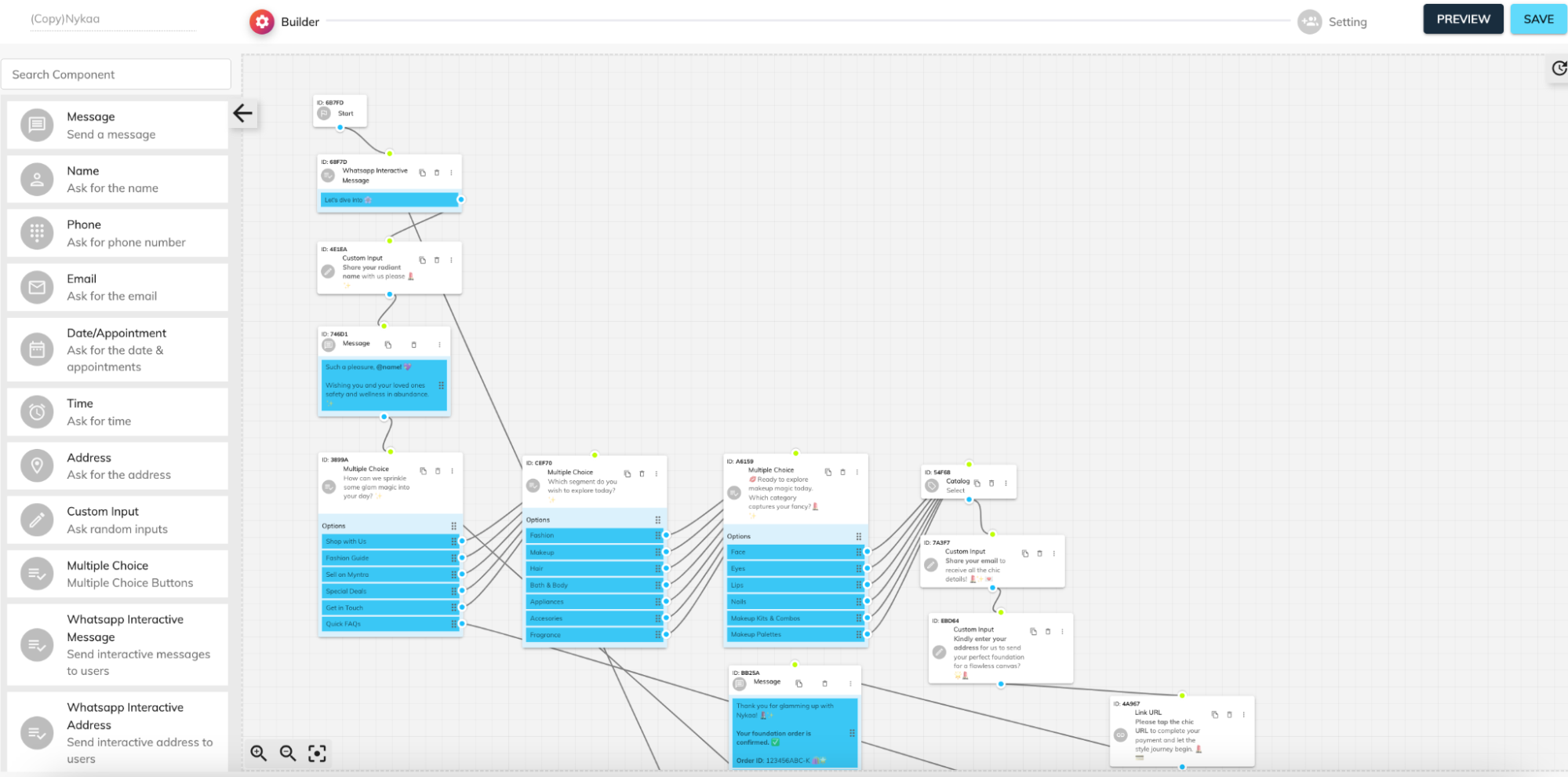
Open Bot Builder in the Chat360 dashboard.
Click Create New Bot.
Select WhatsApp as the channel.
Add a Start Node to begin the conversation flow.
Drag and add components such as:
Message
Name
Phone Number
Multiple Choice
Other interaction elements
Connect nodes by linking blue output points to green input points to define the conversation flow.
Step 2: Configure Channel Settings
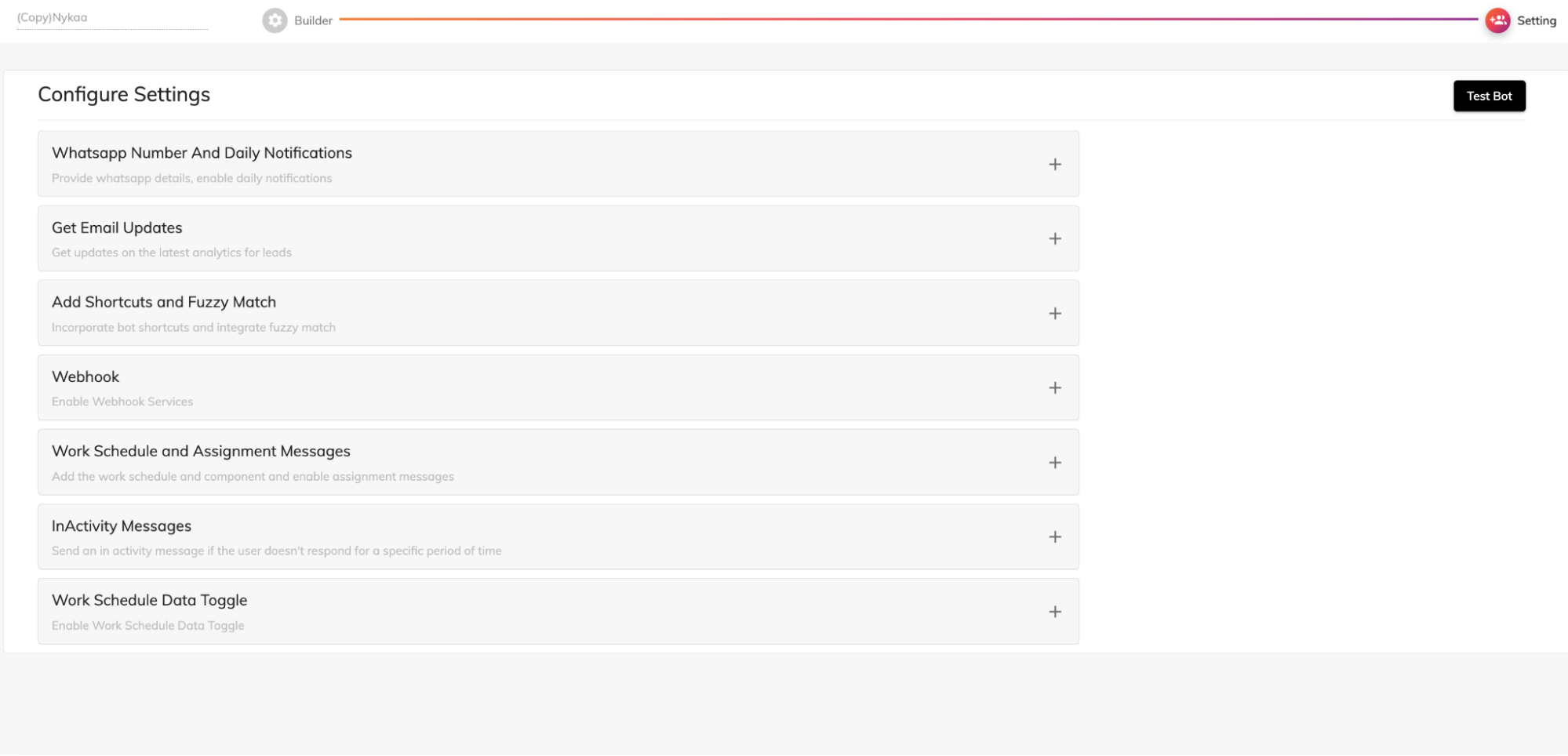
To configure your WhatsApp bot settings:
Click the Settings icon in the Bot Builder.
Configure the following options:
WhatsApp Number: Enter your business WhatsApp number that will be used for customer interactions.
Notifications and Email Alerts: Enable daily summary emails and push notifications to monitor chatbot activity and performance.
Shortcuts and Fuzzy Matching: Add commonly used commands (such as “help”) as shortcuts. Enable fuzzy matching so the bot can recognize user inputs even if they contain minor spelling errors.
Webhook Integration: Provide a webhook URL to integrate with external systems such as a CRM, database, or automation platform for real-time data exchange.
Work Schedule and Inactivity Messages: Define your business hours and configure automated responses for:
Messages received outside working hours
Conversations where the user becomes inactive
Step 3: Connect Your WhatsApp Account
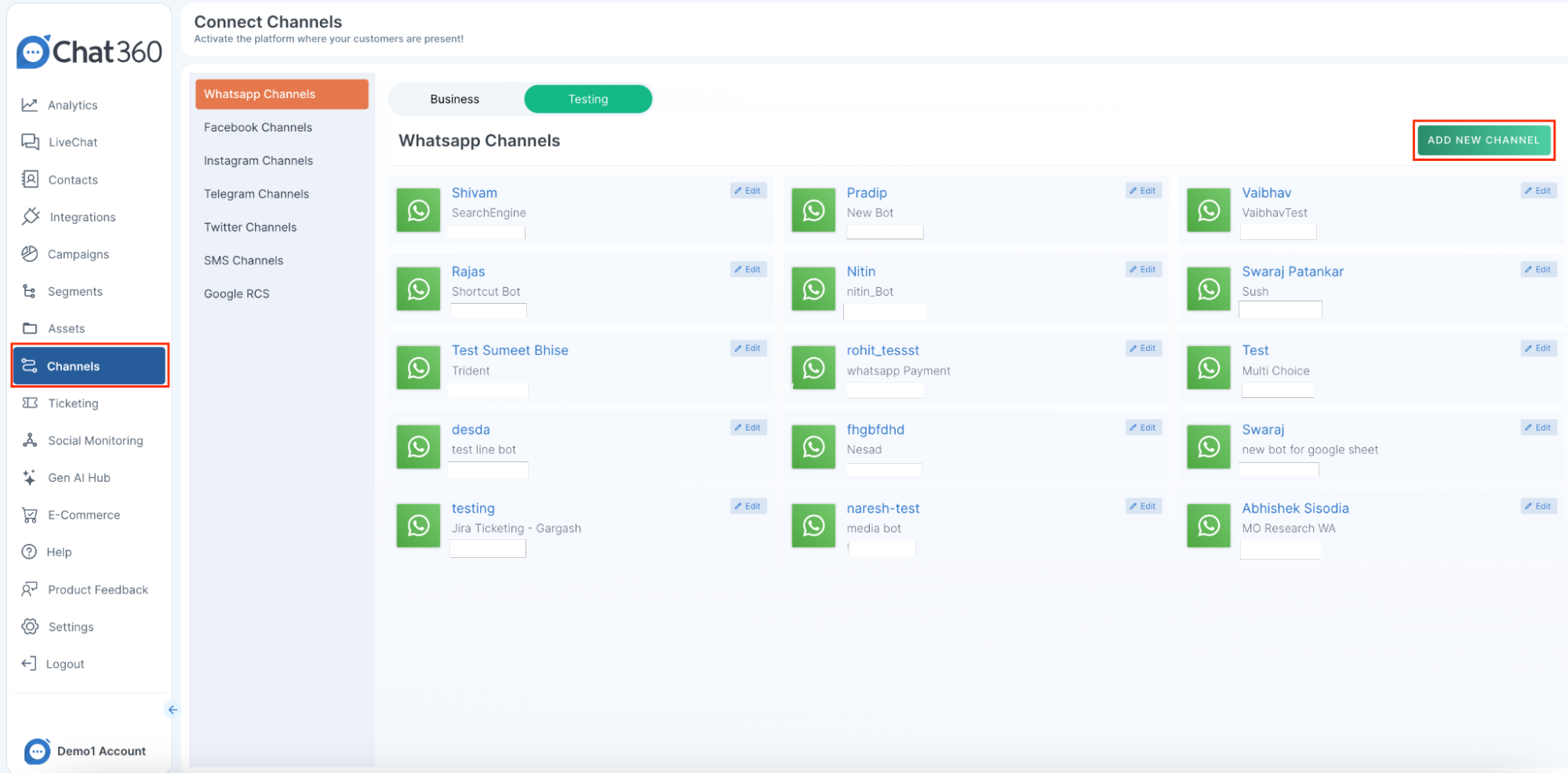
Once your bot is ready, connect it to your WhatsApp channel:
Navigate to Channels → WhatsApp Channels in the Chat360 dashboard.
Click Add New Channel.
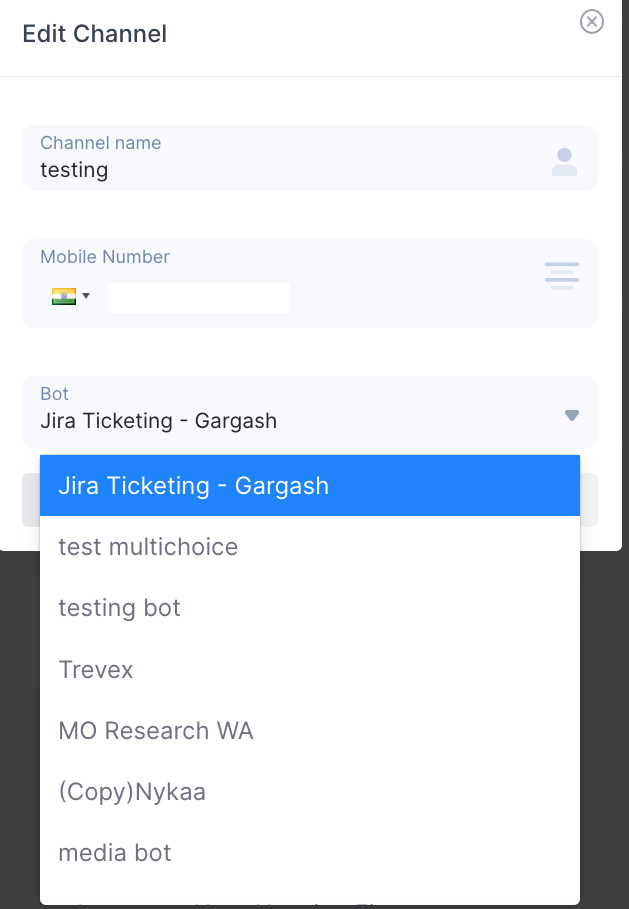
Enter the following details:
Phone Number: Provide your WhatsApp Business number, including the country code.
Bot Selection: Choose the chatbot flow you created in Bot Builder.
Click Save to complete the connection between Chat360 and WhatsApp Business.
Use Case Example
Appointment Reminder Automation: Healthcare providers can use WhatsApp bots to automatically remind patients about upcoming appointments and allow quick rescheduling.
Scenario: A clinic sends a message: "Your appointment is scheduled for tomorrow at 10:00 AM. Reply 1 to reschedule." If the patient replies 1, the bot automatically responds with available time slots and guides the user through the rescheduling process.