Telegram Bot
Learn to build and connect a Telegram Bot with Chat360 to automate support, capture leads, send notifications and create interactive customer conversations.
A Telegram Bot allows businesses to interact with users directly on Telegram, enabling automated conversations, notifications, and customer support within the messaging app.
By integrating a Telegram bot with Chat360, businesses can capture user inputs, respond instantly to inquiries, and provide 24/7 automated assistance.
Deployment Steps
Follow these steps to create and deploy a Telegram bot.
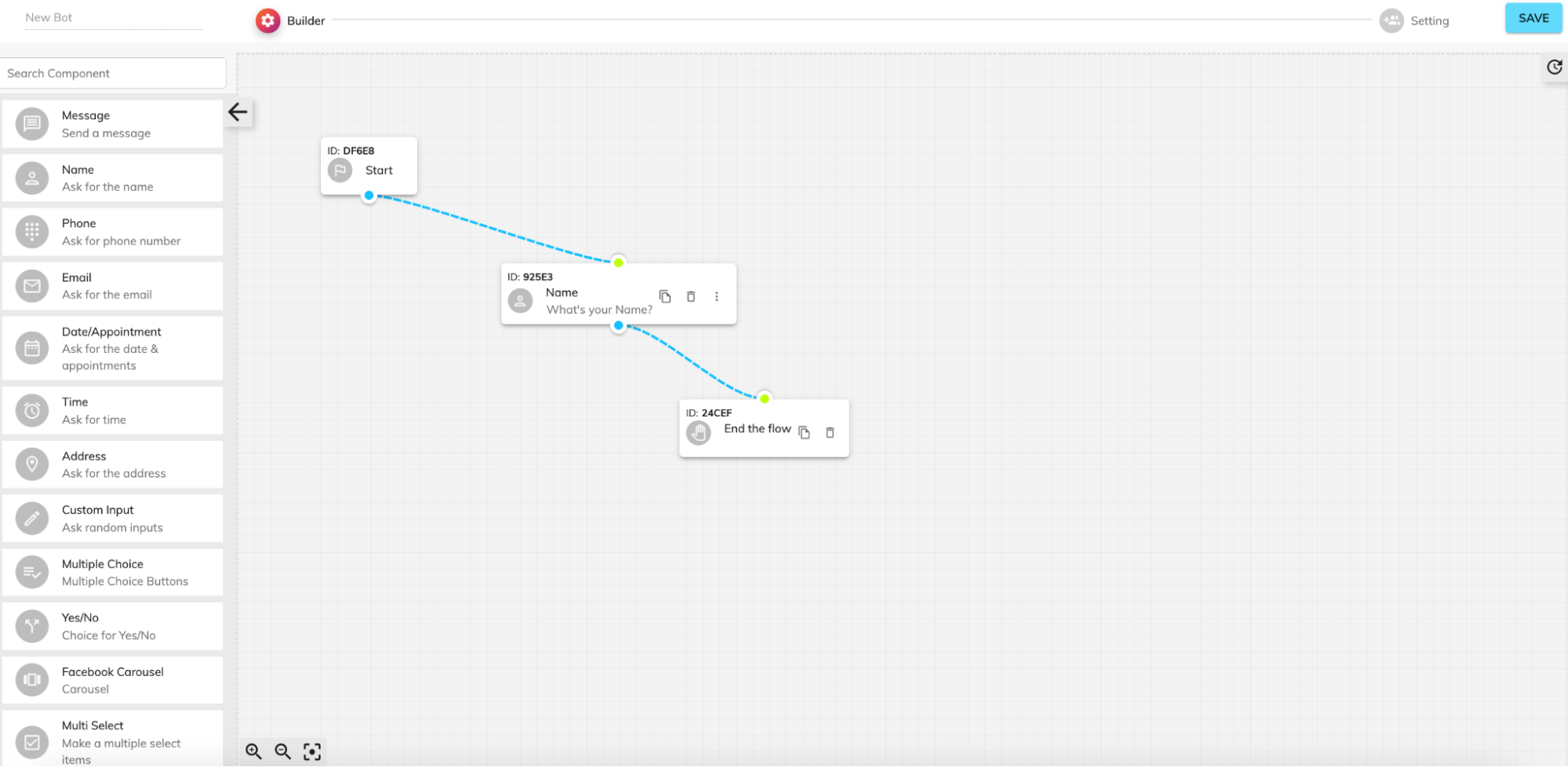
Step 1: Build Your Bot Flow
Open Bot Builder in the Chat360 dashboard.
Click Create New Bot and select Telegram as the channel.
Add a Start Node to begin the conversation flow.
Drag and add components such as:
Name
Message
End Flow
Other interaction elements as needed.
Connect nodes to define the conversation path.
Ensure that each branch of the flow ends with a terminal node, such as End Flow or Send Email, to properly complete the interaction.
Step 2: Configure and Test the Bot
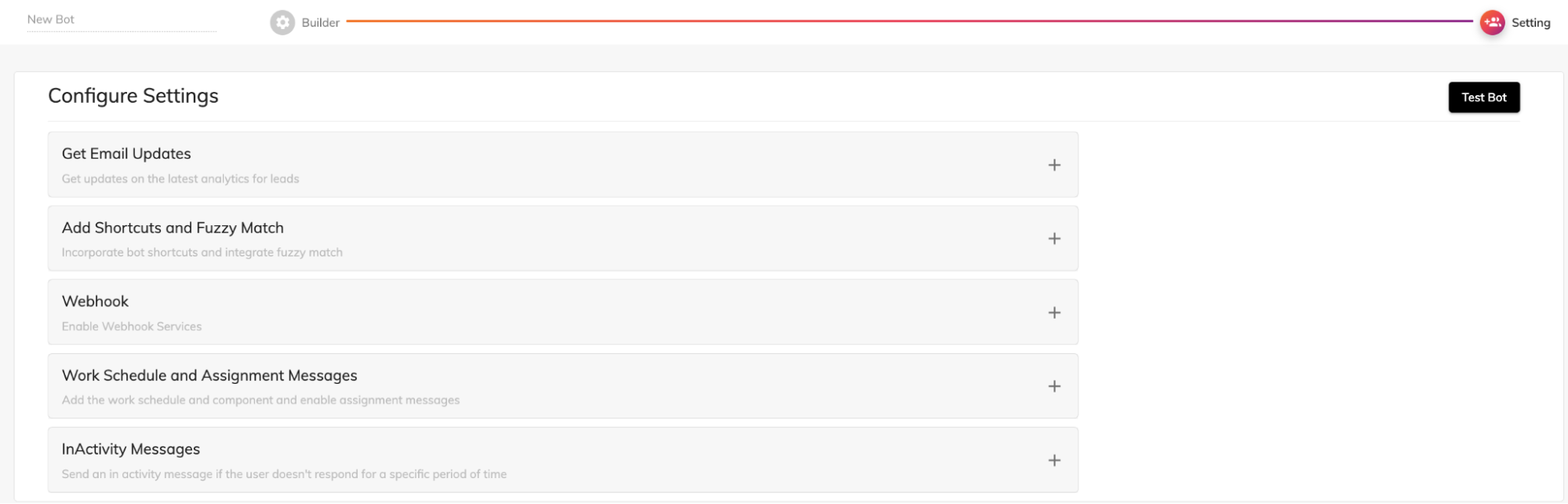
Click the Settings icon in the Bot Builder.
Configure the following options:
Email Updates
Shortcuts
Webhook URL
Work Schedule
Inactivity Prompts
Click Save, then select Test Bot to simulate Telegram interactions and verify that each branch of the flow works correctly.
Step 3: Connect Your Telegram Account
Once your bot flow is ready, connect it to your Telegram account:
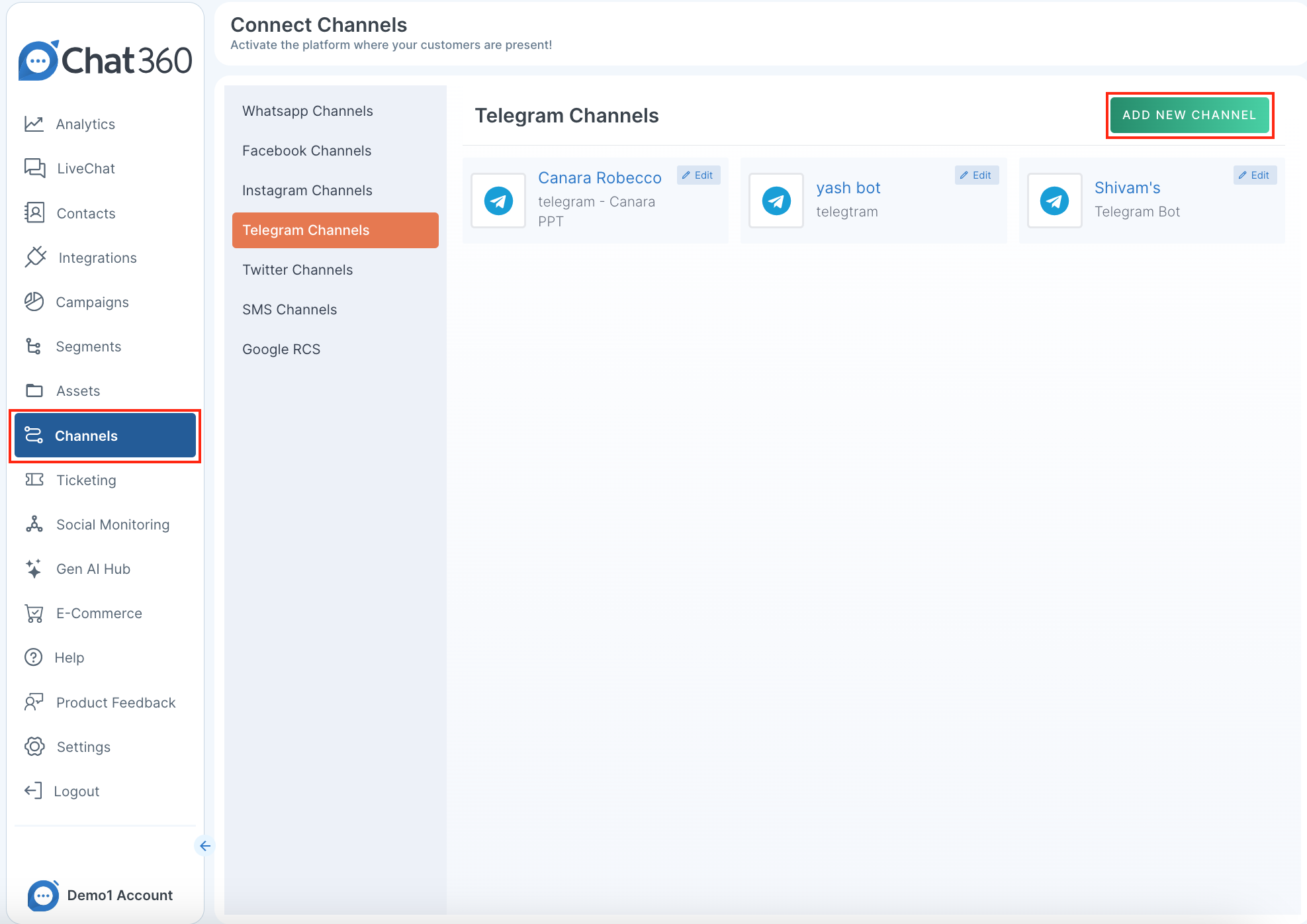
Navigate to Channels → Telegram in the Chat360 dashboard.
Click Add New Channel.
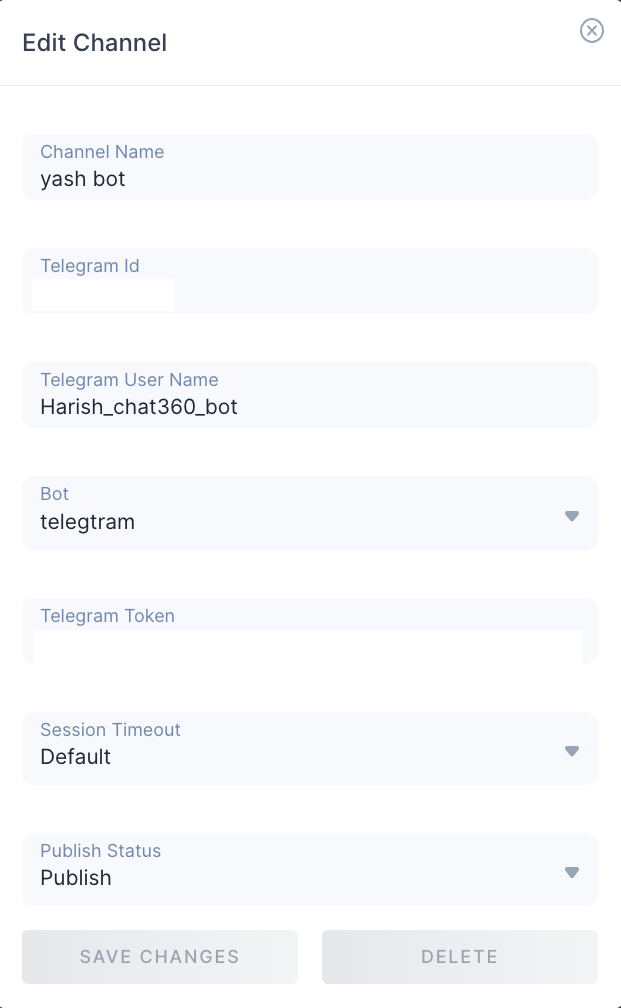
Provide the following details:
Channel Name: Enter a descriptive name for the bot (for example, SupportBot).
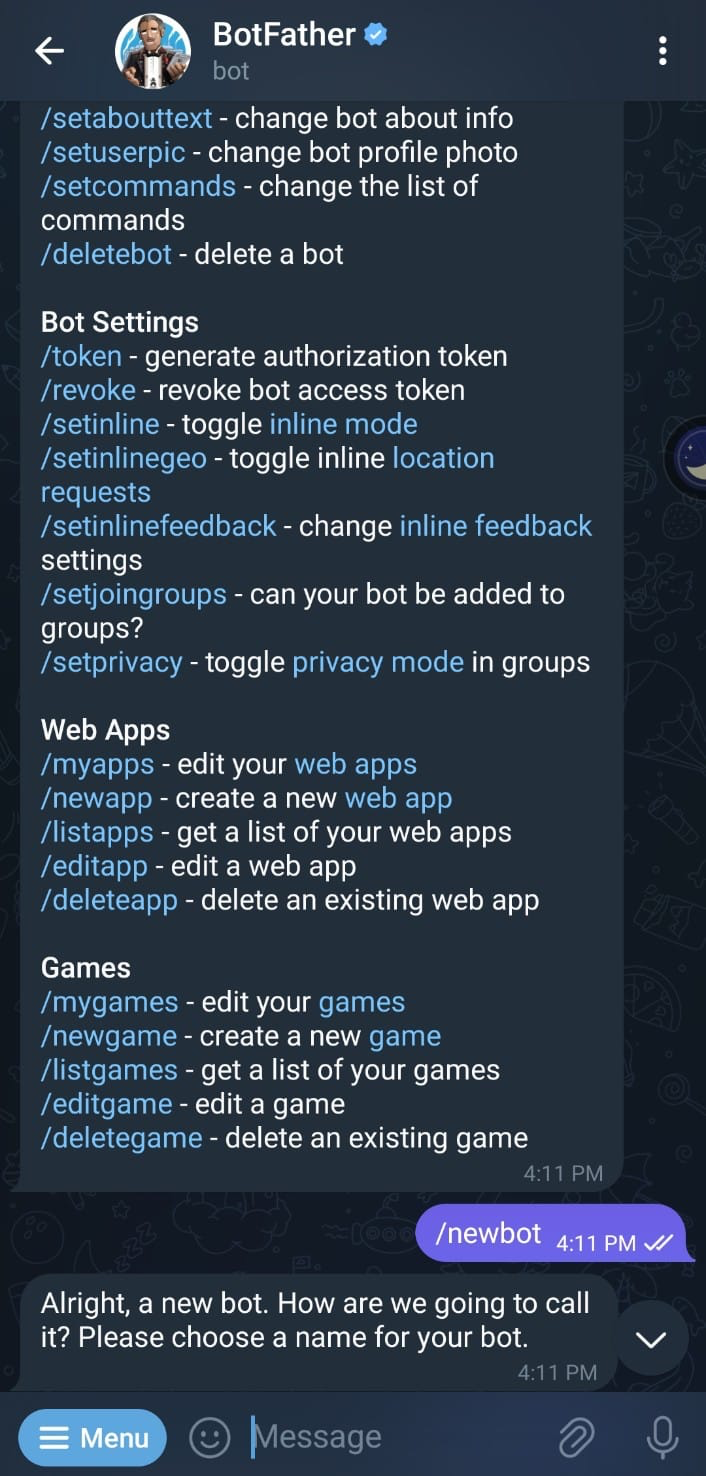
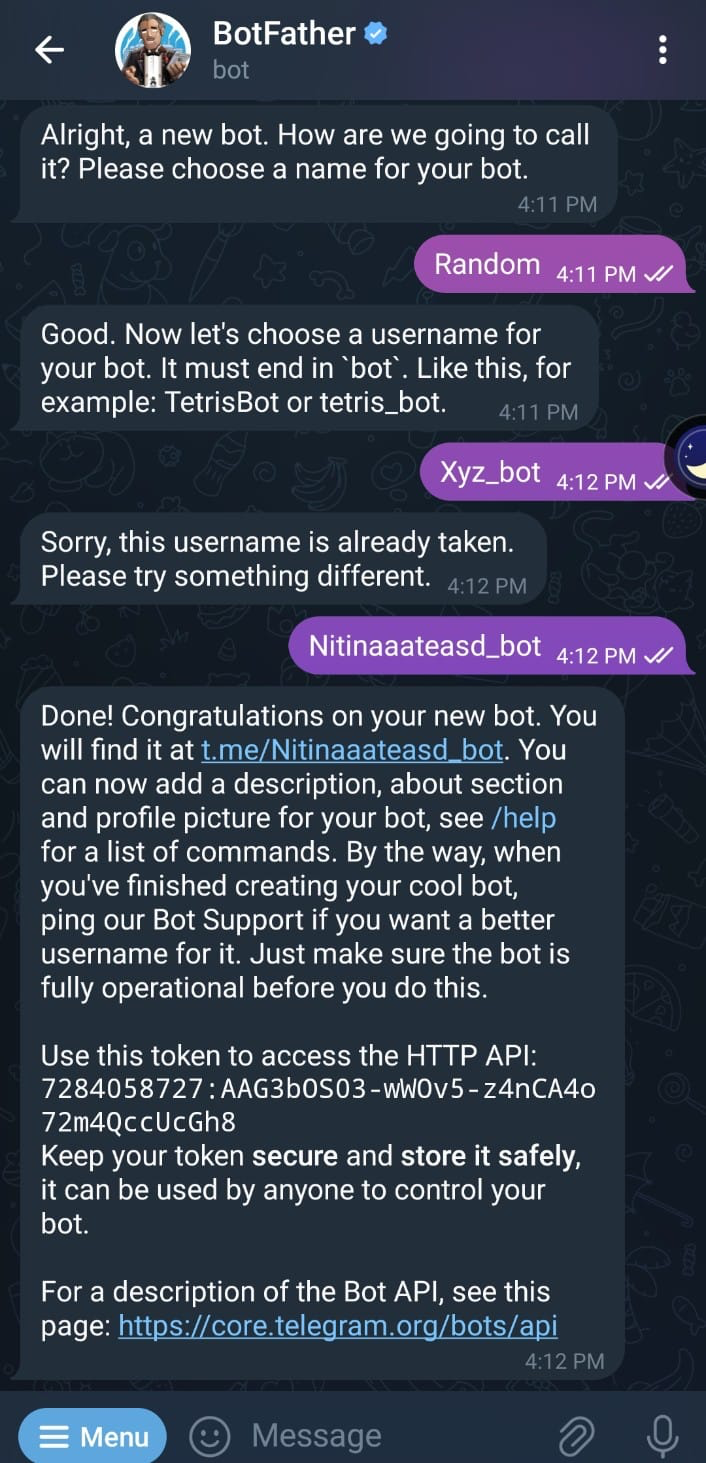
Telegram Bot Username: Provide the bot username created using BotFather.
Telegram Token: Paste the API token generated through BotFather using the
/newbotcommand.Session Timeout: Define the duration after which inactive sessions will automatically close.
Publish Status: Enable the publish option to activate the bot.
Click Save to complete the integration.
Use Case Example
Appointment Reminder Automation: A Telegram bot can be used to automatically send reminders and allow users to manage appointments.
Scenario: A clinic sends a message:
"Your appointment is scheduled for tomorrow at 10:00 AM. Reply 1 to reschedule."
If the user replies 1, the bot responds with available time slots and guides the user through the rescheduling process.