Microsoft Teams Bot
How do you integrate a Microsoft Teams Bot with Chat360? Learn to create the bot, configure Azure credentials, connect the webhook and deploy it in Teams.
Microsoft Teams is a secure collaboration platform that enables messaging, file sharing, meetings, and application integrations for seamless team communication.
By integrating a Microsoft Teams Bot with Chat360, businesses can automate internal communication, provide support within Teams, and collect user feedback directly from the collaboration environment.
Prerequisites
Before creating a Microsoft Teams bot, ensure the following requirements are available:
Requirement | Purpose |
|---|---|
Microsoft 365 Admin Account | Access Microsoft Admin Center and Azure services |
Azure Portal Access | Register the bot and generate authentication credentials |
Teams Developer Portal Access | Create and manage the Teams application |
Microsoft Teams (Desktop/Web/App) | Test and deploy the bot |
Step 1: Sign in to Microsoft Portal
Go to Microsoft Admin Center or Microsoft My Apps.
Sign in using your Microsoft 365 credentials.
Create or verify the user account that will be associated with the bot.
Step 2: Access the Teams Developer Portal
Open the Teams Developer Portal:
https://dev.teams.microsoft.comSign in using the same Microsoft account.
After authentication, you will be redirected to the Developer Portal Dashboard.
Step 3: Create the Bot in the Developer Portal
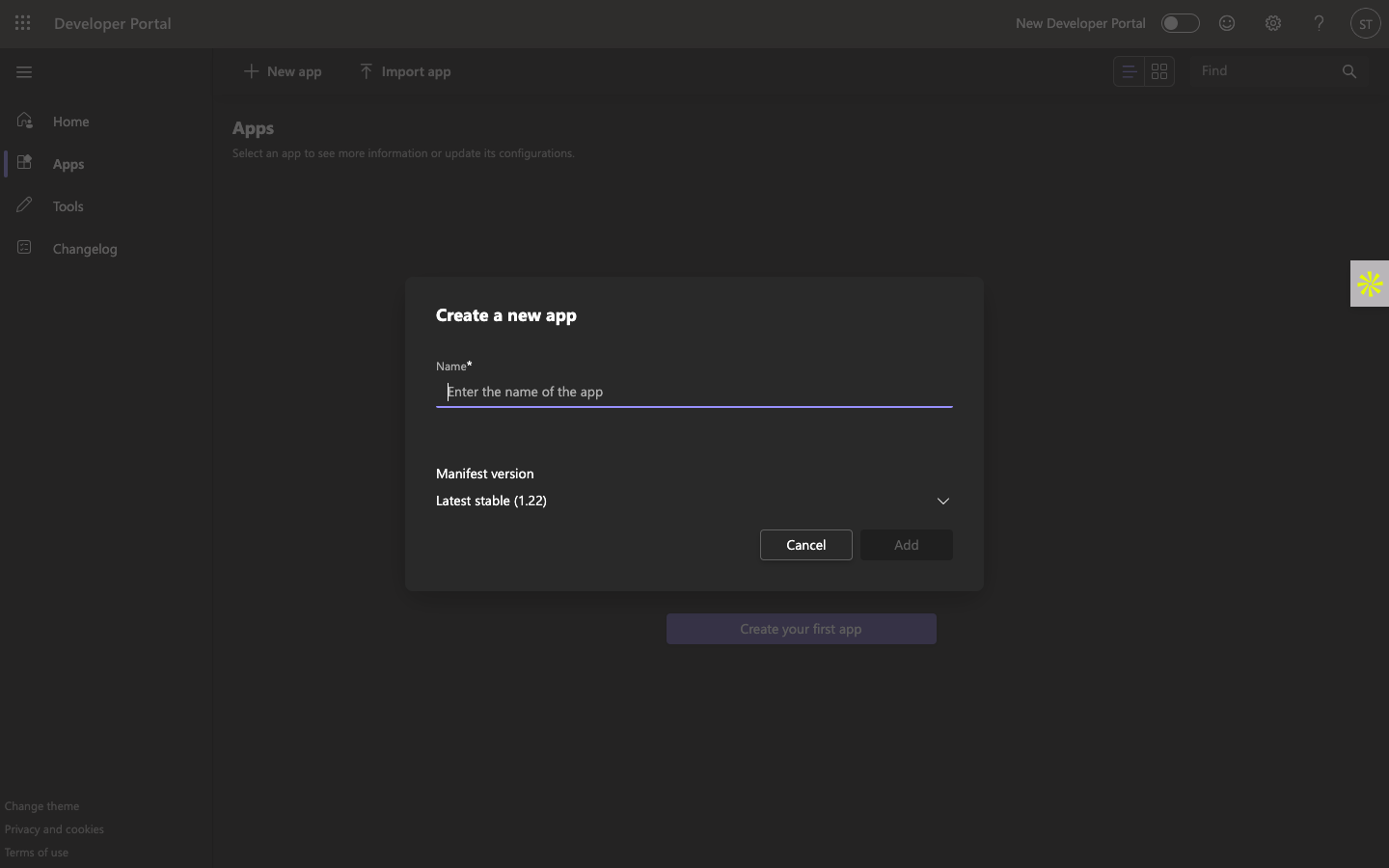
Click New App.
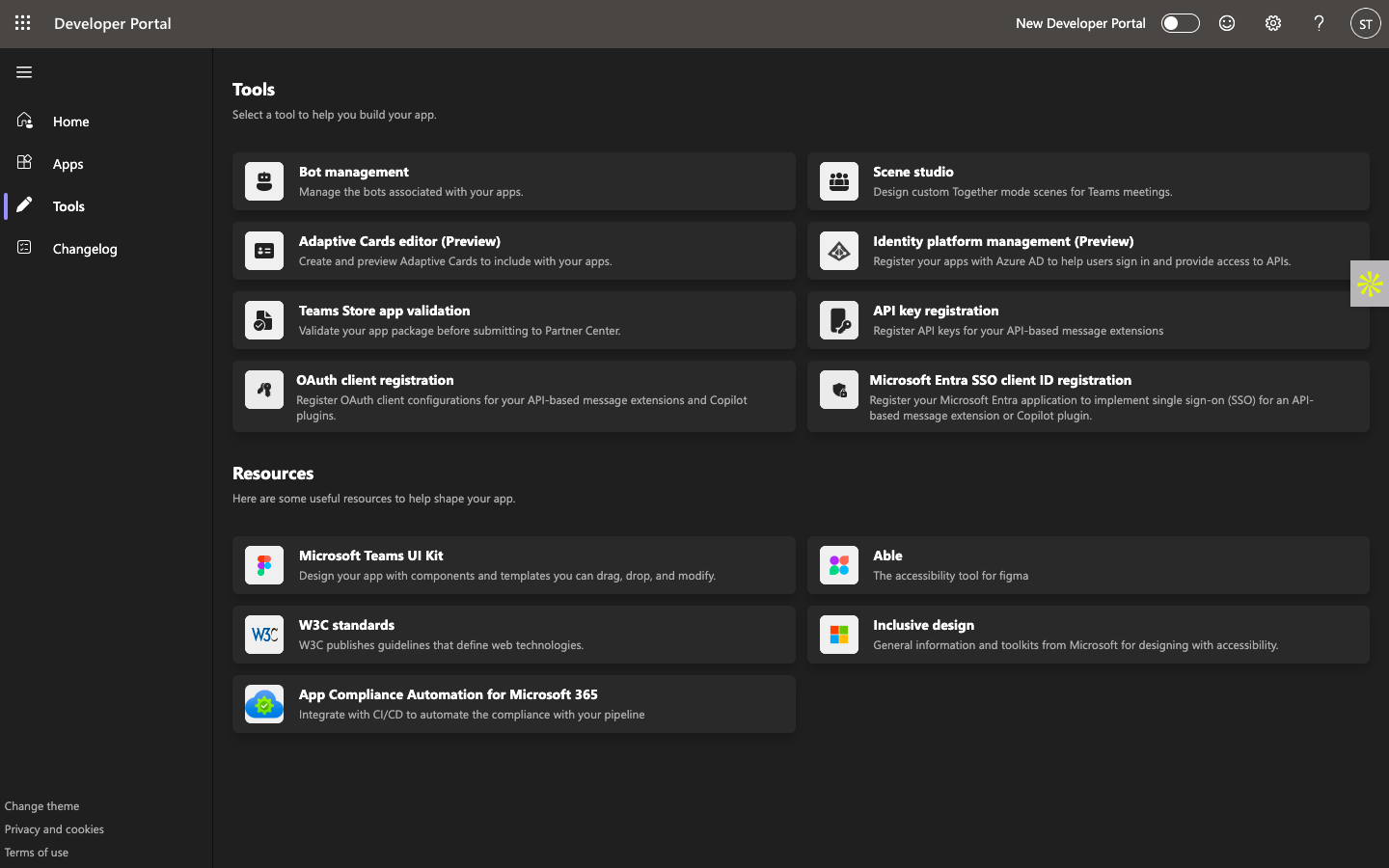
Navigate to: Tools → Bot Management → New Bot
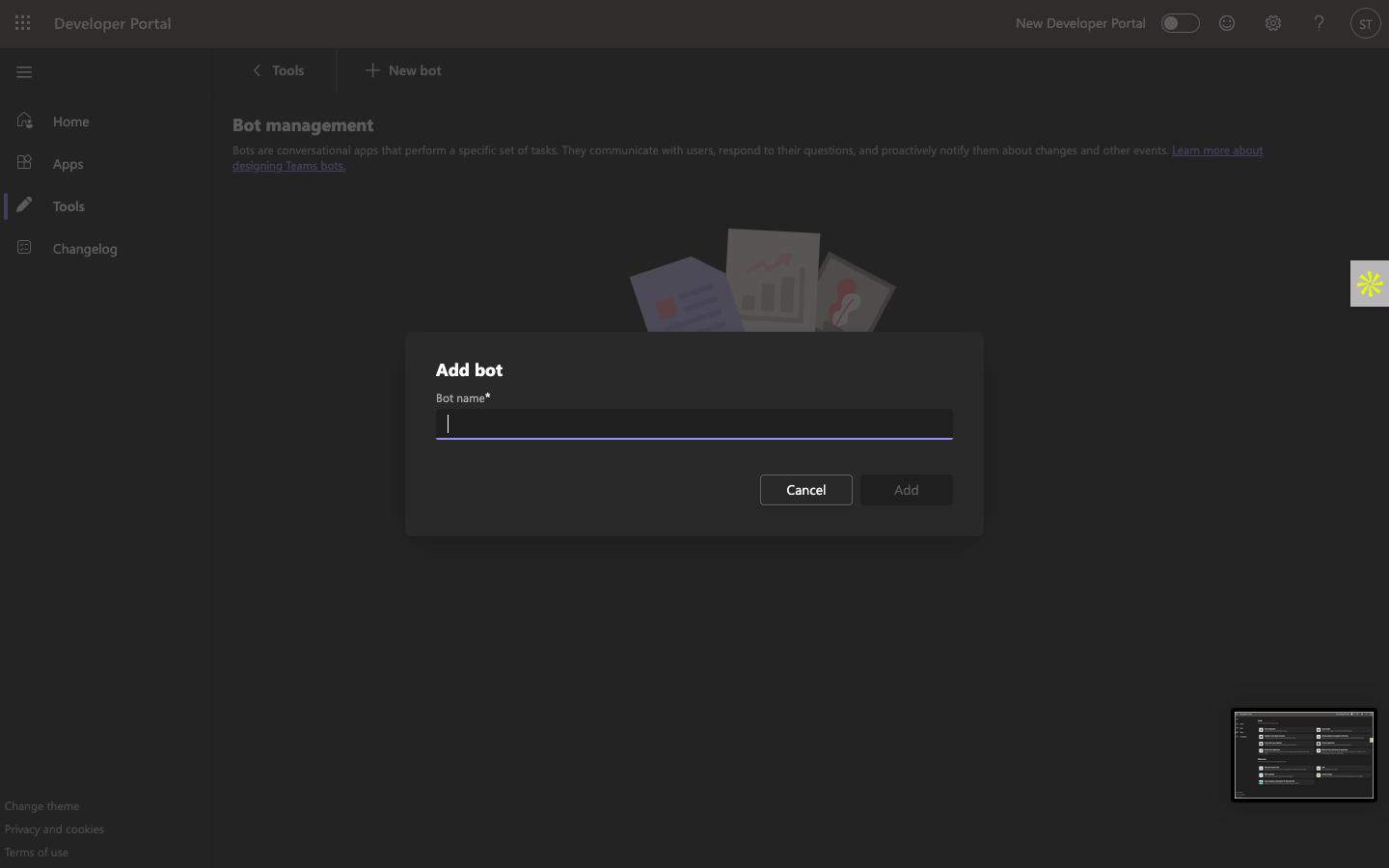
Enter the required bot details.
After creating the bot, copy the Webhook Endpoint URL.
This URL will later be used when configuring the Microsoft Teams channel in Chat360.
Step 4: Configure the Bot in Azure Portal
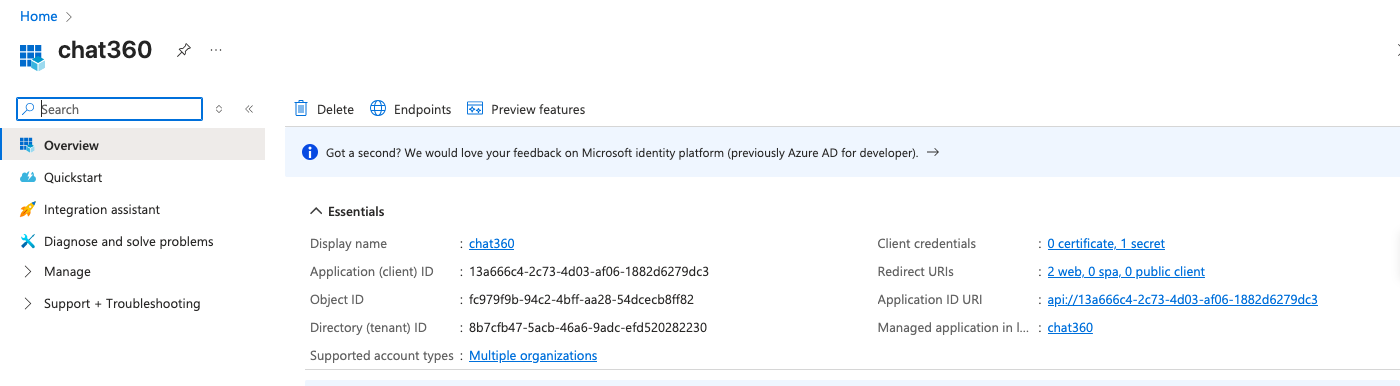
Open the Azure Portal: https://portal.azure.com
Log in with your Microsoft credentials.
Navigate to: App Registrations → Select your bot
In Overview, note:
Application (Client) ID → This becomes your Bot ID
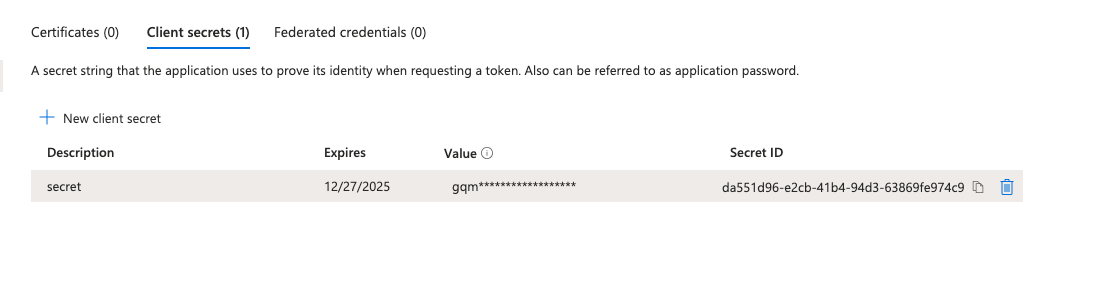
Go to Certificates & Secrets → Create Client Secret
Go to Expose an API → Add Application ID URI
Format:
api://{bot_id}Example:
api://13a666c4-2c73-4d03-af06-1882d6279dc3
Step 5: Download and Upload the Bot App
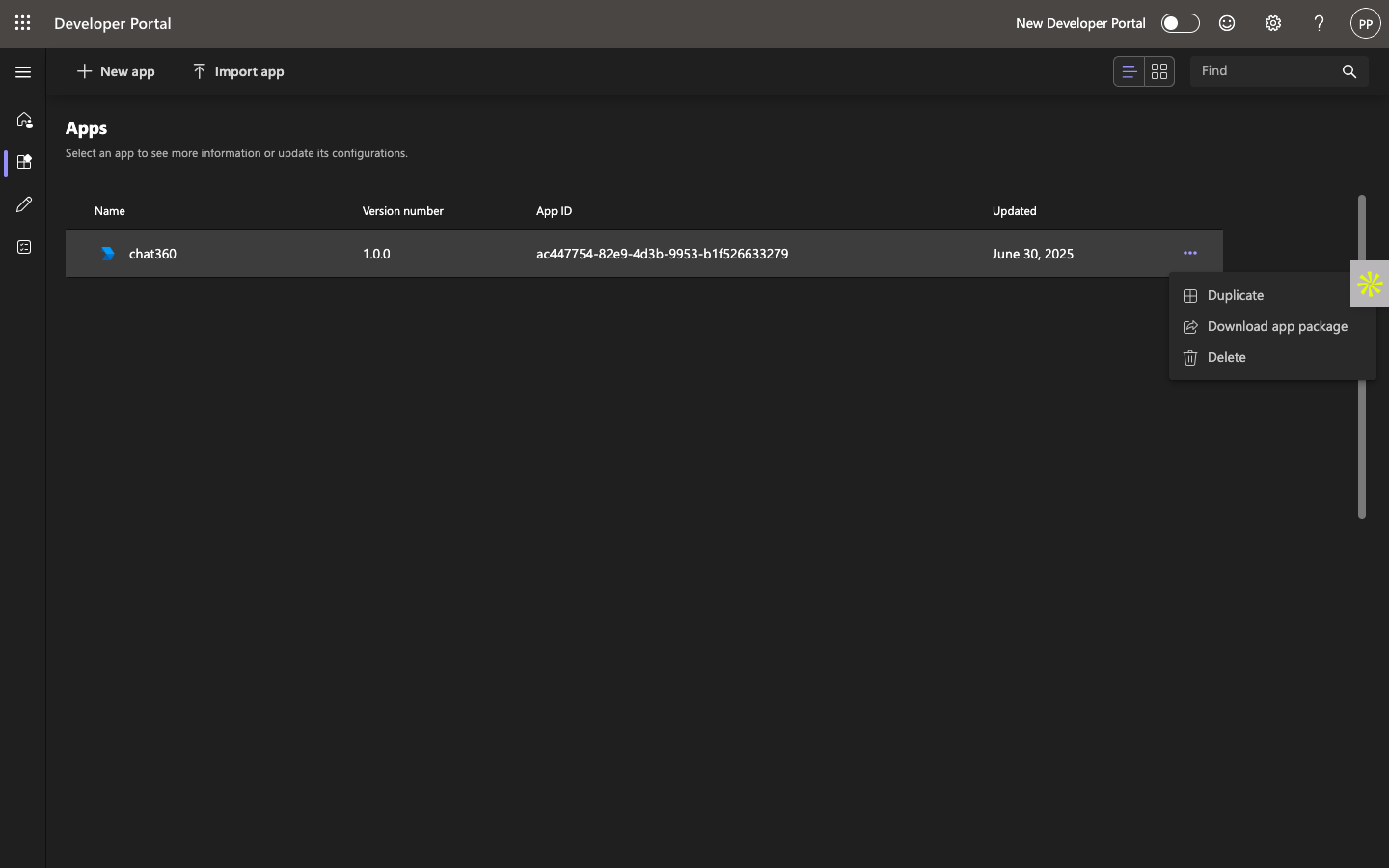
Download the App Package (.zip) from the Developer Portal.
In Microsoft Teams:
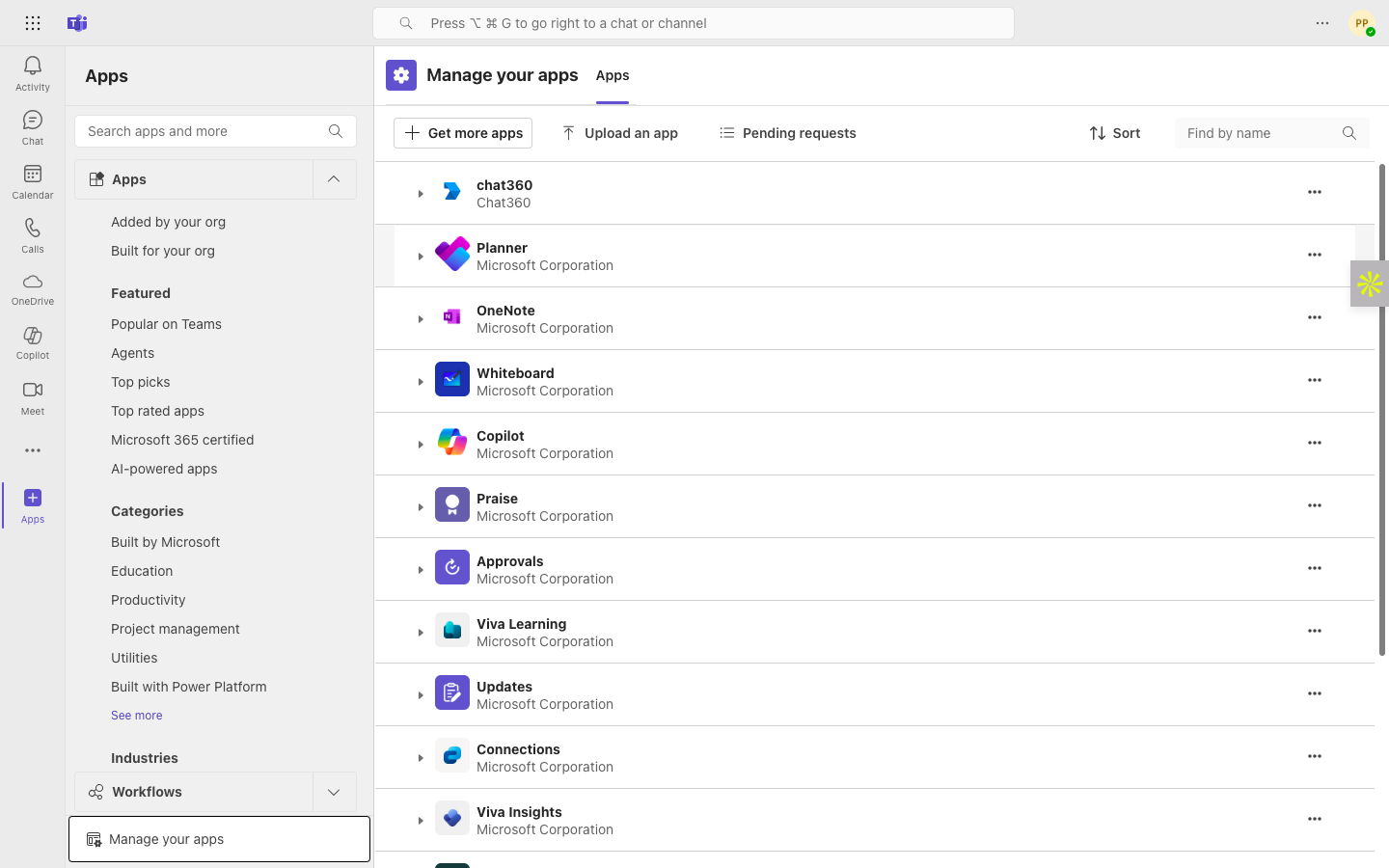
Go to: Apps → Manage Your Apps → Upload an App
Upload the downloaded .zip file.
Step 6: Install and Distribute the Bot
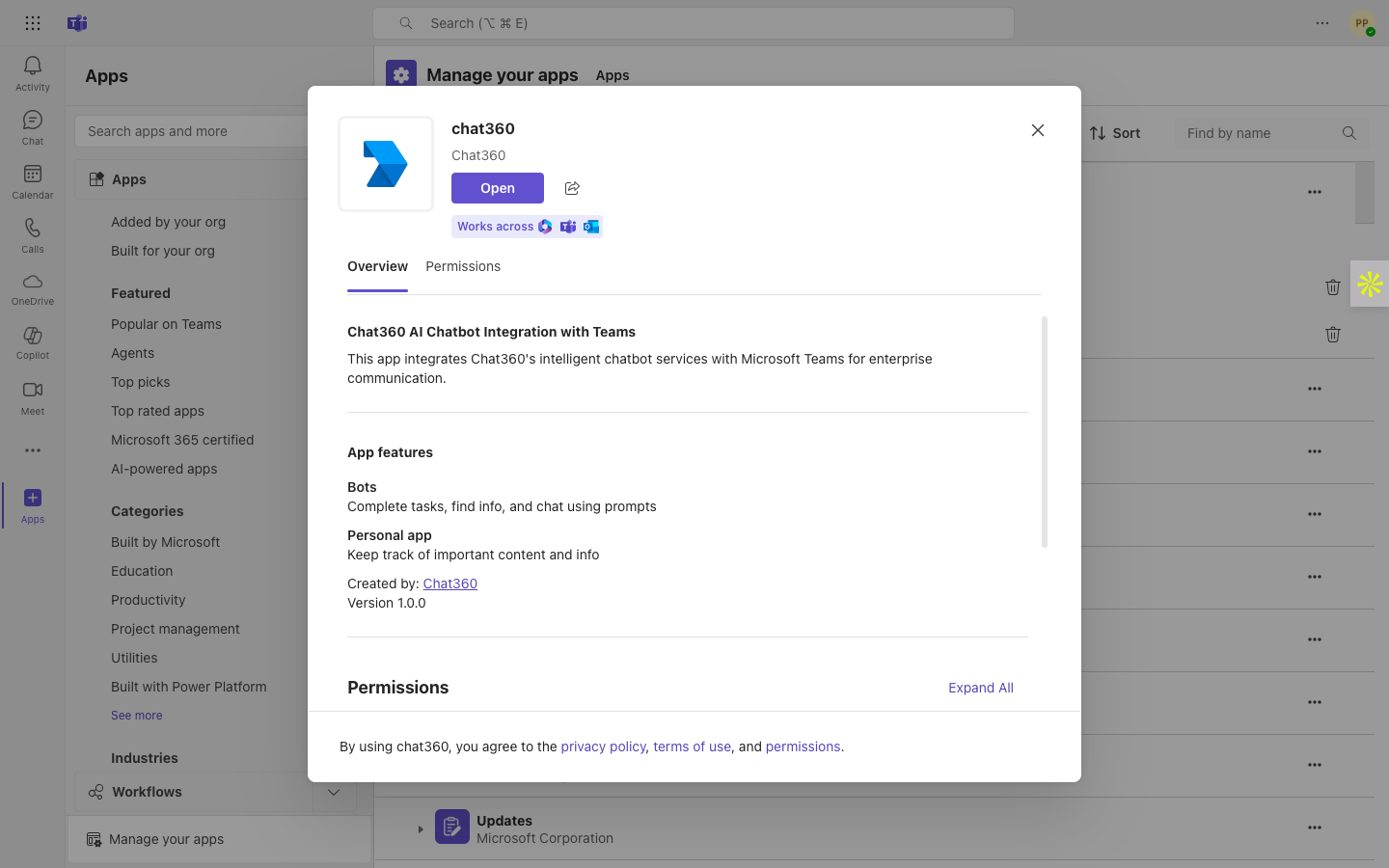
Search for the bot by name in Microsoft Teams.
Click Add.
Share the bot with your teams or organization users.
Ensure users install the bot to start interacting with it.
Step 7: Configure Microsoft Teams Channel in Chat360
When adding Microsoft Teams as a channel in Chat360, use the following credentials:
Chat360 Field | Value |
|---|---|
App ID | Bot ID from Azure |
Client Secret | Secret generated in Azure |
Webhook URL | Automatically generated by Chat360 |
Creating a Bot Flow in Chat360
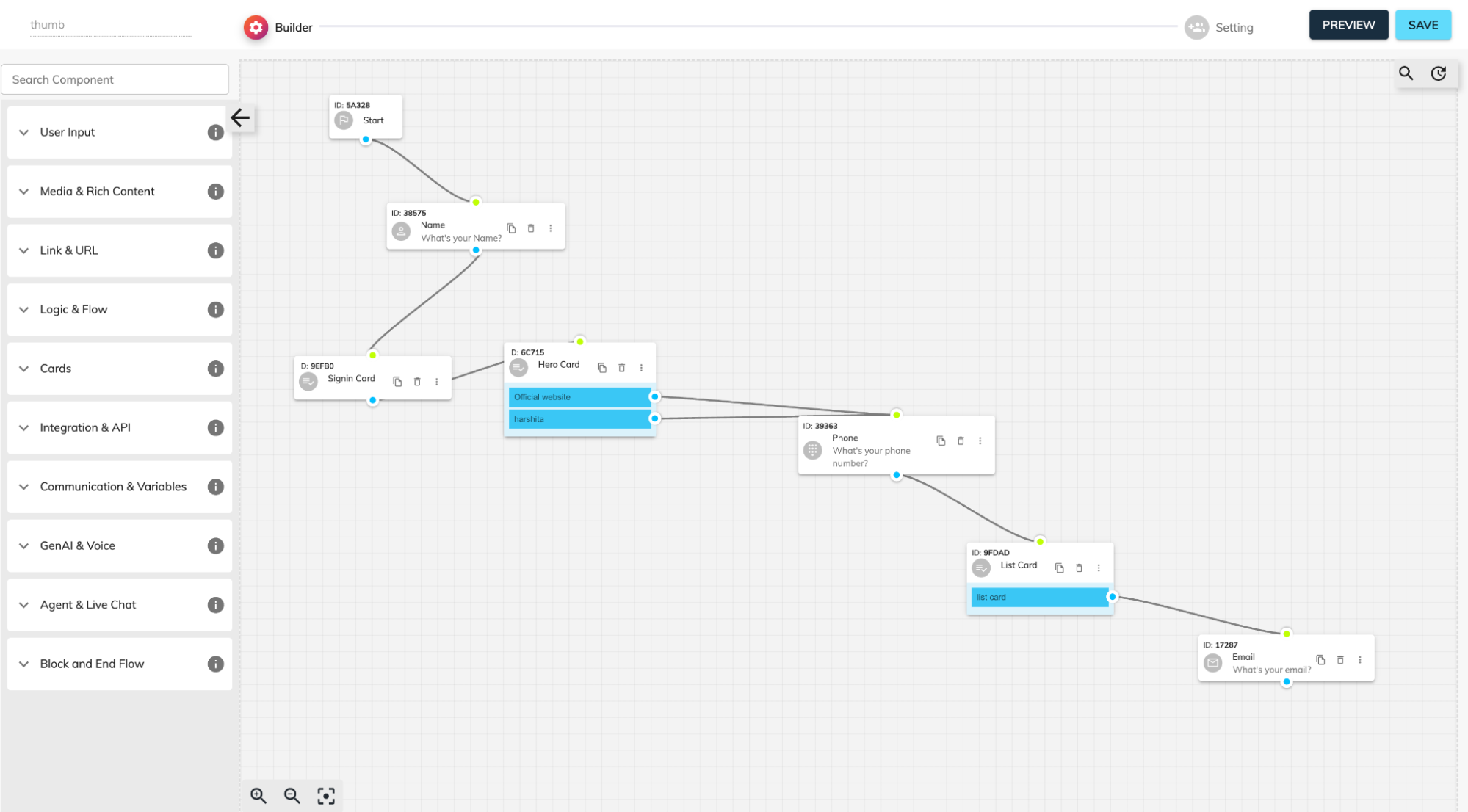
Build Your Bot Flow
Open Bot Builder in Chat360.
Click Create New Bot.
Select Microsoft Teams as the channel.
Add a Start Node.
Drag and add components such as:
Message
Name
Phone
Multiple Choice
Cards
Connect nodes by linking blue output points to green input points to create the conversation flow.
Connecting Microsoft Teams to Chat360
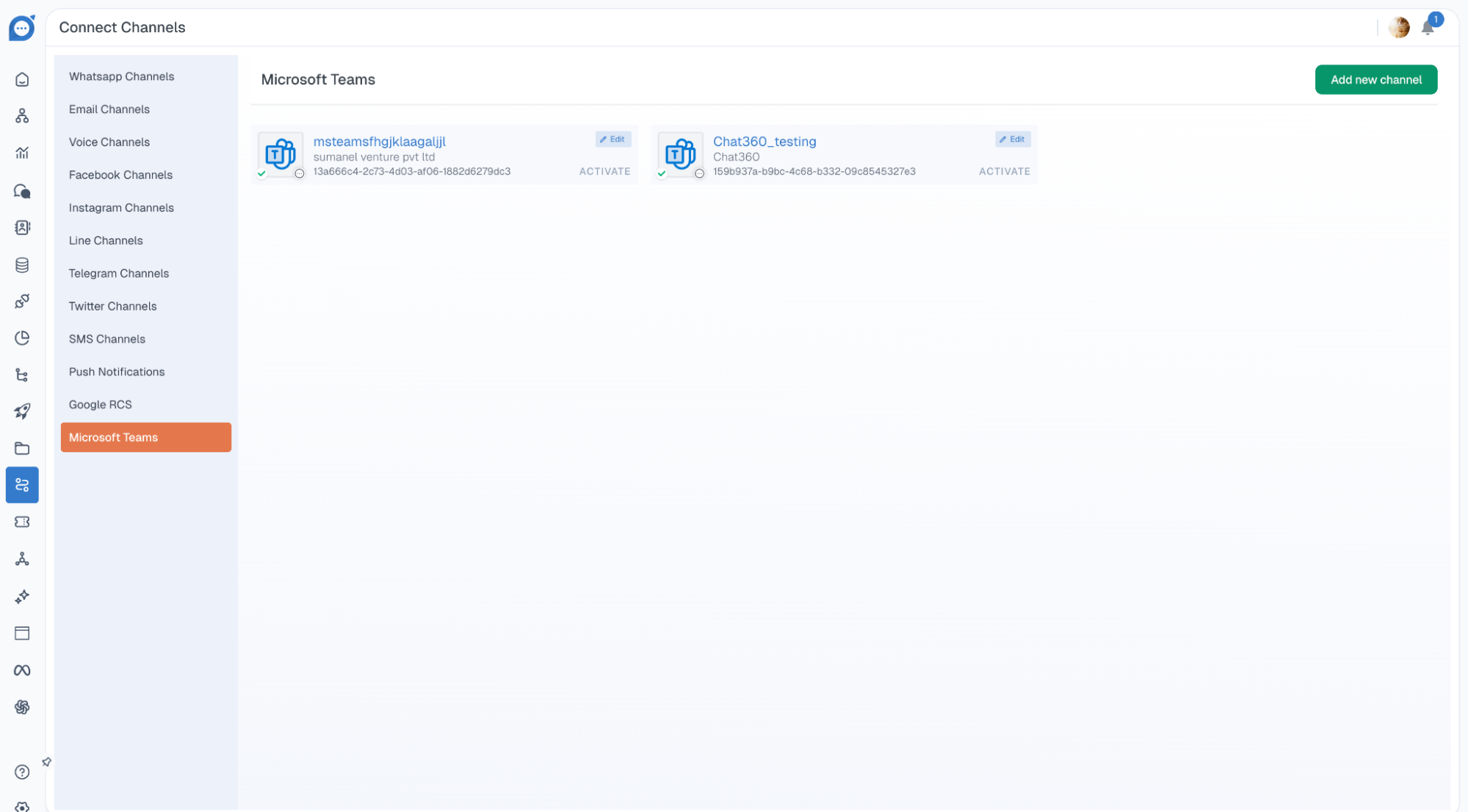
Step 1: Create a Teams Channel
Log in to the Chat360 Dashboard.
Navigate to Channels from the left sidebar.
Select Microsoft Teams.
Click Add New Channel.
Fill in the following details:
Field | Description |
|---|---|
Title | Name of the channel |
App ID | Microsoft Teams App ID |
Client Secret | Secret generated in Azure |
Company Name | Organization name |
Company Email | Official email address |
Company Contact | Contact number |
Company Website | Company website URL |
Click Create Channel to complete the setup.
Step 2: Assign a Bot
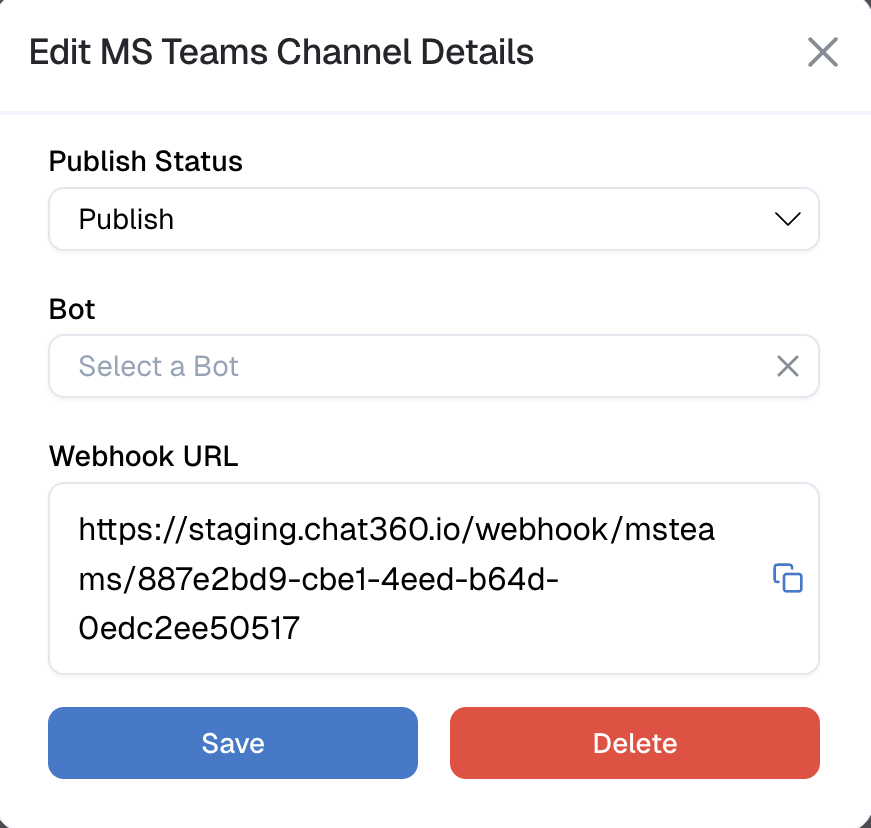
Click Edit on the newly created channel.
Select the bot you want to assign.
Click Save.
After saving, a welcome message from your Microsoft Teams bot will confirm that the connection is successful.
Step 3: Test Your Bot
Open Microsoft Teams (desktop or web).
Search for your bot in the chat list.
Start a conversation by sending a message such as: “Hi” to ****
The bot will respond and begin executing the configured conversation flow.