E-Commerce
Manage e-commerce customer profiles, data and interactions in one place to personalize engagement, track customer activity and drive repeat purchases.
The E-Commerce tab provides a centralized dashboard for managing and monitoring your e-commerce operations. It enables businesses to track orders, manage product catalogs, analyze performance, and integrate with external platforms such as Shopify.
This module helps streamline order management and supports data-driven decision-making through built-in analytics.
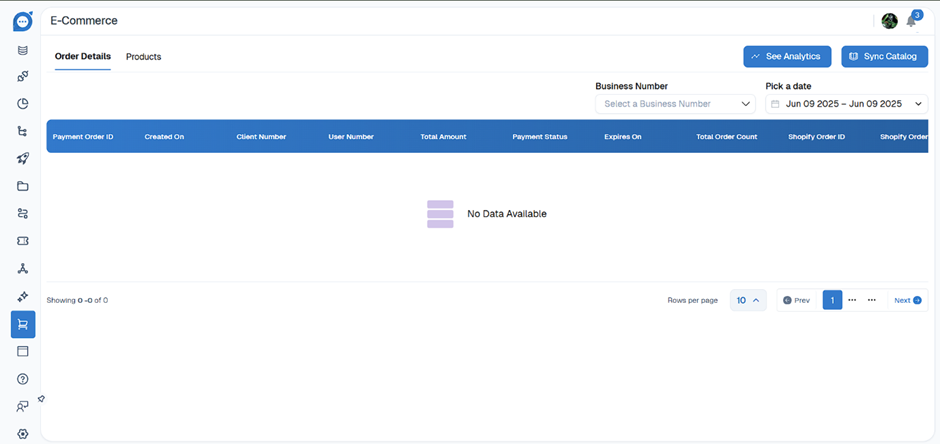
The E-Commerce module consists of the following primary sections:
Order Details: View and manage all order transactions in one place.
Products: Manage and maintain your product catalog.
Fields and Data Columns
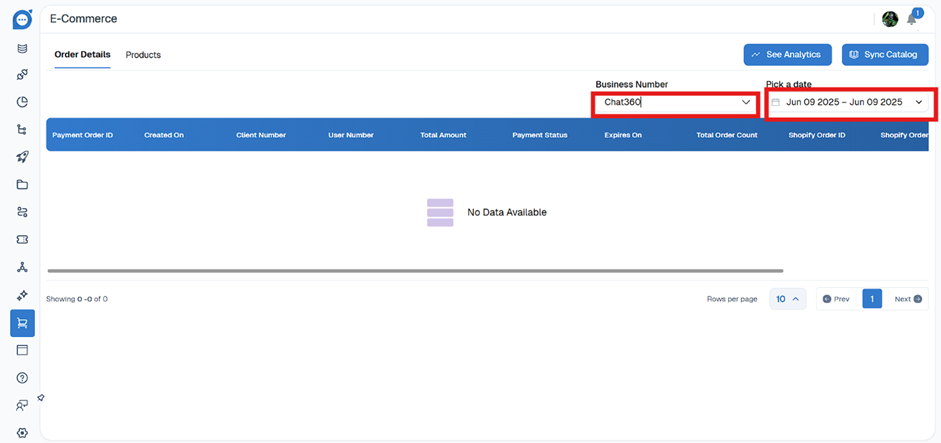
The order table includes the following columns:
Payment Order ID: A unique identifier assigned to each payment or order transaction.
Created On: The date and time when the order was created.
Client Number: A unique identifier associated with the customer or client.
User Number: The identifier of the user who placed the order.
Total Amount: The total value of the order.
Payment Status: The current payment status of the order (for example: Paid, Pending, or Failed).
Expires On: The expiration date and time for the order or payment request.
Total Order Count: The total number of items included in the order transaction.
Shopify Order ID: The reference ID associated with the order if it is synchronized with Shopify.
Shopify Order: Additional Shopify-related information or order status details.
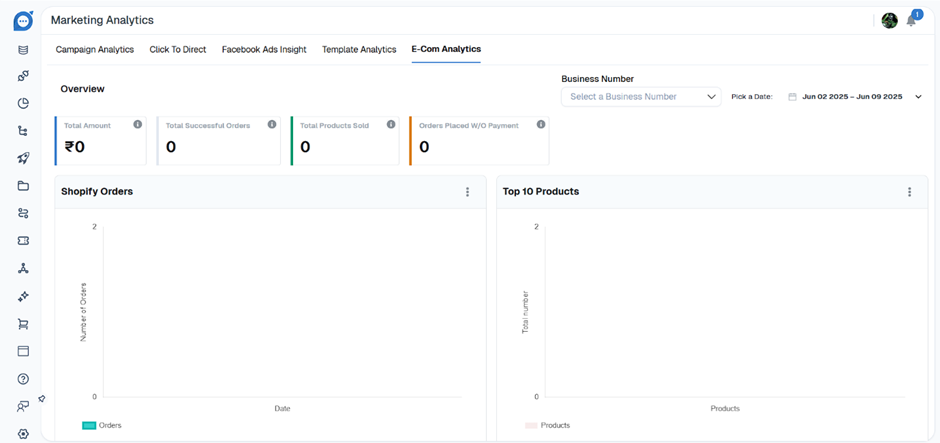
Analytics
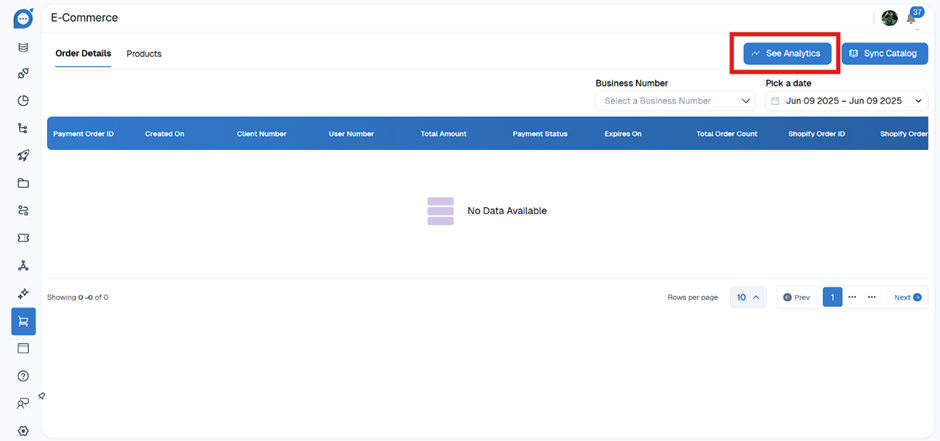
Select See Analytics to access detailed analytics related to the displayed order data.
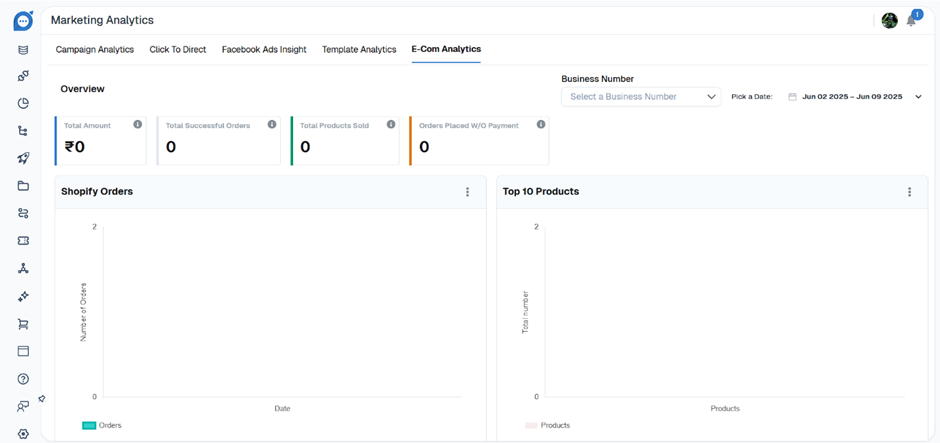
These analytics help you evaluate order performance and gain insights into transaction trends.
Sync Catalog
The Sync Catalog feature allows you to synchronize your product catalog between your e-commerce platform (such as Shopify) and the Chat360 system.This synchronization ensures that product information remains consistent across both platforms.
The following product details are automatically updated during synchronization:
Product names
Pricing
Stock levels
Product images
Product variants
To sync your catalog:
Click Sync Catalog in the E-Commerce dashboard.
Enter the required integration details.
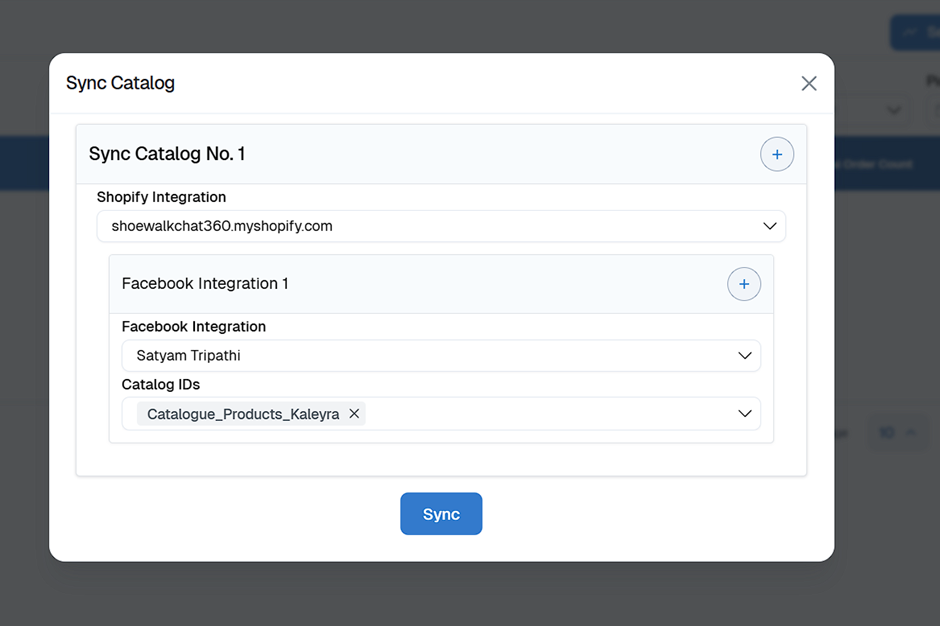
Click Sync to start the synchronization process.
Filters and Controls
The dashboard includes filtering options to help you quickly locate specific order records.
Business Number Dropdown: Filter orders by selecting a specific business number.
Date Picker: Filter orders within a selected date range.
Products
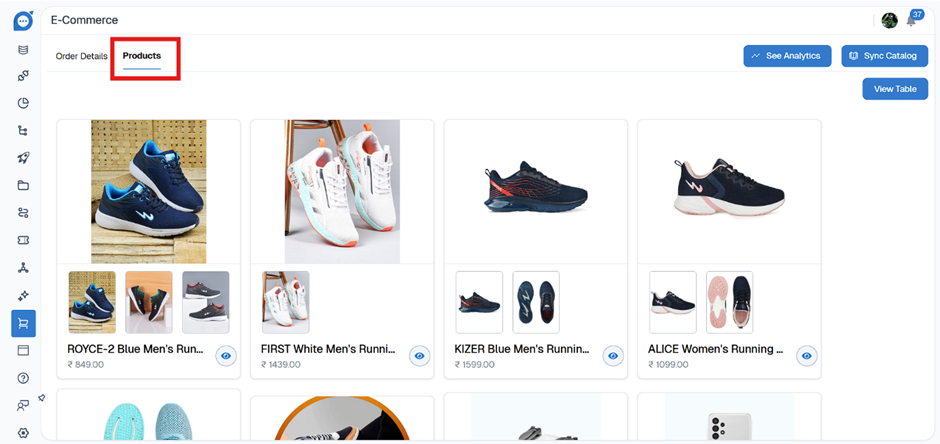
To manage your product catalog, navigate to the Products section.
From here, you can view, update, and maintain product information that is used across your e-commerce workflows.