LINE Messenger
Use Chat360 with LINE Messenger to automate customer interactions, connect live agents, send notifications and measure conversations, sessions and goals.
The LINE Messenger integration allows businesses to connect their Chat360 bots with the LINE messaging platform, enabling automated conversations, customer support, and notifications directly within the LINE app.
Once integrated, users can interact with your bot on LINE, and all conversations will be accessible through Live Chat in Chat360, allowing agents to monitor and respond when needed.
Creating a LINE Bot
Step 1: Navigate to Bots
Log in to the Chat360 Dashboard.
Go to Bots from the main menu.
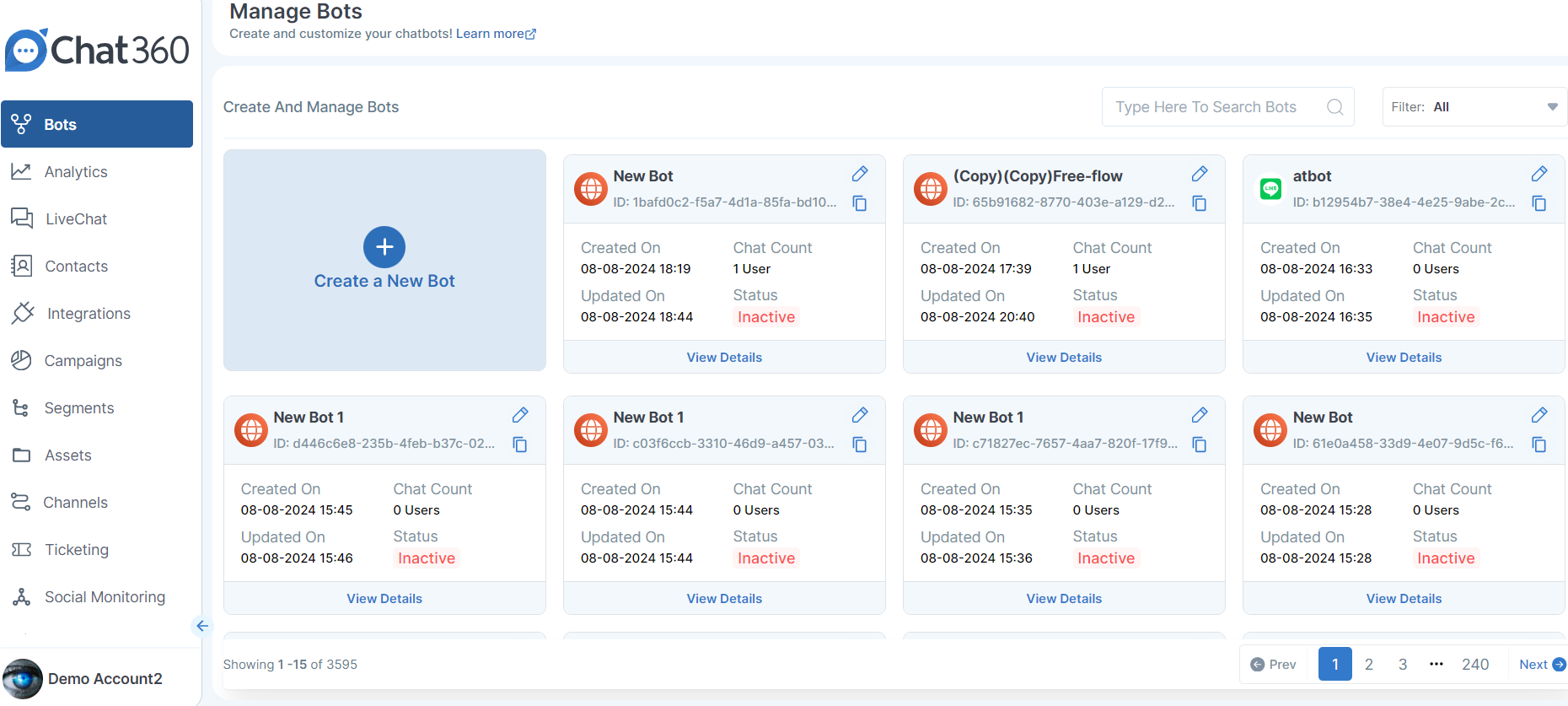
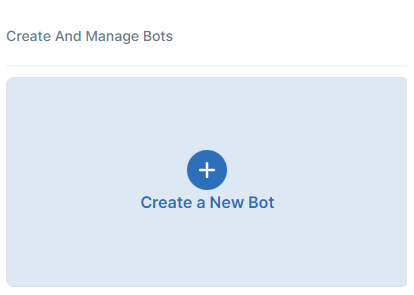
Step 2: Create a New Bot
Click Create New Bot.
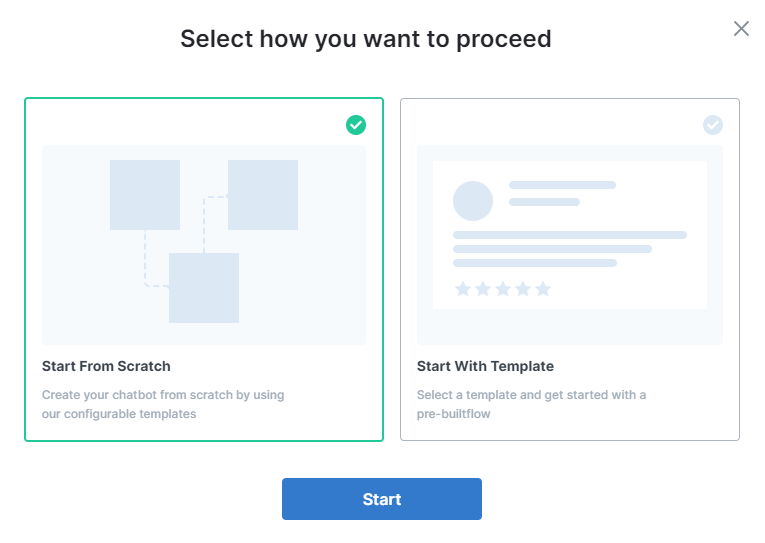
Choose one of the following options:
Start from Scratch
Start with a Template
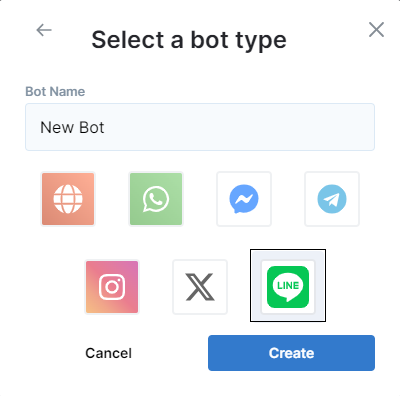
Step 3: Select Channel
In the Channel Selector, choose LINE as the messaging platform.
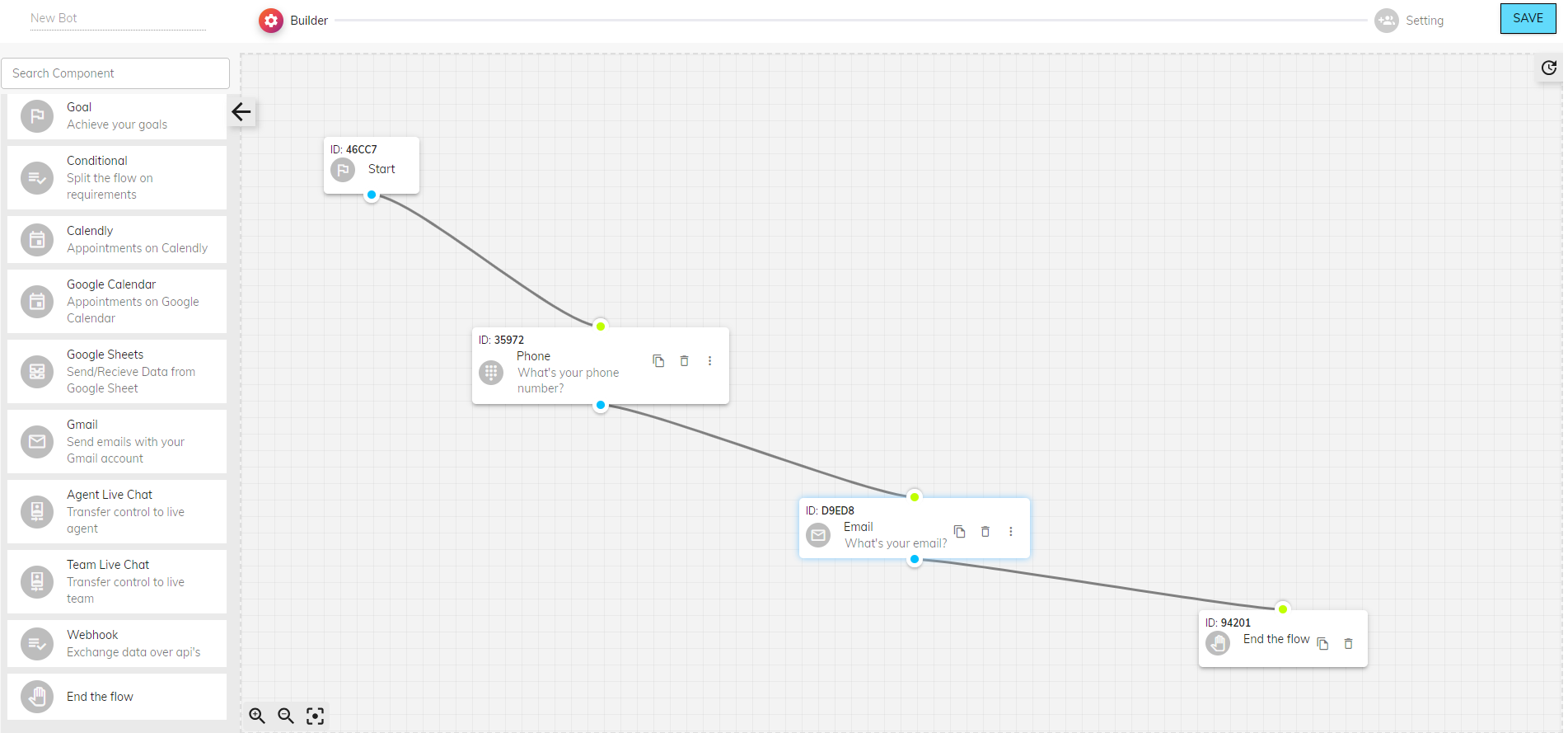
Step 4: Build Your Bot Flow
Use the drag-and-drop Bot Builder to design your conversation flow.
Add components such as:
Messages
User Inputs
Actions
Connect nodes by linking their connection points.
Click Save to store the flow.
Channel Configuration
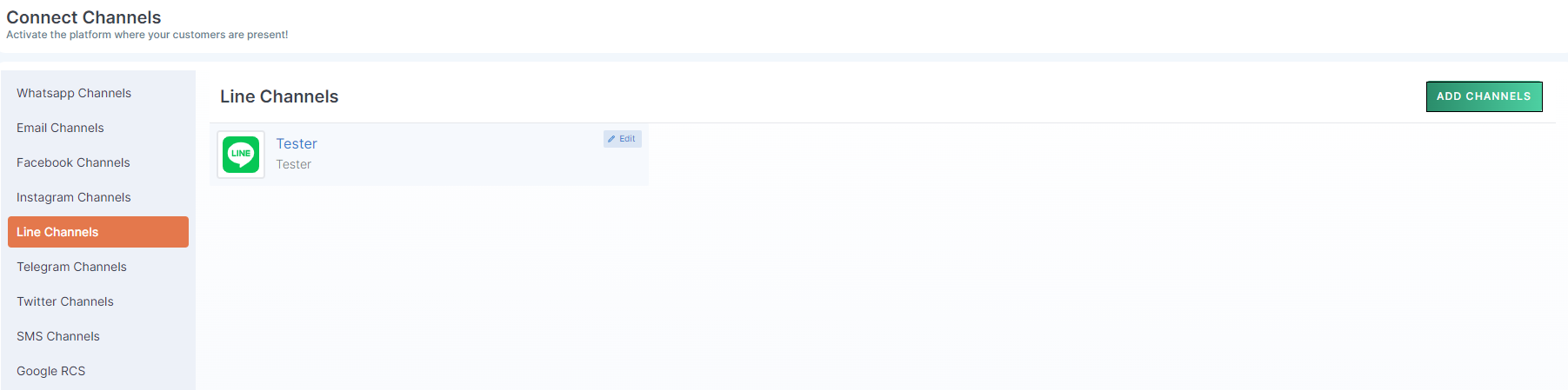
Step 1: Add LINE Channel
Navigate to:
Channels → LINEClick Add New Channel.
Step 2: Obtain Credentials from LINE Developer Console
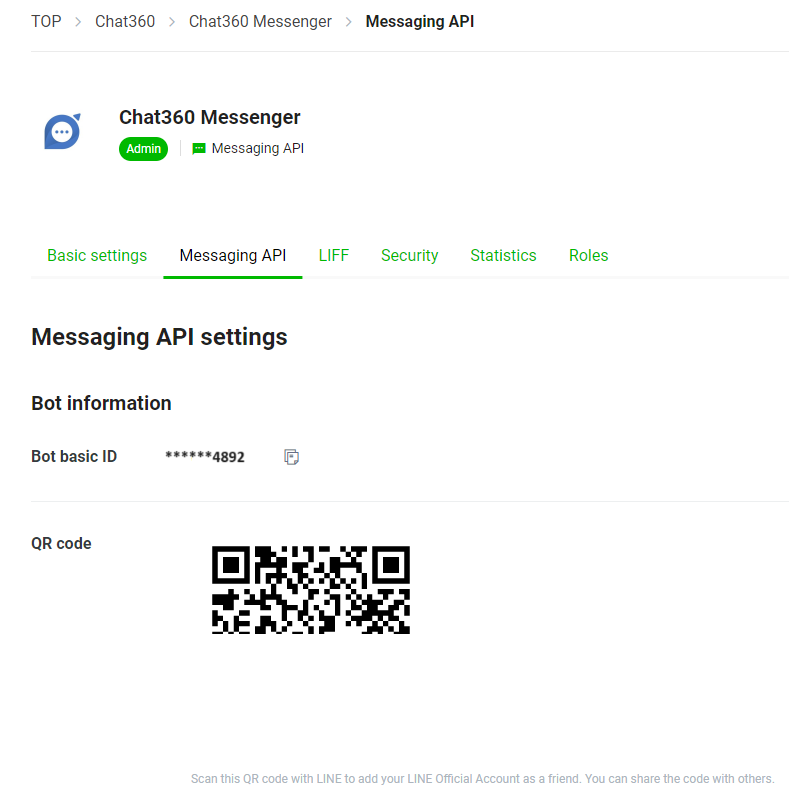
Go to the LINE Developer Console
From the Messaging API settings, retrieve the following credentials:
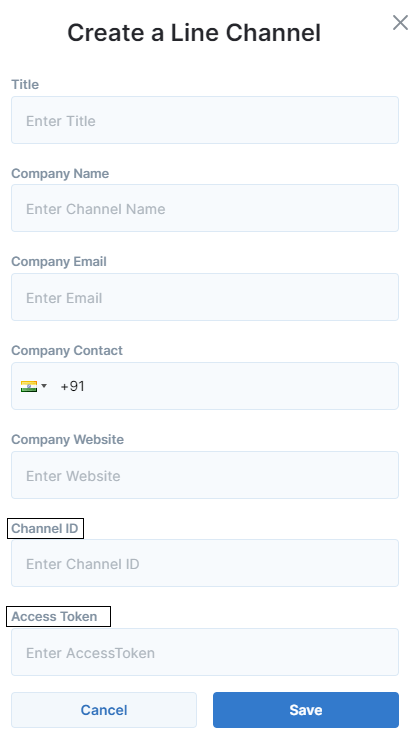
Channel ID
Channel Access Token
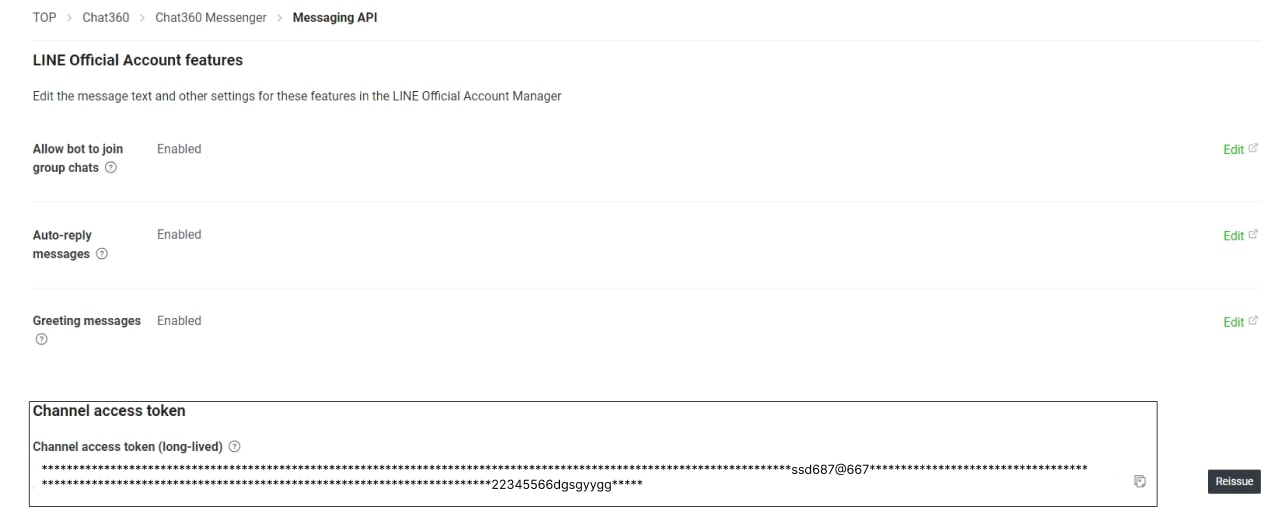
Step 3: Enter Credentials in Chat360
Paste the Channel ID into the corresponding field.
Paste the Channel Access Token.
Click Save to create the channel.
Step 4: Webhook Configuration
To connect LINE with Chat360:
In Chat360, go to the LINE channel list.
Click Edit next to the created channel.

Copy the Webhook URL generated by Chat360.
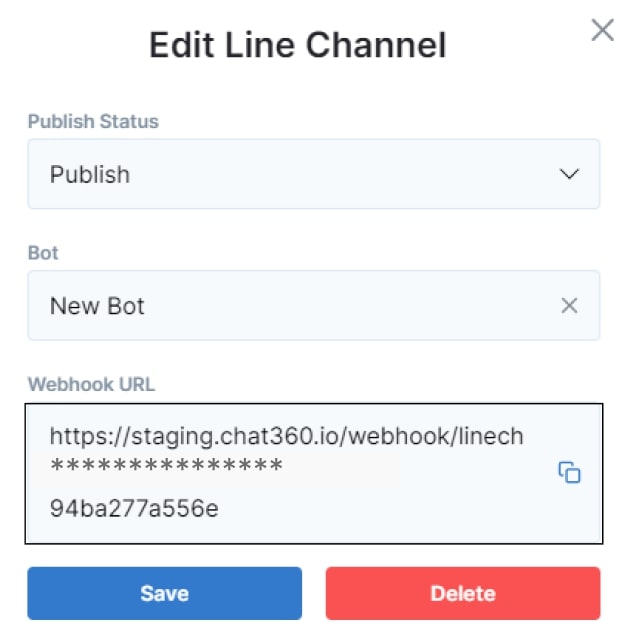
Now configure it in the LINE Developer Console:
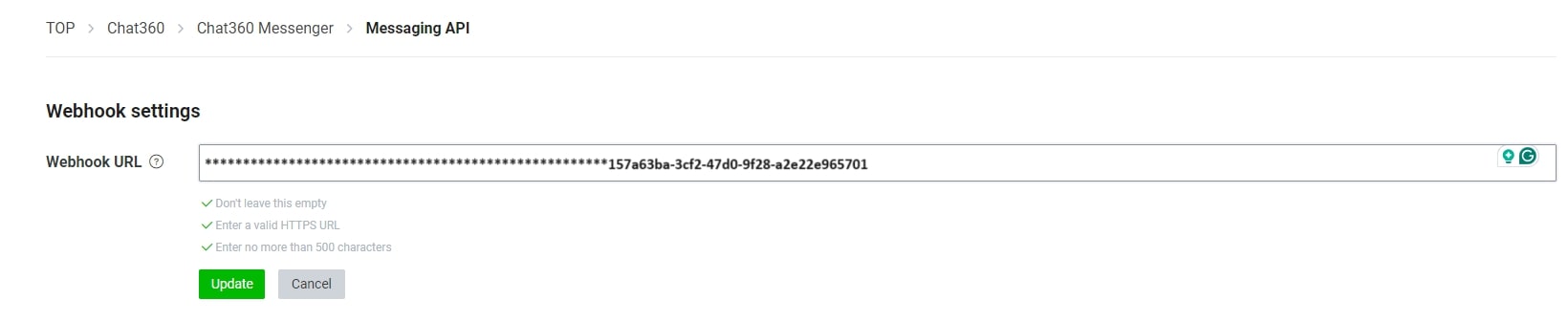
Go to Messaging API → Webhook Settings
Paste the Webhook URL
Click Update
Enable the Webhook toggle
Adding Users to the Bot
For users to interact with the bot, they must first add the bot as a friend.
Steps:
Open the LINE app.
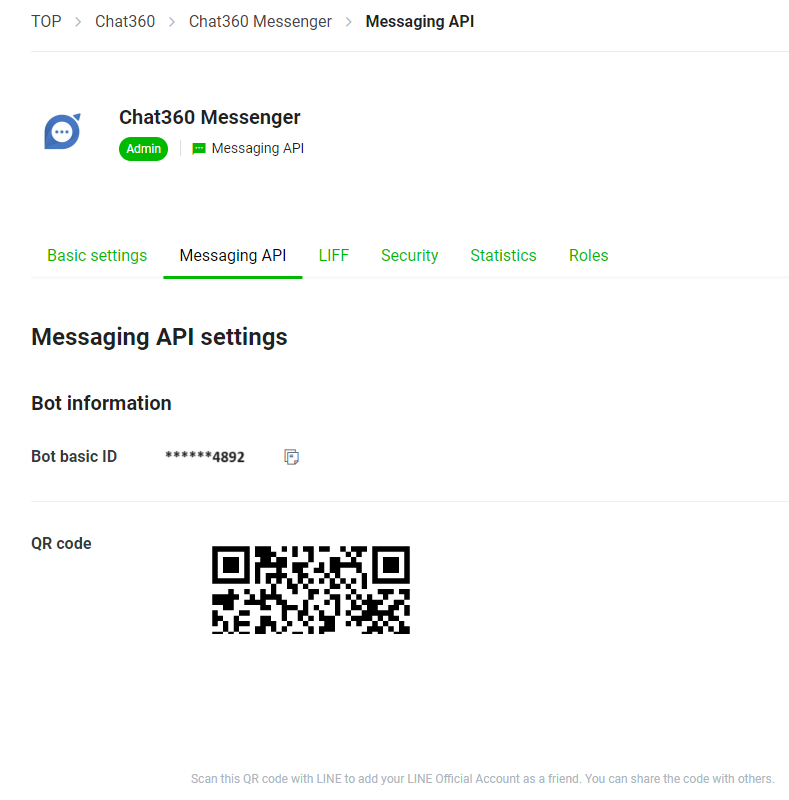
Navigate to Messaging API → QR Code in the LINE Developer Console.
Scan the QR code using the LINE app.
Add the bot as a friend.
Only users who have added the bot can send or receive messages.
Messaging and Live Chat
Once the LINE channel is active:
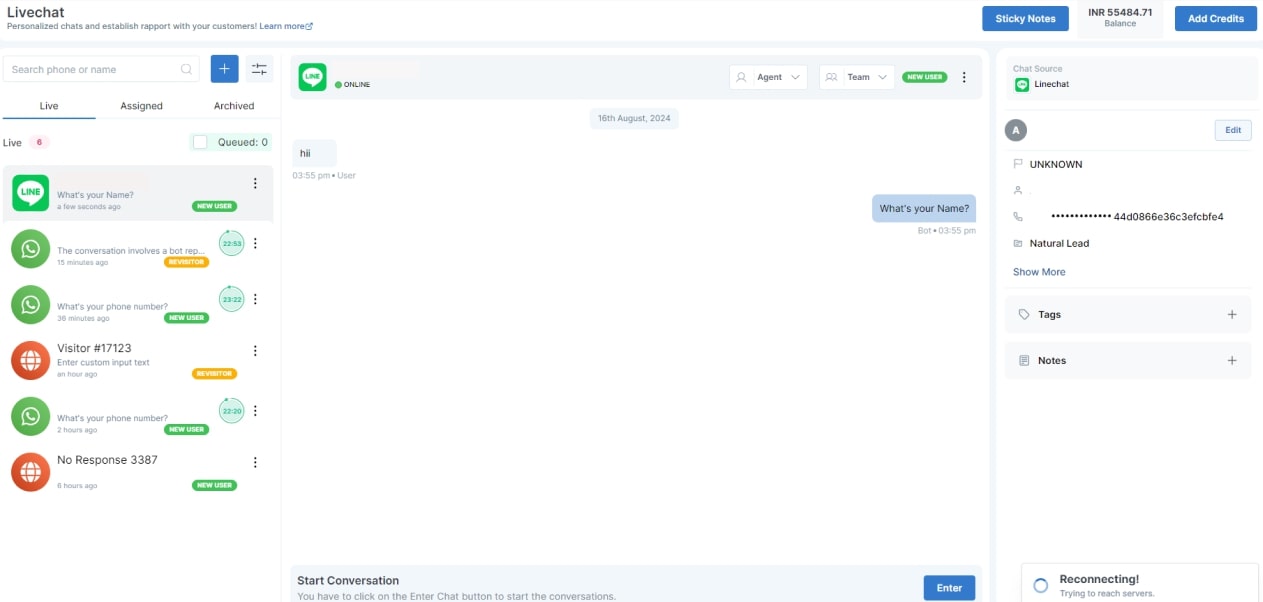
All incoming LINE messages appear under Live Chat in Chat360.
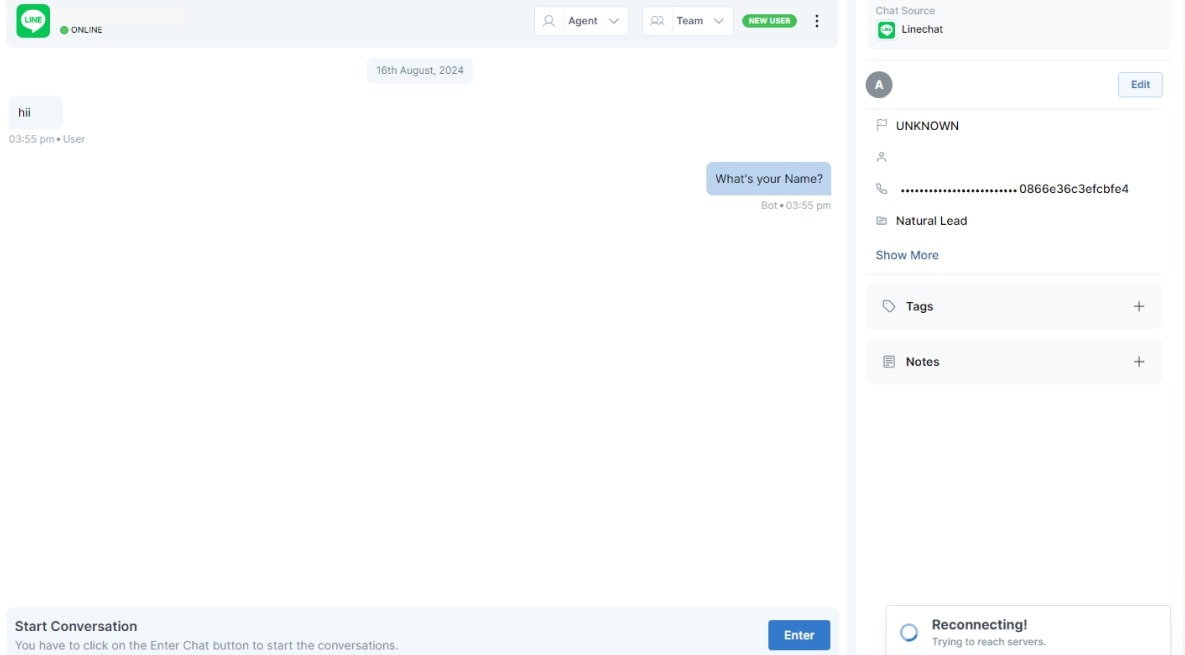
Agents can:
Enter the chat
Respond to users
Send attachments
Escalate conversations to tickets
Agents can also use built-in AI tools such as:
Message rephrasing
Tone adjustment
Translation
The LINE channel's performance can be tracked in Bot Analytics.
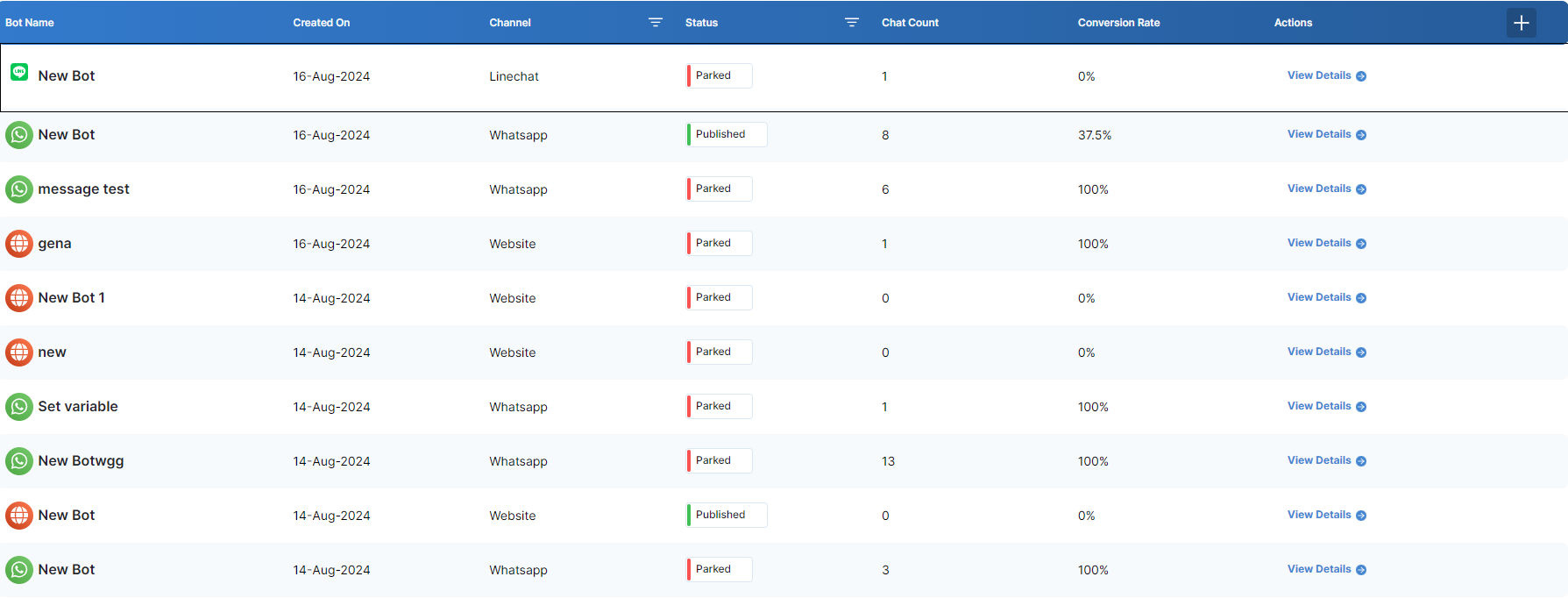

LINE Bot Analytics
You can track performance metrics under:
Analytics → Bot Analytics
Select your LINE bot to view detailed insights.
Key Performance Metrics
KPI | Description |
|---|---|
Total Bot Conversations | Number of unique chat rooms initiated with the bot |
Total Sessions | Total user sessions during the selected time period |
Bot Goal Completion | Percentage of sessions where the defined goal was achieved |
Conversation Dropoff Rate | Percentage of sessions where users left before completing the goal |
Engaged Sessions per User | Average number of sessions per unique user |
Analytics Controls
You can customize analytics using:
Date Picker – Select reporting periods (e.g., Last 7 Days)
Refresh Button – Update metrics instantly
Table Mode / Graph Mode – Switch between data views
Example Use Cases
Customer Support
Route incoming support queries through a LINE bot flow, and transfer complex cases to agents via Live Chat.
Order Status Updates
Automatically send order confirmations and delivery notifications via LINE.
Example goal metric: Order Delivered.
Re-engagement Campaigns
Send broadcast messages to inactive users and track success through Engaged Sessions per User.
Multi-Language Support
Use LINE’s popularity in markets such as Japan to deliver localized customer support and monitor Conversation Dropoff Rate to identify user friction.
By integrating LINE Messenger with Chat360, businesses can unify customer communication, automate interactions, and leverage analytics to continuously improve engagement and support experiences.