Template
Create and manage campaign templates with Marketing, Utility and Authentication categories, rich media, buttons, personalization, previews and approval workflows.
To create and manage the template, navigate to the smart campaign section and click on the template tab. You can find template dashboard where you will find the templates that you have created, their approval status, categories and allows you to create,edit, or delete templates directly from the dashboard. The dashboard also shows the template data such as total approved templates, rejected templates, Pending,Drafted and deleted templates.
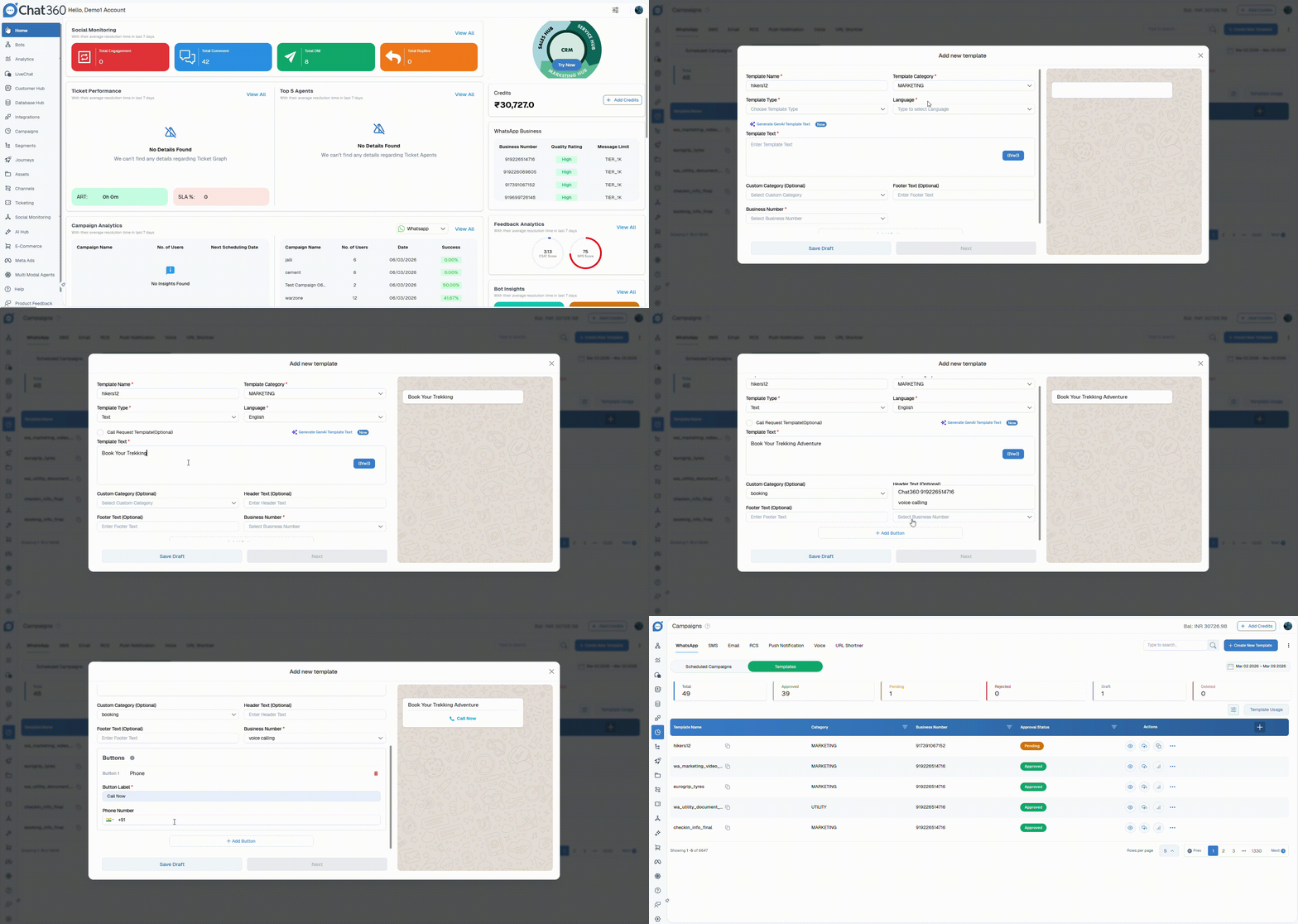
Step-by-Step Procedure to Create a Template:
Follow the steps below to create and submit a template:
Step 1: Open Template Creation
Click on the New Template button.
Step 2: Enter Basic Details
A template creation window will open. Enter the Template Name.
Step 3: Select Campaign Category
Choose one of the following categories:
Marketing
Utility
Authentication
Step 4: Add Template Content
Enter the message content for the template.
Step 5: Attach Media
Enhance the template by adding supported media such as:
Images
Videos
Documents
Locations
Carousels
Step 6: Configure Additional Settings
Select the preferred Language.
Add and configure required Buttons (if applicable).
Step 7: Preview the Template
Review the template to ensure all details are accurate.
Step 8: Submit for Approval
Click Submit for Approval. Once approved, the template will be available for use in campaigns and can be sent to your selected leads.
Template categories
Templates are divided into three categories : Marketing, Utility and Authentication.
Marketing templates - Marketing templates are used to promote your business, products, or services. They are not tied to a specific transaction. You can use marketing templates for Promotions and offers, greeting, festive messages, business updates, event invitations, feedback or response requests, announcements. If a template combines utility and some marketing component it is considered as a marketing template.
Utility Templates - Utility templates specifically designed for the transactional purpose and it serves the purpose of confirming, suspending, or modifying transactions and subscriptions.
Authentication Templates - Authentication templates help businesses to confirm the identity of the users using one time passcodes( typically 4-8 digit codes) at different stages of the login process such as account verifications, Password recovery and security checks. Authentication templates must follow strict requirements:
Use WhatsApp’s predefined authentication template format.
Include a one-time password button (Copy Code or One-Tap).
Do not include URLs, media, or emojis.
Keep all parameters within 15 characters.
Buttons in Template
There are four types of buttons available: Quick reply, URL, Phone , Coupon code.
Quick Reply buttons allow you to add up to ten buttons to your message. When a user clicks a button, a predefined response is automatically sent from the user’s side in the live chat..
A URL Button in a template is a clickable button that redirects users to a specific web link when tapped. You can use static and non-static links to the template.
A Phone Button in a template allows users to directly call a specified phone number by tapping the button. When a user clicks the Phone button, their device automatically opens the dialer with the predefined number filled in. The user can then confirm and place the call.This button is commonly used for Customer support,Sales inquiries,Appointment booking,Urgent assistance. It helps users connect with your business quickly without manually dialing the number.
A Coupon Code Button in a template allows users to quickly copy a promotional or discount code directly from the message.When the user taps the button, the coupon code is automatically copied to their clipboard. They can then paste it while completing a purchase on your website or app.