Nudge Engine
Automate timely follow-ups with Chat360 Nudge Engine. Schedule personalized WhatsApp, SMS and Email nudges using delays, webhooks, timing rules and analytics.
The Nudge Engine helps you automatically send follow-up messages to users after a defined delay. It works across channels like WhatsApp, SMS, Email, etc., and allows you to control when and how messages are triggered.
This feature is useful for:
Payment reminders
Lead follow-ups
Cart abandonment nudges
Re-engagement campaigns
Navigate to: Campaigns → Nudge Engine
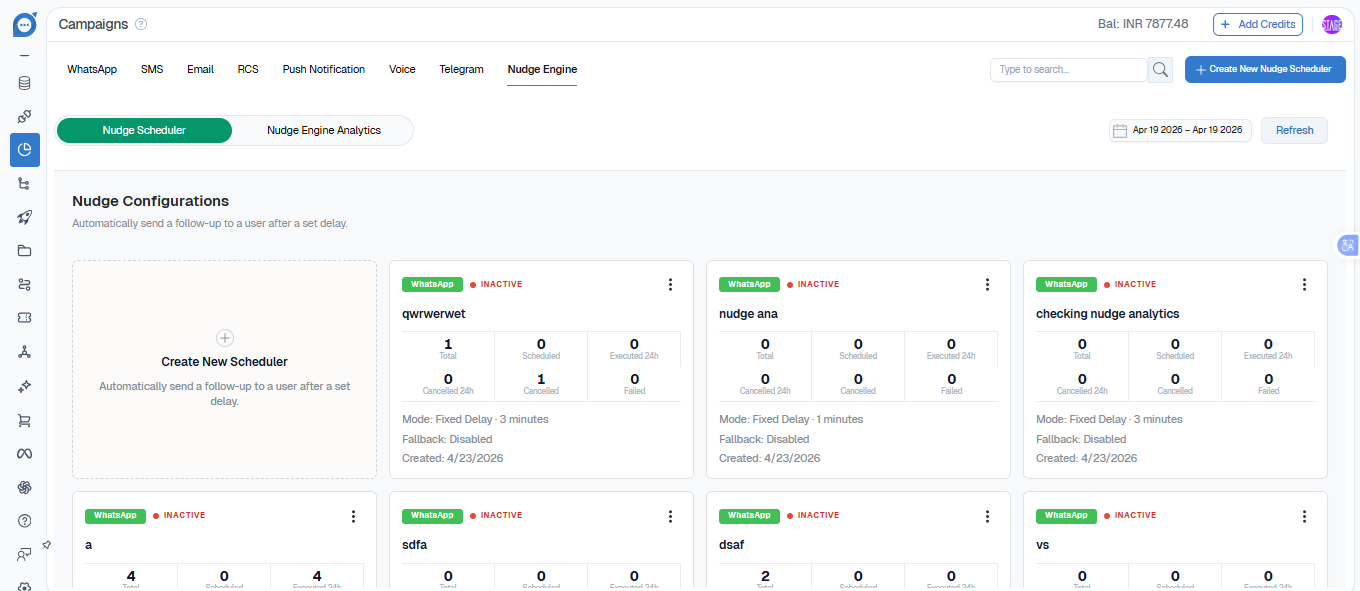
Nudge Scheduler Dashboard
This is the main screen where all your schedulers are listed.
What You See:
Scheduler cards (each configuration)
Status: Active / Inactive
Metrics per scheduler:
Total
Scheduled
Executed (24h)
Failed / Cancelled
Actions Available:
Create new scheduler
View scheduler details
Enable / Disable scheduler
Create a Nudge Scheduler
Click Create New Nudge Scheduler to begin.
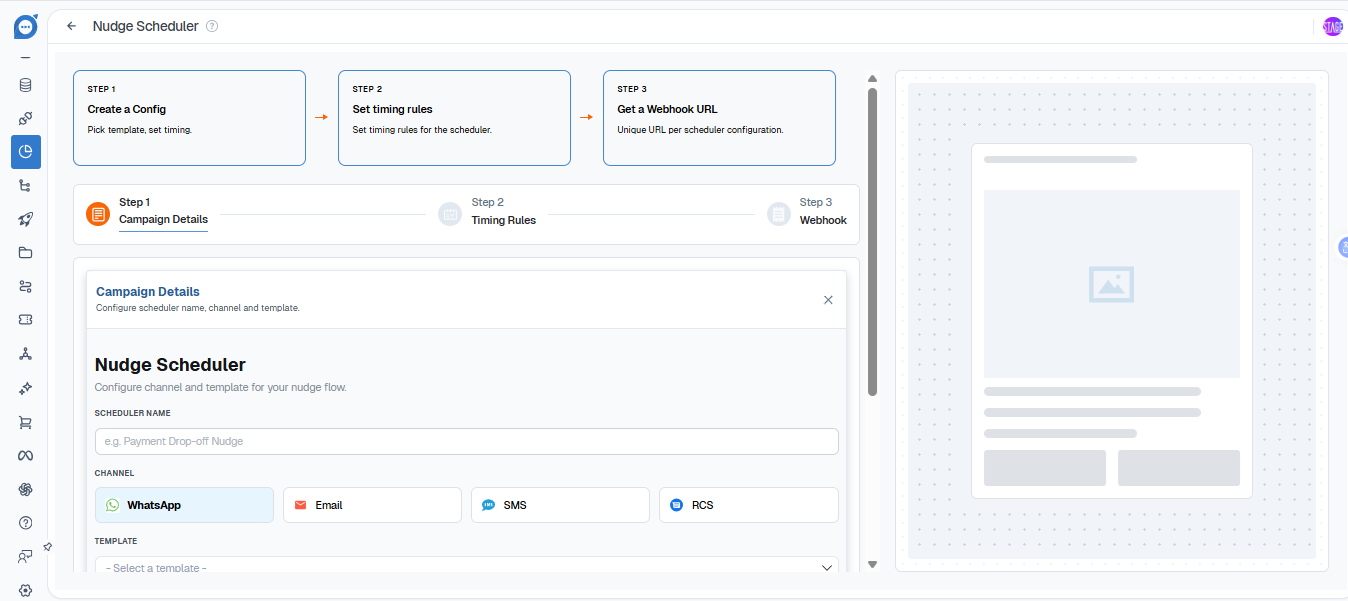
Step 1 — Campaign Details
Define what message will be sent.
Scheduler Name – Internal name for identification
Channel – WhatsApp / SMS / Email / etc.
Template – Message template to send
Step 2 — Timing Rules
Define when the message should be sent.
Fixed delay (e.g., 2 minutes, 1 hour)
Custom timing rules
Timezone Handling
System automatically manages timezone
Execution is aligned to user/system timezone
Ensures correct delivery timing across regions
Business Hour Handling
Messages are sent only within the allowed time window
If outside window → automatically delayed to next window
Step 3 — Webhook Setup
Each scheduler generates a unique webhook URL. This webhook is used to trigger the nudge.
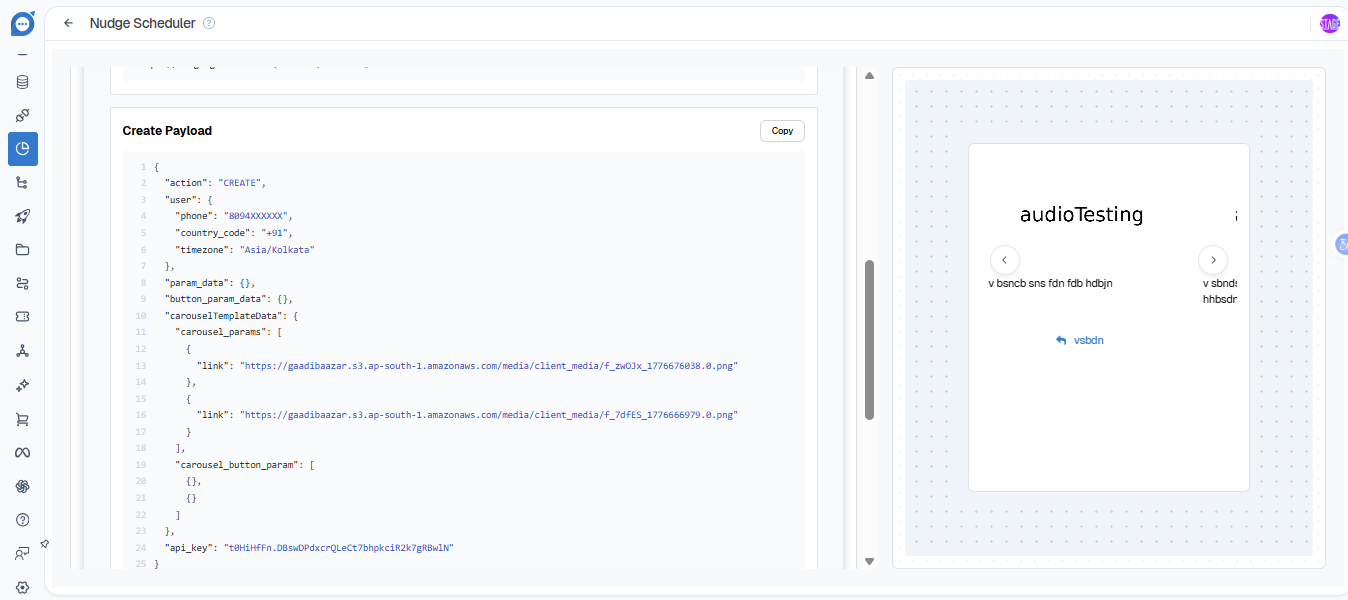
Webhook Usage
Create Schedule (Trigger Nudge)
Call the webhook with:
{
  "to": "9180XXXXXXX",
  "params": {},
  "api_key": "your_api_key"
}
to → User phone number
params → Template variables
api_key → Authentication key
Cancel Scheduled Nudge
{
  "action": "CANCEL",
  "event_id": "<event_id>",
  "api_key": "your_api_key"
}
action → CANCEL
event_id → Unique schedule ID
api_key → Authentication key
How It Works
Create a scheduler
Get webhook URL
Trigger webhook via API / system
Nudge gets scheduled
After delay → message is sent
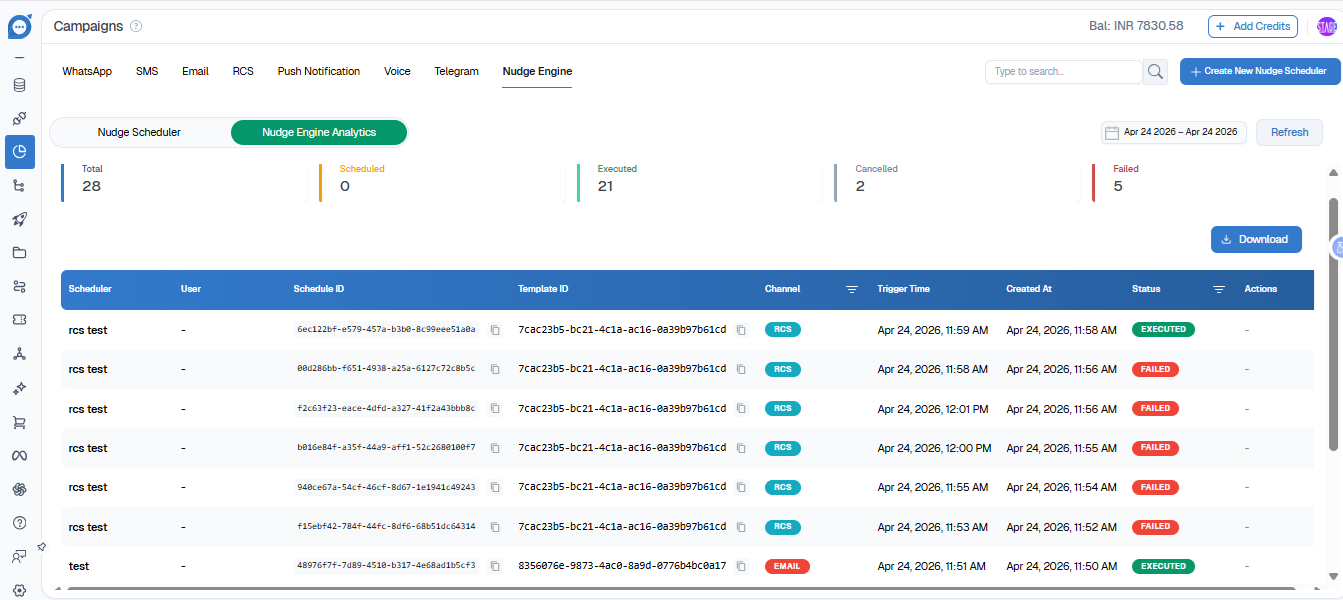
Nudge Engine Analytics
Switch to the Nudge Engine Analytics tab.
Metrics Overview:
Total → Total nudges created
Scheduled → Pending nudges
Executed → Successfully sent
Cancelled → Stopped manually / by system
Failed → Delivery failed
Analytics Table shows:
Scheduler Name
User
Schedule ID
Template ID
Channel
Trigger Time
Created Time
Scheduler Details View
Click any scheduler to view detailed information.
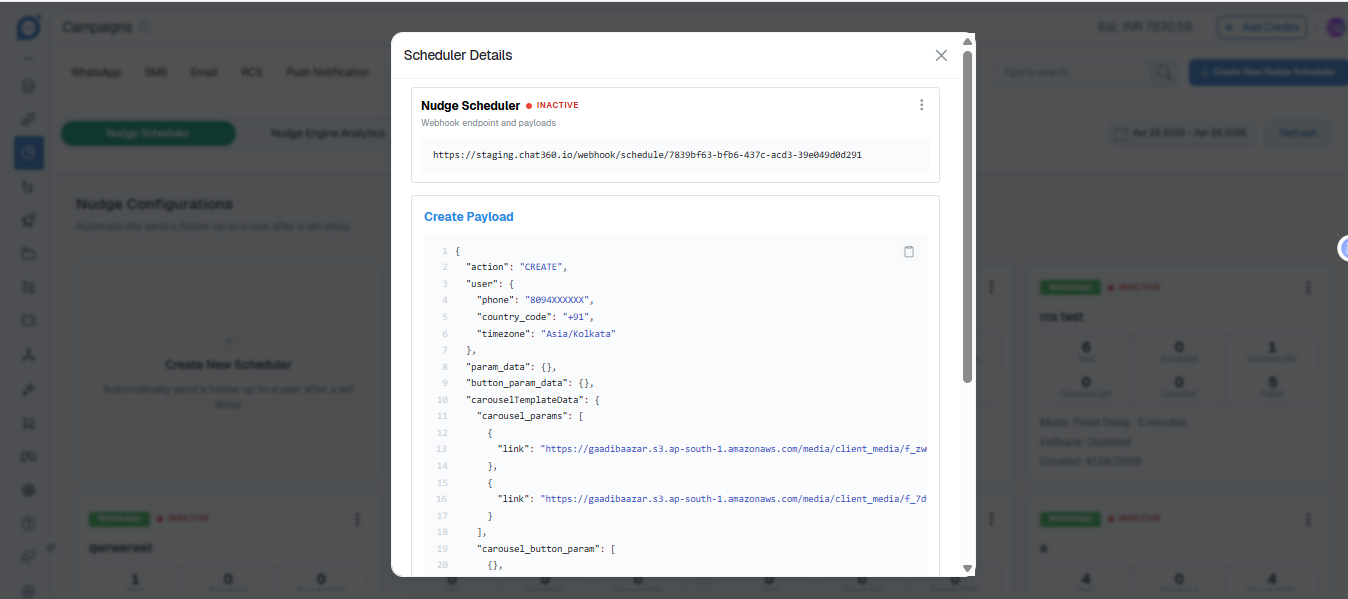
Includes:
Webhook URL
Create payload
Cancel payload
Execution logs
Status